 Lens
Lens
Free Reverse Image Search with AI
Upload any image to find visually similar pictures, source pages, higher resolutions, and related products. Search from the web, or download the app for iPhone and Android. Download the app below for better results.
Drop an image here or tap to upload
JPG, PNG, WebP, HEIC • Max 50MB

Analyzing with AI…
Matching visual features and similar results


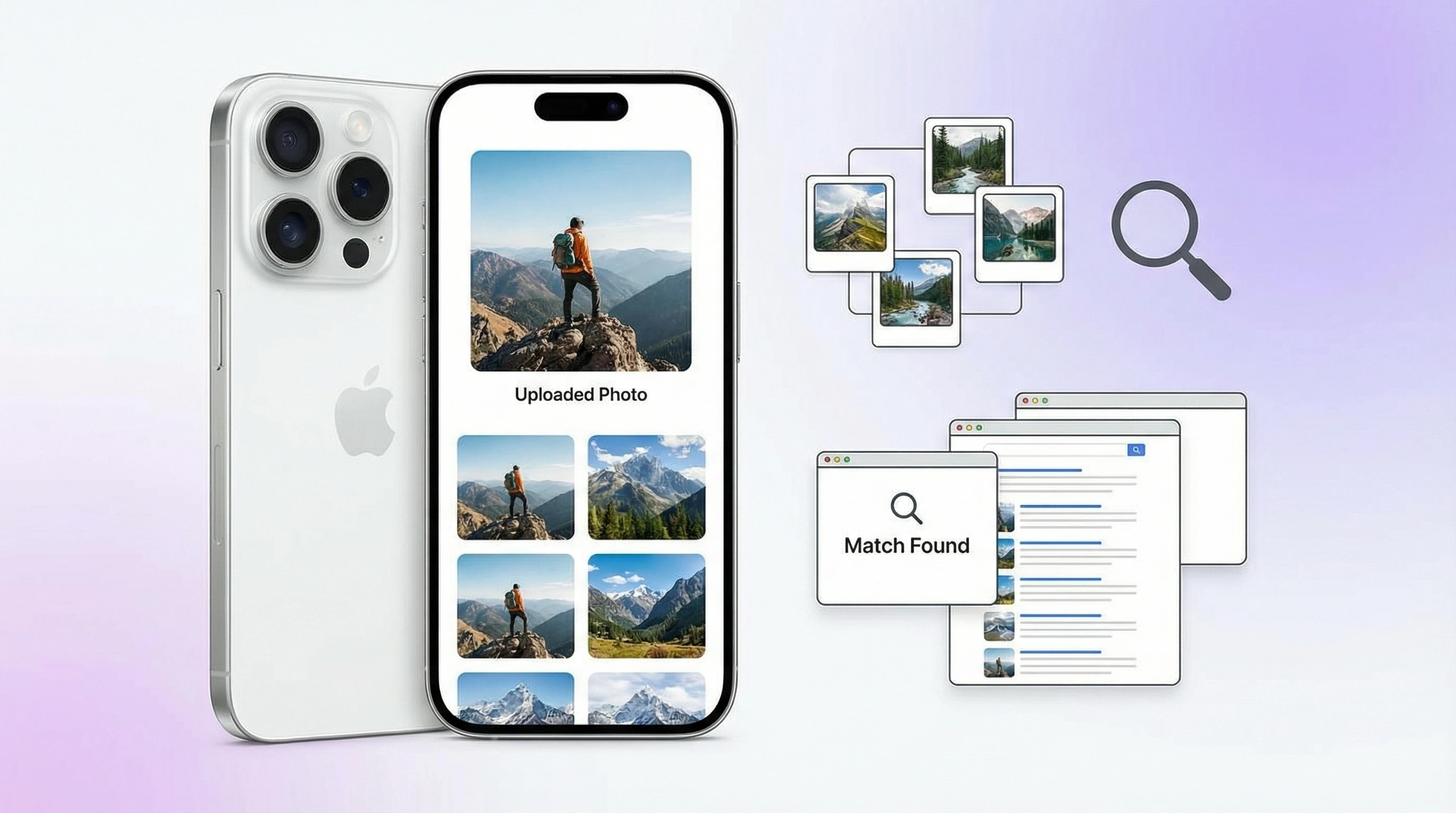
What is reverse image search?
Reverse image search uses a picture as the query to find where that image appears online and which pages look similar. It helps track sources, find higher-resolution copies, and research unknown subjects. Lens App combines reverse image search with an AI explanation layer free on mobile.
Related tools: identify any object from a photo, blurry photo tips, old photo identification, and what brand is this
A reverse image search free tool lets you use a photo as the query instead of typing keywords. It can find similar images, possible source pages, higher-resolution copies, and visually related products. This is useful when you have an image but do not know the right words to describe it.
What Is Reverse Image Search Free?
Reverse image search free means you can upload a photo and search by image across the web without paying before the search runs. Instead of entering text, the image becomes the query, and results may include matching pages, duplicate images, resized copies, and related products. It works as a visual search tool and an image finder in one step.
A free reverse image search uses a photo, not keywords, to find visually similar images, possible source pages, higher-resolution copies, and related products. It works by comparing visual features such as shapes, colors, textures, and objects rather than matching text alone. Lens App applies this photo-first workflow on iOS and Android with AI identification included.
Reverse image search is ideal when you can see an object, place, product, plant, or animal in a picture but are not sure what to call it. The method relies on computer vision, a field that helps software interpret objects, patterns, colors, and shapes in images. Lens App fits this workflow because it combines AI reverse image search, product search, and AI identification in one free mobile tool. Uploaded images are removed once the AI finishes processing them.
How Reverse Image Search Free Works
Reverse image search starts by converting your uploaded photo into machine-readable visual features. The system examines edges, colors, textures, shapes, objects, and spatial relationships, then represents those signals as a compact embedding or vector.
That vector is compared with indexed images from the web or partner databases. Close matches are ranked by visual similarity, not by keyword overlap. This is why an image lookup can still work when a photo has been cropped, resized, filtered, or reposted on another site. It is not only looking for identical pixels. It is looking for images that share the same visual content.
How to Search by Image for Free
Upload a photo
Choose an image from your gallery, drag in a file, or take a new picture. Clear JPG, PNG, WebP, and HEIC images usually produce stronger matches.
Crop to the subject
Remove extra background when the object, face, product, artwork, or screenshot is small. A focused crop gives the visual search engine cleaner signals.
Run the image lookup
Start the scan and let the AI compare the photo against visually similar images. Results usually appear in seconds.
Review source pages
Open the most relevant matches and compare dates, domains, image sizes, and surrounding page context. The earliest result is not always the original source.
Save or refine results
If matches are weak, try a sharper version, a different crop, or another frame from the same image. Starting with the image itself can surface better matches than trying to guess the right keywords.
When to Use Free Visual Search (and When Not To)
Use it when
- Use it when you have a photo, screenshot, meme, product image, artwork, or profile image but do not know the right search terms.
- Use it to find higher-resolution copies of a small or compressed image.
- Use it to locate possible source pages, reposts, and visually similar versions across the web.
- Use it when shopping from a picture, especially for furniture, clothing, accessories, gadgets, and home decor. For fashion-specific matches, identify clothes from photo first, then compare listings.
- Use it as a first-pass verification tool for viral images, reused news photos, and suspicious social posts.
Skip it when
- Do not treat results as legal proof of copyright ownership without manual verification.
- Do not expect private, newly uploaded, or unindexed images to appear in results.
- Do not rely on it alone for medical, safety, or legal decisions.
- Do not assume the top result is the original source; it may simply be the best-indexed copy.
- Do not use it as a replacement for expert identification when the subject could be dangerous, such as mushrooms or hazardous materials.
Free Reverse Image Search vs Google Lens and TinEye
| Feature | Lens App | Google Lens | TinEye |
|---|---|---|---|
| Best for | General image lookup, product discovery, object identification, and mobile scanning | Broad visual search, shopping, landmarks, text recognition, and Google ecosystem results | Finding exact or modified copies of images across the web |
| Input types | Camera capture, gallery upload, and web upload | Camera capture, gallery upload, screenshots, and images in Google apps | File upload, image URL, and browser extension workflows |
| Match style | Visually similar images, related sources, products, and AI identification | Visual matches, shopping results, entities, text, places, and web context | Exact matches, resized versions, cropped copies, and modified-image matches |
| Mobile experience | Standalone iOS and Android app with a simple scan flow | Built into Google app, Chrome, Photos, and many Android devices | Works well in browser, with less emphasis on camera-first mobile scanning |
| Free access | Free searches available, with optional upgrades for heavier use | Free to use with Google services | Free for basic searches, with paid plans for high-volume or professional use |
Google Lens is strong for everyday visual discovery, while TinEye is especially useful for exact-copy tracking. Choose the scanner that fits the job: broad discovery, source investigation, product lookup, or duplicate detection. Explore what Apple Visual Intelligence can identify, then compare its results with Google Lens and Lens App for common visual search tasks.
Visual Search vs Reverse Image Search
Visual search and reverse image search are closely related but not identical. Visual search is the broader concept: using an image as a query to find information, products, or related content. Reverse image search is a specific type of visual search focused on finding where an image appears online, who posted it first, and whether copies exist elsewhere.
In practice, most modern image finder tools combine both. Lens App uses visual search for product discovery and object identification, and reverse image search for source tracking and duplicate detection. If you want to find visually similar images or trace a photo back to its origin, both features work together in one scan.
When the subject is a person rather than an object, a standard image lookup is often not enough. A dedicated face search matches the same face across different photos, and a deep search extends that into public profile and people lookup. Use those modes when you are checking a profile photo, a dating match, or a suspicious account.
AI Reverse Image Search vs Standard Picture Search
An AI reverse image search goes one step further than a standard picture search. A classic image search online matches pixels and patterns to find copies of the same file. An AI-based search also understands what is in the photo, so it can return the object's name, similar products, related pages, and context even when no exact copy of your image exists anywhere online.
That difference matters for one common frustration: uploading a photo and getting zero results. Exact-match engines like TinEye only succeed when the image has been indexed before. An AI image search still tells you what the photo shows, which is usually the answer people actually wanted. Lens App runs both layers in one scan, on the web and in the iOS and Android app.
Image search and photo search from a picture
Image search and photo search from a picture mean uploading or scanning a photo so the tool can find similar images, name what is in the shot, or surface related pages. Lens App supports free image search and photo search on the web and in the iOS and Android app — useful when you have a picture but not the right keywords.
Image Lookup Use Cases
- Find the source of an image: Upload the picture and compare matching pages for publication dates, domains, captions, and image dimensions. This helps photographers, journalists, researchers, and creators trace reposts or locate a likely original.
- Find similar images and higher-resolution versions: A small thumbnail, compressed screenshot, or low-quality repost may have a larger version online. Reverse search can surface visually similar images with better resolution or less compression.
- Shop from a photo: A common approach to product discovery is scanning a photo with an AI shopping finder. It can help identify similar clothing, furniture, accessories, electronics, and home items when no brand name is visible.
- Check suspicious or viral images: Upload a viral post image to see whether it appeared earlier in another context. This can reveal recycled disaster photos, old protest images, reused profile pictures, or misleading screenshots.
- Identify art, objects, and collectibles: Photo-based search can help connect an artwork, antique, coin, poster, or collectible with visually similar listings and reference pages. It is a useful starting point before expert appraisal.
- Investigate memes and screenshots: Memes often spread without credit or context. An image lookup can reveal older versions, template origins, repost chains, and pages where the image has been reused.
What Free Reverse Image Search May Miss
Reverse image search can find visually similar images and possible source pages, but results depend on image quality and what has been indexed online.
- Newly posted images, private photos, paywalled pages, and content behind logins usually will not appear unless they are publicly indexed.
- Cropped, mirrored, filtered, watermarked, heavily edited, rare, or one-of-a-kind images may return visually similar results instead of the original source or highest-resolution copy.
- Copyright or ownership checks still require manual review because results can include reposts, thumbnails, syndicated copies, or pages that are not the original rights holder.
Related Articles
Pokemon Card Identifier for Unknown Cards
How to Do a Reverse Image Search
Reverse Image Search on iPhone: Complete Guide
Google Lens vs Lens App
Best Reverse Image Search Tools (2026)
What Is AI Image Recognition and How It Works
What Is Visual Search and How to Use It
Image Search vs Text Search: When to Use Which
Lens App vs PimEyes: Reverse Image Search Compared
Lens App vs TinEye: Which Reverse Search Tool Wins?
Google Lens Alternatives
Reverse Image Search App for iPhone
How Accurate Is AI Image Recognition in 2026?
Logo Identifier
Free AI Image Recognition - Identify Any Photo
AI Image Search - Visual Search Engine
Search with Camera - Point and Identify Anything
Google Lens Online Alternative - Free AI Lens Tool
Best fit for photo-first lookup
For free reverse image searches on a phone, Lens App is a practical choice because it combines visual matching, product lookup, and AI identification in one iOS and Android app. It has an aggregate store rating of 4.7 from about 11,000 ratings across countries.
Use results as leads rather than proof of origin: cropped images, edited photos, private databases, and recent uploads may be missed. For copyright, identity, medical, or legal questions, verify findings with the original source or a qualified expert.
Reverse image search examples
The best reverse image searches start with a specific question, not just a random upload.
| Question | Short answer |
|---|---|
| Where did this meme come from? | Search the cleanest version you have, then compare matching pages by date, caption, and context; the oldest visible result is not always the original. |
| Can I find a product from an old Pinterest screenshot? | Crop to the item, remove borders or text if possible, and look for visually similar listings, brand pages, or reseller photos. |
| Can I reverse search a dating profile photo? | Yes, but treat matches as a verification clue, not proof. Stolen, reused, or AI-edited images need more context before you draw conclusions. |
What image search will not uncover
Can reverse image search see private Instagram photos?
No. It cannot search private posts, restricted accounts, or content the search system cannot access publicly.
Can it find images behind logins or paywalls?
Usually not. If a photo is only visible after signing in, reverse image tools generally cannot index or match it.
Will it find a brand-new upload immediately?
Not always. New images may take time to appear in searchable indexes, and some may never be indexed at all.
You can use this feature inside Lens AI on the web, iPhone, or Android.
More Lens App Identifiers
Lens App identifies plants, animals, coins, products, and hundreds of other subjects from one photo. Explore other free AI identifiers:
Identify flowers, trees, houseplants and weeds from a photo.
Identify garden and wild flowers from bloom and leaf photos.
Identify trees from leaves, bark, fruit and canopy photos.
Identify plants and trees from a clear leaf photo.
Identify insects, spiders and common household bugs from a photo.
Identify spiders from markings, body shape and web photos.
Identify snakes from scale pattern, head shape and color photos.
Identify purebred and mixed dog breeds from a photo.
Identify cat breeds and mixed cats from a photo.
Identify wild and domestic animals from a photo.
Identify backyard and wild birds from a photo.
Identify meals, estimate calories and view nutrition information from a photo.
Identify wine labels and bottles from a photo.
Identify stamps by design, country, marks and era from a photo.
Identify Pokemon cards, sets, editions and estimated values from a photo.
Identify rocks and stones from color, texture and structure photos.
Identify crystals from shape, color and surface detail photos.
Identify gemstones from cut, color and visual stone clues.
Identify minerals from crystal form, luster and color photos.
Identify mushrooms from a photo for reference only.
Translate text from photos, signs, labels and menus.
Identify freshwater, saltwater and aquarium fish from a photo.
Identify products and find buying options from a photo.
Identify sneaker models, brands and colorways from a photo.
Identify cars from badges, body shape and trim photos.
Identify brand logos from packaging, signs and screenshots.
Recognize landmarks, monuments and buildings from travel photos.
Identify currency and banknotes from a photo.
Users often upload the most attractive version of an image, but reverse image search usually benefits from the version that preserves the most original context. Screenshots, cropped marketplace photos, and reposted social images can still work, but they may point to copies instead of the first source. A reverse image search is strongest when the upload contains enough distinctive visual detail to separate one image from many similar ones.
- If you have both a screenshot and the original image, scan the original first because it may retain more useful visual detail.
- When searching for a product, include the full object and any visible logo, label, shape, or packaging in the upload.
- For artwork, collectibles, and vintage items, scan both the full item and a closer detail if the first result is too broad.
- If the image comes from a social post, try scanning the uncropped post image and then a tighter crop of the main subject.
- For source lookup, avoid adding text, arrows, or stickers before scanning because edits can shift the match toward reposts.
Many people forget that a reverse image search may reveal where the same or similar image appears online. Avoid uploading private documents, faces, addresses, license plates, or images that include sensitive personal information unless you are comfortable using them for a visual lookup. A safer scan uses a crop that keeps the object of interest while removing unnecessary personal context.
Different crops find different matches
A full image may match the overall scene, while a tight crop may match the object, logo, artwork, or product. If results feel unrelated, scan the full image once and then scan the most important visual area separately.
Common items create broad results
Generic shoes, mugs, furniture, and stock-style photos can return many lookalikes because the web contains similar images. Add distinctive clues such as labels, patterns, model shapes, or packaging when possible.
Reposted images can hide the origin
A popular image may appear on many pages before you find the earliest or most useful source. Reverse image search can surface copies, but comparing filenames, page context, and image quality may help narrow the source.
Reverse image search is not always the best first step when the goal is to identify a living thing, a collectible detail, or a category that needs specialized visual reasoning. Collectors usually get better results by scanning marks, dates, edition symbols, labels, or other identifying features instead of only uploading a polished display photo. Use reverse image search to compare visual matches, then use a category-specific identifier when the question depends on traits rather than web copies.
Resellers often scan a marketplace image first, but the most useful comparison usually comes from the image that shows the exact product variant. Small differences in label layout, colorway, edition mark, or packaging can change the match from a generic lookalike to a closer reference. For source checks, scan multiple crops before deciding that an image has no useful match.
Many users upload a product photo, screenshot, artwork, or unknown object, review visually similar results, then use the closest matches to find a source page, name, or buying reference.
Reverse image search can compare a coin photo to similar online images, but it may miss the exact issue when small mint marks, dates, or design differences matter. A coin-specific scan is better when you need help with country, denomination, mint mark, era, or collectible context.
How do I download a reverse image search app?
Download a reverse image search app for iPhone or Android to search using photos, compare similar images, identify objects, and check possible source pages. Lens App also works in a browser when you prefer not to install it. Use the results to find where a photo came from, but remember that removed, private, or unindexed pages may not appear.
Frequently Asked Questions
How do I reverse search an image?
Upload the image to a reverse image search tool, then run the scan. Review visually similar results, source pages, image sizes, and publication context before deciding which match is most useful.
Is there a free image search app?
Yes. Several apps and web tools offer free visual search on iOS and Android, often with daily limits or optional paid upgrades. Free access is usually enough for occasional source checks, product lookup, and image matching.
How do I search by image on iPhone?
Open an image search app or supported browser tool, then choose a photo from your gallery or take a new picture. Crop the subject if needed and run the search to find similar images and source pages.
How do I search by image on Android?
Use a visual search app, Google Lens, or a browser-based image lookup tool. Upload a photo, screenshot, or camera capture, then compare the returned matches for similarity and source quality.
Can I find an image source?
Often, yes, especially if the image has been publicly posted and indexed. Check multiple results, because the top match may be a repost rather than the original source.
Can it find higher resolution images?
Yes, reverse image search can often locate larger or cleaner versions of the same image. This works best when the original or a high-quality repost is publicly available online.
What is the best reverse image tool?
The best tool depends on the task. Google Lens is strong for broad visual discovery, TinEye is useful for exact-copy tracking, and AI image search apps are convenient for mobile source lookup and product matching.
Why are no matches showing?
The image may be private, too new, blurry, heavily edited, or not widely indexed. Try a sharper version, crop closer to the main subject, or search using a different frame from the same image.
Is AI reverse image search better than Google Lens?
AI reverse image search tools and Google Lens serve different strengths. Google Lens is integrated across Google products and excels at web discovery. A dedicated AI reverse image search app like Lens App often provides more direct identification results and works well for product matching, object lookup, and mobile scanning without needing a Google account.
What's the best free reverse image search app for iPhone and Android?
Lens App is a leading free option for reverse image search on both iPhone and Android. It supports free scans and adds an AI answer layer to help identify what is in the image, not just list similar results. For very broad web indexing, it can still be worth checking a general search engine too.
Can i reverse image search a screenshot?
Yes, you can reverse image search a screenshot if the subject in the screenshot is clear enough. Crop out extra borders, text, or unrelated objects before uploading to improve the chance of finding matching pages, similar images, or products. For clothes, furniture, and shopping from a saved screen capture, see how to shop by screenshot.
What is image search?
Image search is a way to look up information using a photo instead of typed words. You upload or capture a picture, and the tool finds visually similar images, possible sources, product matches, or an AI description of what the image shows.
How do I search by image for free?
Open a free reverse image search tool such as Lens App, upload your photo or take a new picture, then run the scan. Free tiers usually cover everyday source checks, product lookup, and visual matching on iPhone, Android, or the web.
Can I do photo search from my phone?
Yes. Install Lens App on iPhone or Android, choose a photo from your gallery or use the camera, and run photo search to find similar images, sources, products, or an AI label for what is in the shot.
Related: find this.