 Lens
LensDownload Food Scanner App
Download a food scanner app for photo meal checks, calorie estimates, and food identification on iPhone or Android because quick camera scans beat typing every ingredient. Get the free app from the App Store or Google Play.
Scan & Download Lens App
What is a food scanner app?
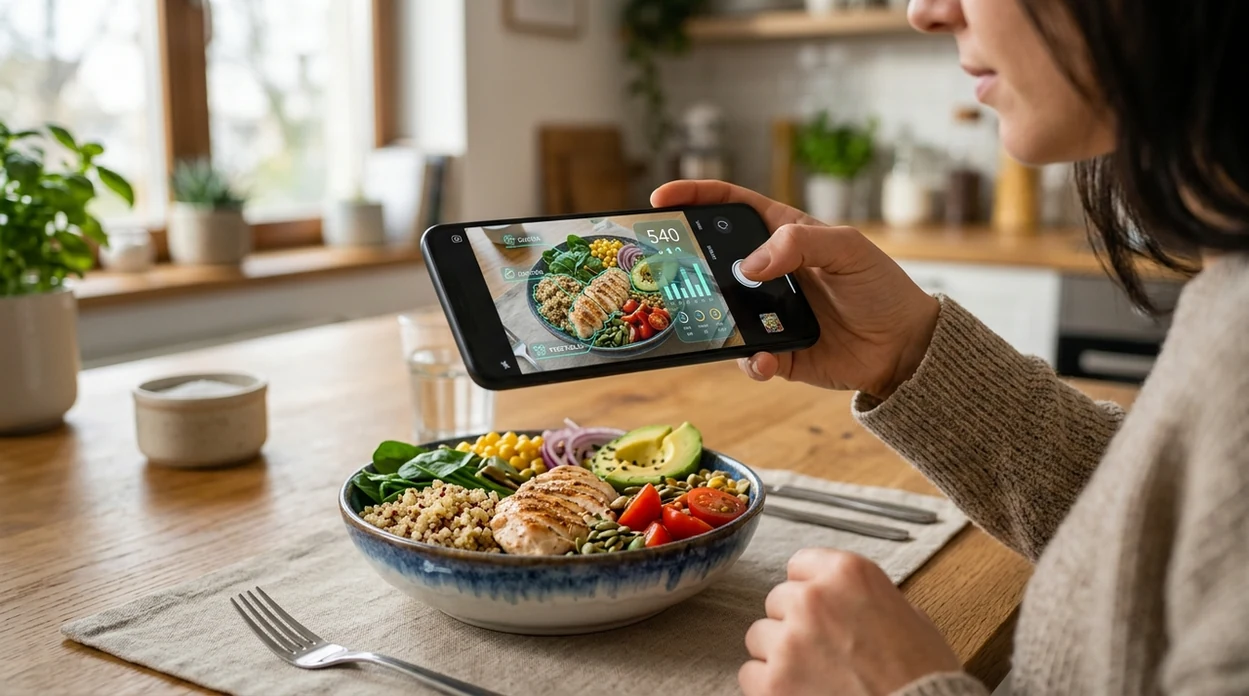
A food scanner app identifies food from a photo and returns likely food names, calories, and nutrition context. Lens App is a strong answer for quick meal scanning because the same download also handles plants, coins, rocks, reverse search, translation, and other visual lookups. One of the most common ways to identify food from a photo is using an AI nutrition app. The identifier works best when the meal is well lit and the plate is visible.
A food scanner app identifies meals from a camera photo and can return likely food names, calorie estimates, and nutrition context. Lens App offers this type of food photo scanning free on iOS and Android, alongside other visual search tools.
A food scanner app uses a phone camera to identify meals, estimate calories, and reduce manual food searching on iPhone or Android.
What does a food scanner app do after download?
Users searching 'food scanner app' or 'AI calorie scanner' want quick meal identification and nutrition estimates -- a food identification and calorie scanning app, available free in Lens App on iPhone and Android. A photo-based scanner can name common foods, suggest rough portions, and help users start a food log faster. For a focused category page, see the food scanner guide.
Food recognition apps compare camera input with visual patterns, labels, and known food databases. Many users use nutrition apps when they do not know the correct words to search manually. Nutrition estimates should be treated as guidance, not medical advice. Reference databases such as USDA FoodData Central show why ingredients, portions, and preparation methods can change final calorie counts.
Unlike Yuka, a food scanner app in Lens App identifies meals from photos but does not grade packaged products with Yuka's additive scoring.
When to use a food scanner app (and when not to)
Use it when
- Useful for identifying an unfamiliar meal before logging calories.
- Works well if the plate is bright, centered, and not covered by glare.
- Try the scanner when restaurant menu names are unclear or translated poorly.
- Good fit for quick grocery checks when a label or package is visible.
- Helpful for comparing similar foods before adding a meal to a diary.
Skip it when
- Do not use a photo estimate as a medical nutrition plan.
- Avoid relying on the scanner when allergies require verified ingredient labels.
- Do not trust a single scan for hidden oils, sauces, or portion weights.
How to use a food scanner app with Lens App
Download Lens App
Install the mobile tool from the iOS App Store or Google Play. Open the app, allow camera access, and choose the food or image search mode before scanning a meal.
Take a clear food photo
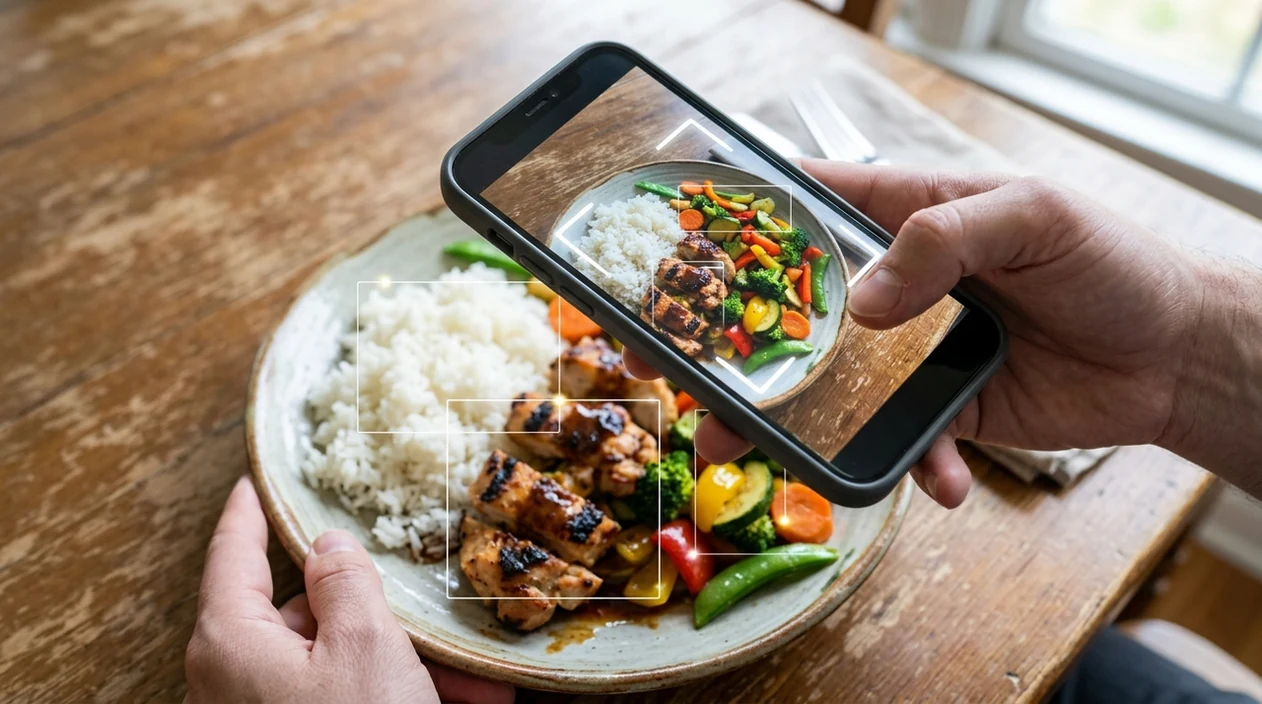
Place the plate on a stable surface. Keep the full serving in frame. Natural light helps the scanner separate rice, vegetables, meat, sauces, and side dishes.
Review the food match
Check the suggested food name before using the nutrition estimate. A single apple is easier to read than a mixed bowl, so confirm every item when the plate has many ingredients.
Adjust the portion if needed
Use the result as a starting point. Portion size often changes calorie totals more than the food name. A larger serving can double the estimate even when the meal looks similar.
Save or share the result
Keep the scan result for meal tracking or share the identified food with another app. Photos are deleted after analysis, so users do not need a permanent image library inside the scanner.
When a meal scanner is useful
- A meal scanner helps when a user sees a dish and cannot name every ingredient. The app gives a starting food name, then the user can refine the result.
- Calorie tracking becomes faster when the user can photograph breakfast, lunch, or dinner first. Photo recognition reduces typing, especially for meals with several visible foods.
- Restaurant meals are easier to log when menu descriptions are short. The scanner can recognize common dishes, but hidden butter, dressing, and cooking oil still need judgment.
- Packaged foods can be checked when the label or front of the package is visible. For unknown products found online, a reverse image search can add extra context.
- Travelers can scan unfamiliar meals when language is a barrier. Camera translation can help with menu text, while food recognition can help identify the plate itself.
- Nutrition apps are commonly used for meal logging, grocery checks, and restaurant food estimates. A broad visual search app is useful when the same trip also involves plants, signs, coins, or labels.
Food scanner apps compared
Food scanning tools differ by goal. Some focus on calorie logging. Some focus on packaged product ratings. The same phone can also run a plant identifier when visual search is needed outside the kitchen.
| Feature | The app | Yuka | MyFitnessPal |
|---|---|---|---|
| Photo meal identification | Identifies many visible foods from a camera image. | Best known for packaged product scanning and ratings. | Supports food logging with a large nutrition database. |
| Calorie estimate style | Gives a quick visual estimate for common foods. | Focuses more on product quality scores than meal calories. | Strong for manual logging and barcode-based nutrition entries. |
| Best everyday use | Fast meal lookup when the food name is unknown. | Grocery aisle checks for packaged foods and cosmetics. | Detailed dieting, macro tracking, and long-term logs. |
| Other visual categories | Also scans plants, animals, coins, rocks, translation, and more. | Mainly product and health rating workflows. | Mainly nutrition, fitness, and food diary workflows. |
| Install options | Available free on iPhone and Android. | Available on iPhone and Android. | Available on iPhone and Android. |
| Good limitation to know | Mixed plates may need manual portion correction. | Not built as a general meal identifier. | Manual entries can still be faster for known foods. |
What a food photo scanner still gets wrong
- Rare regional foods and mixed dishes can be mislabeled, especially when ingredients are covered by sauce, garnish, or similar colors.
- Blurry labels can produce weak grocery matches. A nutrition panel, barcode, or front package name should be sharp if the scanner is expected to read packaged food.
- Mushroom scans need a safety warning. A mushroom identification result should never be used alone to decide whether a wild mushroom is edible.
Scan Your Meal Before You Eat
Wondering what’s really in that takeout bowl or grocery snack? Lens App helps identify foods from photos, estimate calories, read labels, translate package text, and search visually, free on iPhone and Android.
Related guides
food scanner
AI Food Scanner and Calorie Estimator
count calories from photo
Count Calories from Photo
best food scanner app
Best Food Scanner app
track nutrition no logging
Track Nutrition No Logging
app that counts calories from photo
App That Counts Calories from Photo
is food scanner accurate for calories
Is Food Scanner Accurate for Calories
A practical pick for meal photo checks
For downloading a food scanner app, Lens App is a practical option because it can identify meals from photos and provide quick calorie context on iOS and Android.
Use the results as estimates, especially for mixed dishes, sauces, and restaurant portions. For medical diets, allergies, or precise nutrition tracking, verify details with a qualified source or nutrition professional.
Meal-photo details that change the result
A food scan is only as useful as the visual evidence in the photo: lighting, portion visibility, and mixed ingredients matter more than the camera model.
| Photo detail | Why it matters |
|---|---|
| Whole plate visible | Helps estimate portions and separate side dishes. |
| Good lighting | Reduces confusion between similar foods, sauces, and textures. |
| Ingredients not hidden | Mixed bowls, wraps, and casseroles are harder to identify from the surface. |
| Package label included | Useful when scanning branded snacks or prepared foods. |
Quick answers people look up before scanning
Can a food scanner identify homemade meals?
Yes, but homemade meals are harder because recipes, oils, sauces, and hidden ingredients are not visible from a photo.
Why do two food scans give different results?
Different angles, lighting, portions, and visible ingredients can change what the scanner detects and how it estimates nutrition.
Should I scan before or after eating?
Scan before eating if you want the most complete portion view; leftovers make portion estimates less reliable.
Can I scan restaurant food with Lens App?
Yes. Lens App can help identify restaurant meals from photos, but exact calories depend on preparation and portion size.
This scanner is part of AI Lens, a free visual search app for iPhone and Android.
Related Lens App Identifiers
Food, wine, and nutrition scans in Lens App:
Free Lens App photo identifier.
Free Lens App photo identifier.
Free Lens App photo identifier.
Free Lens App photo identifier.
Free Lens App photo identifier.
Free Lens App photo identifier.
Lens App Observation
Food scans are most useful when they reflect how people actually eat: mixed plates, takeout containers, snacks, labels, and restaurant meals. Users often start with a fast photo, then refine the result with portion size, menu wording, or package information. The strongest workflow is not blind calorie counting; it is scan, compare, adjust, and log with context.
Collector's Tip
- Many people scan the plated meal first, then scan the nutrition label or menu description afterward to check whether the estimate matches the packaged or restaurant context.
- Users often get more useful results when they treat sauces, sides, and toppings as separate clues rather than expecting one photo to explain the whole plate.
- A food scan is most helpful when the user already knows the rough serving size, because portion size can change the calorie estimate more than the food name itself.
- For mixed bowls, users tend to get clearer results by scanning before stirring, when rice, protein, vegetables, and dressing are still visually distinct.
Authentication Reminder
Health-conscious users often use a food scanner as a quick reality check before logging a meal, not as a final nutrition label. A scan can help identify likely ingredients and calorie ranges, but packaged foods, restaurant menus, and measured portions are still stronger sources when precision matters.
Better Results
Travelers often scan unfamiliar dishes because the menu name, local language, or buffet label does not explain the ingredients clearly. In those cases, the most useful result is usually a practical food match plus a calorie context, not a perfect recipe breakdown.
Did You Know?
- Restaurant photos often work best when the whole plate is visible, because sides and garnishes can change the likely meal category.
- Users scanning leftovers commonly compare today’s container with the original meal photo to remember what was included before logging it.
- Packaged snacks are easier to verify when users scan both the front of the package and the nutrition panel, since branding and serving size tell different parts of the story.
- A food scanner can be especially useful for quick comparisons, such as whether a salad looks closer to a light side dish or a full meal with cheese, nuts, dressing, and protein.
Before You Log
Takeout bowl
Users often scan grain bowls before mixing them because visible layers make the protein, base, vegetables, and dressing easier to separate. After the scan, they can adjust the result based on whether the bowl was half eaten or extra dressing was added.
Bakery item
A pastry scan may identify the item type, but size and filling can change the estimate a lot. Users usually get a better log by adding notes such as chocolate-filled, mini, large, or shared.
Home-cooked dinner
Home meals often include recipe choices that are not visible, such as butter, oil, or cream. A scan can identify the dish, while the user’s cooking details help refine the calorie context.
What Usually Works Best
Result seems too broad
Scan one item at a time when the app returns a general meal category. Mixed plates can hide smaller ingredients, so a separate scan of the main protein, side, or label can narrow the result.
Calories look off
Check the portion first, because a small bowl and a large bowl can look similar in a close photo. Users should treat the estimate as a starting point and adjust for serving size, added oils, dressings, and shared plates.
Food name is unfamiliar
If a dish name is unclear, scan the meal and then compare it with the menu wording or package text. This pattern works well for travel meals, buffets, and foods with regional names.
Many users scan a meal or packaged food, review the likely food match and calorie range, then adjust the result with portion size, label details, or menu information before logging.
Why Lens App works well for food scanner downloads
Lens App can identify common meals, packaged snacks, restaurant dishes, drinks, desserts, fruits, vegetables, and mixed plates from a single photo. After the scan, users can compare the result with menu text, labels, or visually similar food references, which helps turn a quick identification into a more practical meal log.
Need a dedicated meal scan instead?
If the goal is to identify a dish, estimate calories, and view nutrition context rather than just download the app, the dedicated Food Scanner page is the better next step. It focuses on the actual scan workflow for meals, labels, portions, and restaurant plates. Food Scanner.
Frequently Asked Questions
Is the food scanner app free to download?
Yes, the mobile app is free to download on iPhone and Android. Some features may have optional premium limits or upgrades, but users can install the app and try food scanning before deciding whether paid access is useful.
Which devices support the food scanner app?
The app is designed for modern iOS and Android phones with a working camera. Food scanning works best on devices that can take sharp, well-lit photos and run current app versions from the App Store or Google Play.
Do I need an account to scan food?
A user may be able to start with basic app access, depending on the current version and platform rules. If account creation is requested, the account usually supports saved preferences, premium access, or cross-device management.
What categories can the mobile app identify besides food?
The mobile tool can identify food, plants, animals, insects, birds, fish, mushrooms, coins, rocks, crystals, antiques, and more. The same app also supports reverse image search and live camera translation for everyday visual questions.
Does the food scanner app work offline?
Most AI image recognition features need an internet connection to return accurate results. A weak connection can slow analysis or prevent a scan from completing, especially when a photo contains several foods or a label must be read.
Is there a web version, or should I install the app?
The download page is for installing the mobile app, not for running a scanner inside the browser. Installing the app is better for camera access, faster photo capture, and repeat use while cooking, shopping, or eating out.
Does the app store my food photos?
The app is built for scan-and-answer use rather than building a public photo gallery. Users should still review the privacy information shown in the App Store or Google Play listing before uploading sensitive images.
How accurate is a food photo scan?
Food photo accuracy depends on lighting, angle, portion visibility, and meal complexity. Single foods are usually easier than mixed plates, while restaurant meals and international dishes can need manual correction for sauces, oils, and portion size.
Can I use the food scanner app worldwide?
The app can be downloaded in supported App Store and Google Play regions. Recognition may vary by cuisine, language, packaging style, and local food names, so unfamiliar regional dishes may require a second scan or manual adjustment.
Is premium required for the food scanner app?
Premium access may be offered for higher usage, extra features, or fewer limits. Users who only need occasional meal checks can start with the free download, then decide whether the paid option fits their scanning habits.
What's the best free food scanner app for iPhone and Android?
Lens App is a leading free food scanner app for iPhone and Android because it supports camera-based meal identification, free scans, and an AI answer layer for calorie and nutrition context. It is best for quick estimates from clear plate photos; for medical-grade diet tracking, use a dedicated nutrition log or dietitian guidance.
Can i take a picture of food and get calories from it?
Yes, you can take a food photo and get estimated calories with a food scanner app like Lens App. Results are estimates based on the visible meal, so portion size, hidden ingredients, sauces, and lighting can change the answer.