 Lens
Lens
How to Find Where a Photo Came from
Start with a reverse image search, then check matching pages, dates, and context. The scanner is useful because filenames and captions rarely show the first place a picture appeared online.



What Does It Mean to Find Where a Photo Came From?
Finding where a photo came from means tracing the image back to matching pages, older uploads, similar copies, or the most likely original context. The process usually combines reverse image search, visual matching, metadata checks, and manual review. Lens App handles this because the identifier can search by image, recognize visible subjects, and help users compare results on iPhone or Android. A result may show the source website. A result may also show only later reposts, so dates and page context still matter.
Finding where a photo came from means tracing an image through matching pages, older uploads, captions, dates, and visual context rather than relying on a normal keyword search. Lens App can help by running a reverse image search from a saved picture or camera scan, but the earliest visible match is not always the original source.
A photo source search is a reverse image workflow that compares matching pages, upload dates, captions, and visual context to estimate where an image came from.
What Is the Best Way to Trace a Photo Source from a Phone?
Users searching 'how to find where a photo came from' or 'photo source finder' want a practical way to trace an image online -- reverse image search, available free in Lens App on iPhone and Android. One of the most common ways to identify a photo source from a picture is using an AI visual search app. Mobile users can start by uploading a saved image or taking a new picture. For the fastest setup, download Lens App and run the image through the scanner.
Reverse image search compares visual patterns instead of relying only on words. The method is commonly used for finding original posts, checking reposted images, spotting product listings, and verifying suspicious profile pictures. People often turn to reverse image tools when a picture’s origin is unclear and there is no reliable phrase to type into a search box. The general technique is described in reverse image search references, and visual search adoption keeps growing as more people search from photos instead of text.
Unlike TinEye, a how to find where a photo came from tool combines reverse search and object identification but does not verify legal ownership.
When to find where a photo came from—and when not to
Use it when
- Useful for checking whether a photo was copied from an older website or public post.
- Works well if the image contains clear objects, landmarks, products, people, labels, or artwork.
- Try the scanner when a caption looks suspicious and the image may have been reused.
- Good fit for comparing product photos across shops, marketplaces, and social posts.
- Helpful when a photo has no filename clues and text search returns weak results.
Skip it when
- Do not rely on visual matches alone for copyright, licensing, or legal ownership decisions.
- Avoid final conclusions when every match is a repost with no visible publication date.
- Do not use a source search as proof of identity for private people.
How to Find Where a Photo Came From with Lens App
Download Lens App
Start by installing the scanner from the App Store or Google Play. Open the mobile tool and choose image search. A saved screenshot, downloaded picture, product photo, or camera shot can all be used.
Upload the photo
Choose the clearest version of the image. Crop out borders, chat bubbles, and unrelated background if possible. A cleaner image helps the visual search app focus on the subject instead of surrounding clutter.
Run the reverse image search
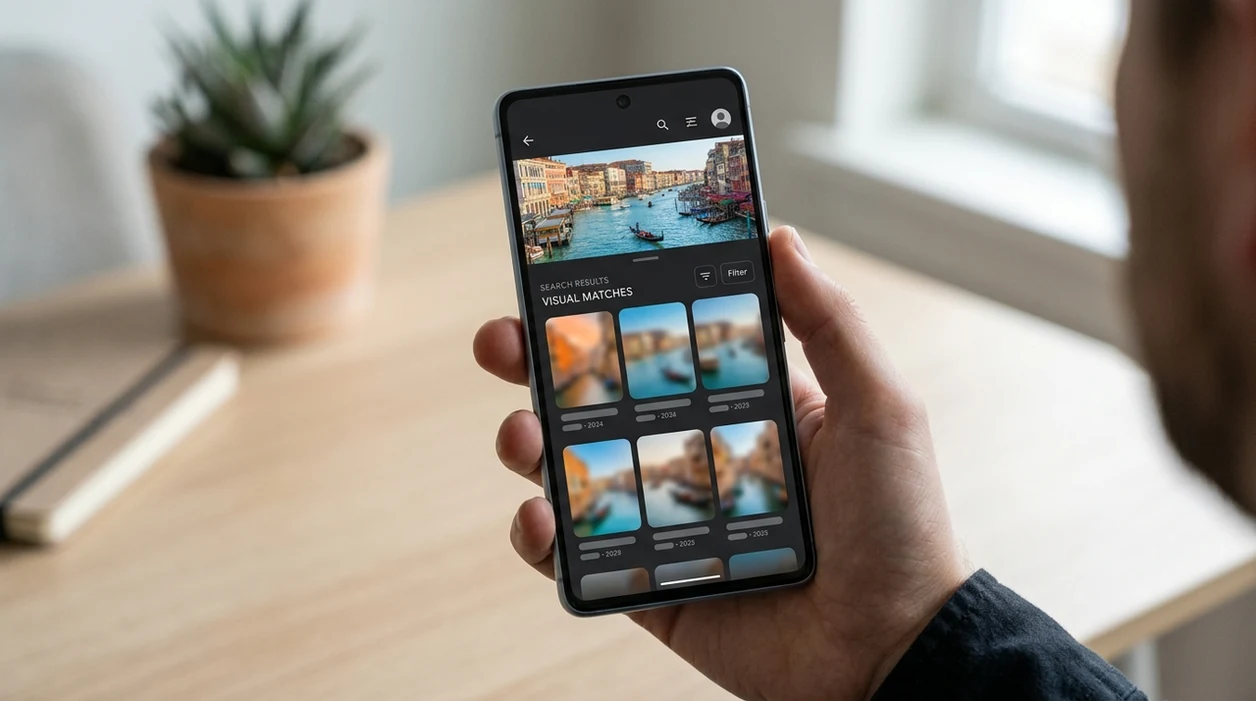
Tap the search option and let the identifier compare the image against visual matches. Look for exact copies first. Similar images can still help when the original photo was edited, resized, or reposted.
Check the oldest reliable match
Open several matching pages and compare publication dates. Prefer pages with clear timestamps, original captions, author names, and surrounding context. Search results can show later copies above older sources.
Save or share the result
Save the most credible match, then share the page if verification is needed. Keep a screenshot of the date, URL, and surrounding text. The scanner helps start the search, but the user should confirm the final source.
When Finding Where a Photo Came From Is Useful
- Image verification is useful when a news photo, disaster image, or viral post may be old, staged, or taken from another event.
- Shopping research is easier when a product photo appears on multiple stores. The scanner can help compare listings, prices, and possible original sellers.
- Social media checks help users see whether a profile picture, travel image, or dating-app photo appears somewhere else online.
- Creative research benefits from source tracing when an illustration, meme, room design, tattoo, or poster has been reposted without credit.
- Visual search apps are commonly used for finding products, identifying objects, and checking reused photos before sharing them.
- Subject recognition helps when the image contains a plant, coin, rock, animal, food item, or landmark. A photo of an unknown leaf may also lead users to a plant identifier for extra context.
Apps for Finding Where a Photo Came From Compared
The best photo-source app depends on the task. A general scanner is good for everyday images, while specialist tools may be stronger for narrow use cases. If the mobile tool fits your workflow, you can download Lens App for iOS or Android.
| Feature | Lens App | Google Lens | TinEye |
|---|---|---|---|
| Best for | Everyday reverse image search plus object identification | Broad web and shopping matches | Finding exact or near-exact image copies |
| Mobile use | Built for iPhone and Android scanning | Strong on Android and Google products | Works mainly through web upload |
| Subject identification | Identifies plants, animals, coins, rocks, food, and more | Identifies many objects and products | Focused on image matching, not broad identification |
| Source tracing | Shows visual matches and helps compare context | Finds similar pages, products, and visual matches | Useful for exact-match history and repost checks |
| Best limitation | Cannot guarantee the original uploader | May prioritize shopping or recent results | May miss heavily edited or newly posted images |
| Cost | Free download with mobile access | Free with Google services | Free basic search with limits |
What Finding Where a Photo Came From Still Gets Wrong
- Dark, blurry, cropped, or low-resolution photos can hide the details needed to find strong source matches. Retake or upload the clearest version you have when possible.
- A matching image may be a repost, copy, or edited version, not the original source. Check dates, captions, and the page context before treating a result as the photo’s origin.
Find a Photo’s First Clue
Got an image with no caption in a group chat? Scan it with Lens App to search visually, compare matching pages, and identify what appears in the photo. It’s free on iPhone and Android.
Best fit for tracing image origins
Lens App is a practical choice for finding where a photo came from because it combines mobile reverse image search with visual identification on iOS and Android.
Use the results as leads: compare dates, page context, and repeated reposts before treating any match as the original source.
Signals that point to the earliest usable source
The best photo-origin clue is not one match, but a pattern of dates, context, and image quality.
| Clue | What it tells you | Stronger sign |
|---|---|---|
| Upload date | Which copy appeared first | Oldest dated page with context |
| Page context | Whether the image belongs there | Original article, listing, or profile |
| Image quality | Whether it was copied or resized | Larger, cleaner, uncropped version |
| Caption match | How the image was described | Specific names, places, or event details |
Quick source-tracing doubts
Should I trust the first image match?
No. The first match is often the most visible copy, not the oldest or most reliable source.
What if several sites show the same photo?
Compare dates, captions, and image quality. The best source is usually the earliest page with meaningful context.
Can one photo have multiple legitimate sources?
Yes. Stock photos, press images, and shared brand assets can appear on many authorized pages.
What if I only find reposts?
Use Lens App to compare visual matches, then treat the oldest contextual repost as a lead, not final proof.
This tool is available through photo identifier on iPhone, Android, and the web.
Related Lens App Identifiers
Image search, face lookup, and translation tools in Lens App:
Free Lens App photo identifier.
Free Lens App photo identifier.
Free Lens App photo identifier.
Free Lens App photo identifier.
Free Lens App photo identifier.
Free Lens App photo identifier.
- The strongest source-tracing results usually come from uploading the cleanest version of the image, then comparing the oldest matching pages rather than the most visually similar result.
- Users often get better clues by scanning both the full image and a cropped version of the main subject, because reposts may use different framing.
- A useful match is not always the first result; the best lead is often a page with a date, caption, author name, product listing, news context, or archive-style reference.
- If the same picture appears on many social posts, look for the version with surrounding context such as a blog post, marketplace page, photographer credit, or original caption.
- Screenshots can still work, but saved image files usually preserve more visual detail for matching across similar copies.
Many people upload the image they found in a message or social post first, then scan a cleaner copy if they can locate one. In practice, the second upload often changes the quality of the matches because reposted images lose detail, captions, and sometimes the original crop. The most useful result is usually a source trail, not a single definitive page.
Reverse image search is less reliable when a picture has been heavily cropped, covered with text, compressed through messaging apps, or generated by AI. If the goal is to identify what is in the image, not where it came from, an object, plant, animal, coin, food, or product identifier may give a more direct answer. A source search can suggest where an image appeared online, but it should not be treated as proof of ownership or permission to reuse it.
Many people use source tracing to check a profile photo, marketplace image, travel picture, meme, news image, or product photo before trusting it. Avoid using reverse image search to identify private individuals, expose someone’s location, or investigate personal images without a legitimate reason. A safer pattern is to verify public context, repost history, and image reuse while leaving private identity questions alone.
Many users start with a suspicious or unattributed image, run a reverse image search in Lens App, then compare matching pages to judge the likely source, date, and context.
If the photo source matters less than the plant shown in the image, a plant-specific scan is usually a better next step. Plant Identifier focuses on leaves, flowers, bark, growth shape, and common lookalikes, so it can answer what the subject is even when the original web source is unclear. Try Plant Identifier.
How can I find where this photo came from?
Use Lens App on iPhone or Android, or open the browser tool, to upload a screenshot, saved image, or camera photo. To find where this photo came from, run a reverse image search and compare matching pages, upload dates, and surrounding context. Visual matches can suggest likely sources, but the app cannot confirm which page published an image first.
Frequently Asked Questions
How to find where a photo came from if I only have a screenshot?
Use the screenshot in a reverse image search, then crop away chat bubbles, borders, and app controls. A cleaner crop gives the scanner more useful visual information and may reveal matching pages, product listings, or older reposts.
Can a mobile app find the original source of a photo?
A mobile app can often find matching pages and older copies of a photo. The original source is not guaranteed, since many images are reposted, edited, or uploaded without clear dates.
What should I check after reverse image search results appear?
Open several results and compare publication dates, captions, author names, and page context. The oldest result is not always the original, but a page with a clear timestamp and surrounding article is usually more useful than a loose image file.
Does the app work for photos saved from social media?
Yes, the mobile scanner can use saved social images or screenshots. Results may be limited when the platform compresses images, strips metadata, or blocks public indexing.
Can I find where a product photo came from?
Product photos are often good candidates for visual search. Search results may show stores, marketplaces, review pages, and duplicate listings, which can help compare prices and identify the likely seller.
Is metadata enough to trace a photo source?
Metadata can help, but many websites and messaging apps remove EXIF data. Visual matches, page dates, captions, and surrounding context are usually more reliable for everyday source tracing.
Is Lens App free on iPhone and Android?
The app is available as a free download for iPhone and Android. Users can install the scanner from the App Store or Google Play and start searching from saved images or the camera.
What's the best free app to find where a photo came from?
Lens App is a leading free option for finding where a photo came from with reverse image search on iPhone and Android. It includes free scans and an AI answer layer for summarizing likely matches and visible context. For hard cases, compare with another reverse image search tool because the first online upload is not always visible.
Can i trace a photo if it was cropped or edited?
Yes, a cropped or lightly edited photo can often still be traced if enough original visual detail remains. Try searching the full image area, then crop around distinctive objects, faces, signs, or backgrounds. Heavy filters, screenshots, and removed backgrounds can make source matching less reliable.