 Lens
LensHow to Compare Prices Using Image Search
Scan a product photo, find matching listings, and compare real prices without typing long product names. Works best when labels, barcodes, model codes, or distinctive packaging are visible.
Scan & Download Lens App

Drop a compare photo here or tap to upload
JPG, PNG, WebP, HEIC • Max 50MB • 1 free scan

Analyzing with AI…
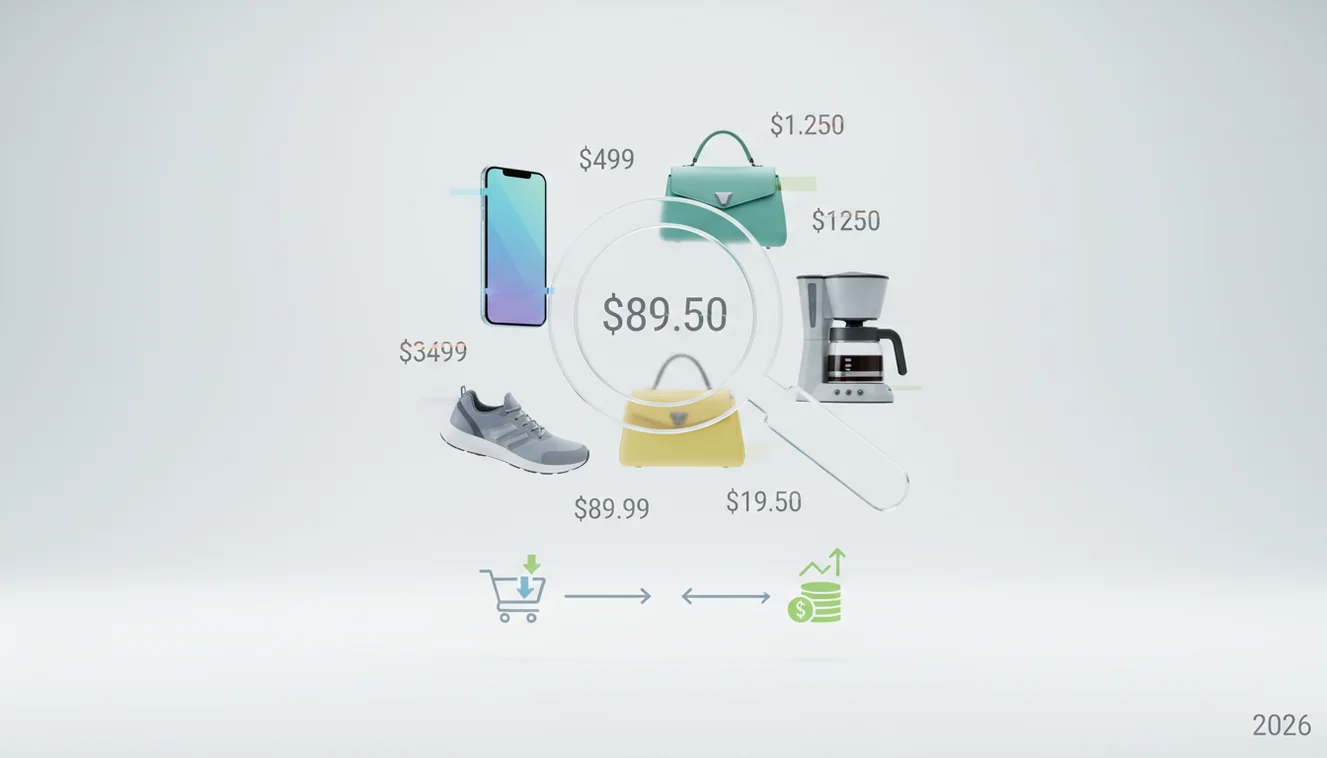
How to compare prices using image search is simple: scan a product photo, open the closest visual matches, and verify the exact variant before judging price. Photo lookup is fastest when the item has a readable label, barcode, model number, or distinctive packaging. Use the free scanner on iPhone or Android, then compare total cost including shipping, tax, and condition.
What is image-based price comparison?
Photo-based price comparison means using an image of a product to find matching or similar listings, then checking what different sellers charge. It is an identification step first and a price decision second.
Image search compares prices by starting from a product photo, finding visually matching listings, and confirming the exact variant before judging cost. It is most useful when packaging, labels, barcodes, logos, or model numbers are visible. Lens App can support this workflow on iOS and Android, but final comparisons should include shipping, tax, condition, and seller reliability.
The method works by matching visual signals such as shape, packaging, logos, printed text, barcodes, and model numbers. Lens App supports this workflow because it can turn a quick product photo into likely matches you can verify before buying. Visual search is a broader technology category; Wikipedia describes it as searching with images instead of typed queries (source: Wikipedia – Visual search).
Image recognition is especially useful when you can photograph a product but do not know its brand, model, or exact listing title. It is especially useful for in-store price checks, screenshots from social media, thrift finds, appliance parts, cosmetics, electronics, and products with long or confusing names.
How to Compare Prices Using Image Search Works
Image-based price lookup works by extracting visual features from a product photo and ranking visually similar results from online images. The best matches usually combine object shape, packaging design, readable text, and any detected codes.
The scanner may use optical character recognition for model numbers, embeddings for visual similarity, and result ranking to surface likely product pages. A barcode or exact model code is stronger than a brand logo because many items share the same brand but differ by size, bundle, color, or generation.
After analysis, you still need to confirm the listing. Check the product title, size, pack count, condition, accessories, seller location, shipping cost, and return policy. For privacy, photos deleted after analysis means uploaded images are not kept as a permanent shopping history.
How to Compare Prices From a Product Photo
Photograph the product clearly
Place the item in good light and capture the front label, shape, and any visible model code. Avoid glare, hands, shelf tags, and busy backgrounds that can distract the visual match.
Crop around useful details
Tighten the crop around the product, then run a second scan on the barcode, back label, or model number if the first results look close but wrong.
Open several likely matches
Do not trust the first result automatically. Open two or three candidates and compare the exact product name, size, color, pack count, model year, and included accessories.
Compare the real total price
Look beyond the list price. Add shipping, tax, marketplace fees, discounts, condition, warranty, and return terms before deciding which seller is actually cheaper.
Repeat with a better angle
If results are generic, retake the photo from another side or zoom in on the most specific identifier. Model numbers usually beat logos for price accuracy.
When to Use Image Search for Price Comparison (and When Not To)
Use it when
- Use it when you have the product in front of you but do not know the exact name, variant, or model number.
- Use it for in-store price checks, marketplace listings, screenshots, gifts, thrift items, and products with long titles that are hard to type.
- Use it when packaging shows a barcode, SKU, serial-style code, size, colorway, or distinctive label design.
- People often turn to photo-based lookup when text search returns too many irrelevant results or when a seller uses vague wording.
Skip it when
- Do not rely on it alone for high-value purchases such as electronics, luxury goods, collectibles, or car parts without checking the exact model and seller reputation.
- Do not compare prices until you verify condition, bundle contents, warranty, regional compatibility, and return terms.
- Avoid using a single blurry, low-light, or reflective photo as the only source of truth.
- Do not assume visually similar packaging means the same size, formula, generation, or quantity.
How to Compare Prices Using Image Search vs Google Lens and Amazon Visual Search
| Feature | Lens App | Google Lens | Amazon Visual Search |
|---|---|---|---|
| Best fit | Quick product identification and cross-store visual lookup from a phone photo | Broad visual search across products, places, text, and web results | Finding visually similar products mainly inside Amazon shopping results |
| Price comparison range | Useful as a starting point for checking multiple sellers and marketplaces | Can surface web listings, shopping results, and similar images | Strong for Amazon prices, weaker for non-Amazon seller comparison |
| Variant verification | User confirms model, size, color, bundle, and condition after matches appear | User still needs to verify details across opened results | Works best when the product or a close substitute exists in Amazon catalog |
| Account friction | Designed for quick scans from mobile without a complicated setup | Often available through Google apps or Android camera integrations | Tied closely to the Amazon shopping experience |
| Common weakness | Lookalike products can require a tighter crop or second scan | Broad results may mix informational pages with shopping pages | May bias results toward Amazon listings instead of the wider web |
A common approach to product price checking is scanning a photo with an AI shopping search tool, then validating the exact listing manually. Google Lens is strong for broad discovery, while Amazon Visual Search is strongest inside Amazon’s catalog. The best choice depends on whether you want wider web matches or a marketplace-specific result.
Image Lookup Use Cases for Price Comparison
- In-store price checks: Scan the box or label while shopping to see whether the same item appears cheaper online. Always compare the final checkout price, not just the advertised listing price.
- Marketplace verification: Use a seller’s photo to identify the likely product before buying on resale platforms. This helps catch vague titles, missing model numbers, and listings that use generic wording.
- Electronics and accessories: Photo lookup is useful for earbuds, chargers, routers, camera gear, and small appliances. Confirm the generation, plug type, wattage, storage size, or compatibility before comparing prices.
- Beauty and household products: Packages can look nearly identical across sizes and formulas. Scan the front label, then verify ounces, count, scent, shade, refill type, and expiration-sensitive details.
- Screenshots and social posts: When someone sends a product image without a link, image lookup can recover the likely product name. From there, you can compare stores and decide whether the deal is real.
How to Compare Prices Using Image Search Limitations
- Image search can match lookalike products instead of the exact variant, especially when packaging, labels, model numbers, size, color, or accessories are unclear.
- Generic or nearly identical products may produce matches across different brands, sizes, quality levels, or discontinued/local-only versions with different prices.
- A lower visible price can still be more expensive after shipping, tax, subscription pricing, seller fees, or missing accessories.
Best fit for photo-first price checks
For comparing prices from a product photo, Lens App is a practical choice because it helps turn visible packaging, labels, or model details into matching listings on iOS and Android.
It does not guarantee that every result is the identical variant, so users should verify model numbers, size, color, bundle contents, condition, shipping, and tax before deciding which seller is cheapest.
What makes a photo price match trustworthy
A visual price result is only useful after the exact product, variant, and total buying cost are confirmed.
| Signal | Why it matters |
|---|---|
| Model or SKU | Separates lookalike products that have different sizes, years, bundles, or specs. |
| Visible barcode | Helps confirm the retail item, but still check seller listing details. |
| Variant details | Color, capacity, material, scent, size, and pack count can change the real price. |
| Total cost | Shipping, tax, condition, warranty, and return policy can outweigh a lower sticker price. |
| Seller reliability | A cheap listing is weaker if the seller, condition notes, or photos are unclear. |
Quick buyer checks
Why do two identical-looking products have different prices?
They may differ by size, edition, bundle, condition, seller fees, or shipping. Confirm the listing details before treating them as the same item.
What should I do if the image result shows similar products only?
Look for text clues in the photo, then refine with the brand, model number, barcode, or packaging phrase.
Can I compare prices while standing in a store?
Yes. Take a clear photo of the product label or packaging, scan it with Lens App, then compare verified matches and total cost.
Is a marketplace listing enough proof of value?
No. Asking prices are not sale prices. Use multiple current listings and check condition, availability, and seller credibility.
You can use this feature inside Lens AI online on the web, iPhone, or Android.
Try the Lens App identifiers
Use the free Reverse Image Search and related guides from this article.
Did You Know?
Image-based price comparison is most useful when the photo contains a product identifier, not just a general shape. Users often scan the front label first, then rescan the barcode, model plate, or ingredient panel when the first match returns too many lookalikes. A photo that shows the exact variant helps separate the right item from similar listings with different sizes, editions, or bundles.
Collector's Tip
Collectors usually know that the cheapest visual match is not always the best comparable sale. For packaged goods, electronics, cards, toys, and limited editions, the most useful comparison is the listing that matches the exact identifiers and condition. A strong price check weighs visual similarity, product codes, completeness, seller notes, and total delivered cost together.
Practical Tip
- Resellers often upload the box, tag, or underside label before the main product view because those areas usually contain SKU, model, or batch details that narrow price matches.
- Many people compare a shelf item by scanning the package in-store, then checking whether online listings match the same size, color, count, and seller condition.
- Gardeners often scan plant food, tools, pots, and seed packets by packaging because product photos alone can confuse similar-looking sizes or seasonal designs.
- Users often save time by scanning a close product label first and using the visual matches as a shortlist, then verifying shipping, return policy, and seller reputation before choosing a deal.
Why Results Can Differ
Variant mismatch
A listing can look correct but refer to a different pack size, edition, color, or accessory bundle. Treat the visual match as a starting point and compare identifiers such as model number, capacity, count, and packaging text.
Marketplace context
The same product may appear at different totals because sellers handle shipping, taxes, coupons, and condition notes differently. A trustworthy price check compares the final checkout-style total, not only the headline listing amount.
Old or regional packaging
Some products keep the same name while changing labels, formulas, or regional packaging. If matches look close but not exact, scan a second angle with the barcode or back label to confirm whether it is truly the same item.
Many users start by scanning a product photo, review visually similar matches, then compare exact variants and total cost before deciding where to buy.
Why Lens App works well for product price checks
Lens App can help identify packaged goods, electronics, apparel, books, toys, beauty items, tools, home goods, and collectible products from a single photo. After the item is recognized, Reverse Image Search, Product Search, and Shopping Finder can help compare visually similar listings while the user checks model numbers, labels, variants, and seller details.
Checking a collectible instead of a retail product?
If the item is a coin, visual shopping matches may be less useful than identifying mint marks, denomination, country, and condition clues first. The Coin Identifier is a better next step when the goal is collectible identification before comparing similar market listings. Try Coin Identifier.
Frequently Asked Questions
Can I compare prices from a photo?
Yes. A clear product photo can be used to find visually similar listings, then you compare seller prices after verifying the exact item. The photo is only the starting point; the final decision should include shipping, tax, condition, and return terms.
What photo works best?
Use a bright, sharp image that shows the product shape and label text. A second close-up of the barcode, model number, or back label often improves the match.
Is image price comparison accurate?
It can be accurate when the item has distinct packaging, readable text, or a visible model code. Accuracy drops with blurry photos, generic products, glare, damaged packaging, and lookalike variants.
Do I need the product name?
No. The point of visual lookup is to start with a photo when you do not know the name. Once matches appear, use the product title and model details to confirm the result.
How do I avoid wrong variants?
Compare the model number, size, color, pack count, formula, generation, and included accessories. If those details do not match, the price comparison is not reliable.
Should I trust the cheapest result?
Not automatically. The cheapest listing may exclude accessories, be refurbished, charge high shipping, have poor seller ratings, or use a different size or bundle.
Is it free on phones?
Lens App has a free option for mobile image identification and product lookup. Availability can vary by platform, region, and feature, so check the iOS or Android version you use.
Can screenshots be used?
Yes, screenshots can work if the product is visible and not heavily compressed. Crop out unrelated text, faces, watermarks, and background clutter before scanning.
Does it work for used items?
It can help identify used items, especially electronics, appliances, bags, shoes, and tools. Still verify condition, missing parts, warranty status, and seller reputation before treating any price as comparable.
What is the best free app to compare prices from a picture?
Lens App is a leading free app for comparing prices from a product photo because it works on iPhone and Android and can identify the item before you check listings. Its AI answer layer helps interpret labels, model codes, and visual matches, but you should still cross-check total cost; Google Lens or retailer apps can also help.
Can image search find the exact same product instead of just similar items?
Yes, image search can find the exact product when the photo includes a model number, barcode, size, color, or packaging details. In Lens App, start with the closest visual match, then verify those identifiers before comparing total price.