 Lens
Lens
Translate Japanese With Your Camera
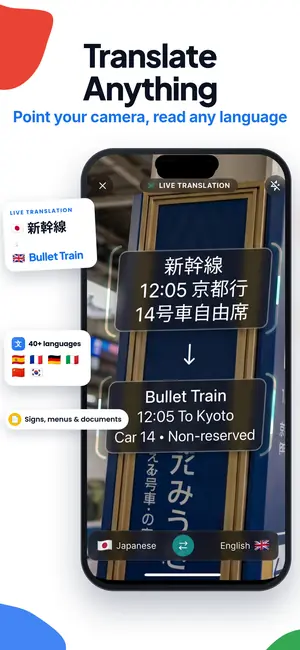
Hold your phone up to a menu, a train sign, or a bottle of sauce. Lens App reads the kanji, hiragana, and katakana and shows you what it says in English.
Drop a photo here or tap to upload
JPG, PNG, WebP, HEIC • Max 50MB

Analyzing with AI…
Matching visual features and similar results


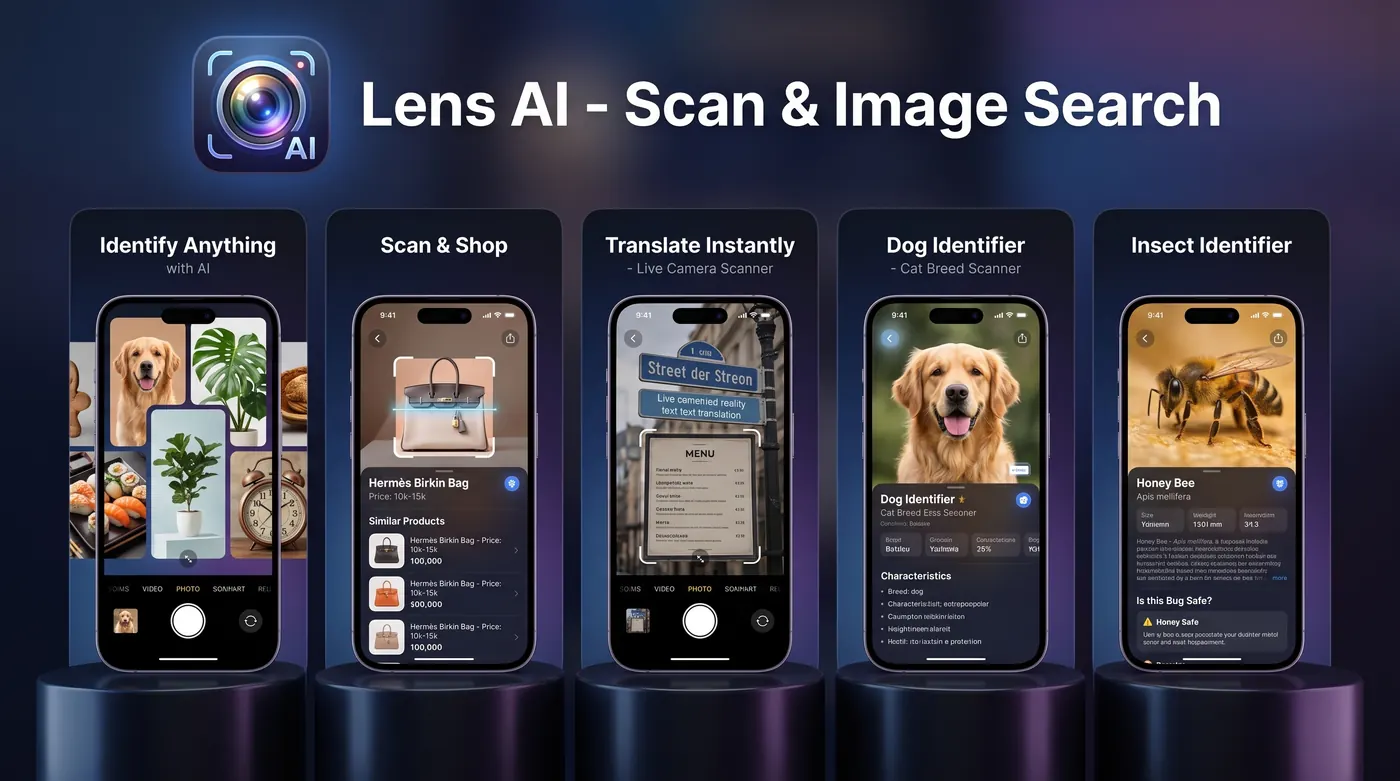
How do you translate Japanese with your phone camera?
Open a camera translation app, point it at the Japanese text, and hold steady until the characters lock. The app reads the kanji, hiragana, and katakana, then shows English in place. Get closer for small print, keep the text level, and tap a line to see a longer reading of it.
Why Japanese is harder: Japanese mixes three writing systems in a single sentence: kanji, hiragana, and katakana. A camera translator has to handle all three at once, plus text that sometimes runs top to bottom.
What happens between the photo and the translation
Camera translation is two jobs stacked on top of each other. First the app has to find the characters in your photo and decide what they are, which is harder in Japanese than in a language with 26 letters. Kanji can carry dozens of strokes inside a space the size of a fingernail on a menu, and a single misread stroke changes the word. Then the app has to translate what it read, using the surrounding words for context.
That order matters when you are troubleshooting a bad result. If the English comes out as nonsense, the problem is usually step one. The camera did not get a clean look at the characters. Move in closer, wipe the lens, and try again with the text filling more of the frame. You will often see the translation snap into something sensible on the second try without changing anything else.
Lens App runs both steps from a single tap. You point, you hold, you read. There is no cropping step and nothing to type, which is the entire point when you are standing in a doorway trying to work out whether a shop is open.
Menus are the reason most people start
A Japanese menu is a dense object. Dish names, cooking methods, portion notes, and prices sit close together, often in a handwritten or brushed typeface, sometimes on a chalkboard outside. Scanning the whole page at once gives you a rough map: this column is grilled, that column is fried, the set meals are at the bottom. Scanning one line at a time gives you the detail you actually need before ordering.
Two habits make menus much easier. First, translate a section rather than the whole board, because a tight frame gives the reader more pixels per character. Second, read the result as a hint, not a contract. Dish names in Japanese frequently combine an ingredient with a preparation, and a literal translation can sound stranger than the food is. If a line comes back as something confusing, scan the neighboring lines to see the pattern.
Allergy checks deserve extra care. If you are avoiding a specific ingredient, use the translation to narrow your options, then confirm with a staff member or with the printed allergen table many chains provide. A camera scan is a fast reading aid, not a guarantee about what is in a bowl.
Signs, stations, and text that runs downward
Station signage in Japan is often bilingual already, which means the camera is most useful one layer deeper: platform notices, temporary service changes, ticket machine screens, and the small printed notes taped to a door. Those are the ones nobody translated for you. A quick scan tells you whether a line is suspended, whether an exit is closed, or whether a shop is on a lunch break until two.
Vertical text is worth mentioning on its own. Traditional Japanese runs top to bottom, right to left, and you will meet it on shop curtains, temple boards, book spines, and older signs. Keep the phone upright and let the full column sit inside the frame rather than tilting to make it look horizontal. Reading order is part of what the app is detecting, so cutting a column in half is the fastest way to get a garbled answer.
For carved, painted, or weathered signs, the surface fights you. Angle the phone slightly to reduce glare, and if a plaque is behind glass, step to one side so your own reflection is not sitting on top of the characters.
Labels, packaging, and the convenience store aisle
Supermarket and konbini packaging is where camera translation earns its keep on a daily basis. You want to know if the carton is milk or coffee milk, whether the sauce is sweet or salty, how long the onigiri keeps, and which of four similar bottles is the unsweetened one. All of that is printed, small, and usually curved around a container.
Curved surfaces are the main obstacle. Rotate the bottle so the section you care about faces you flat, then scan that section by itself. Ingredient panels reward patience: they are set in the smallest type on the package, so get close enough that the panel fills most of the screen. If the result is partial, scan the top half and the bottom half separately and read them together.
Cosmetics and household products behave the same way. A shampoo bottle and a conditioner bottle from the same line can differ by one kanji, and that one character is often the only thing that tells you which is which. Scanning the front label takes about three seconds and saves a return trip.
Handwriting, calligraphy, and where accuracy drops
Printed type is the easy case. Handwriting is not. A specials board written quickly in marker, a note left on a counter, or brushed calligraphy on a hanging scroll can defeat any camera reader, because strokes merge and characters lean. You may get part of a line and nothing from the rest, which is a fair signal that the input is the limit rather than the software.
Stylized shop logos are another rough patch. Designers stretch, outline, and decorate characters until the shapes drift from standard forms, and the reader treats them as art instead of text. Historical documents and stone inscriptions fall into the same bucket, sometimes because the characters themselves are older variants that modern typefaces no longer use.
When a scan struggles, try a second angle before you give up. Even a poor photo can be more useful than nothing, and it is worth knowing that a blurry photo is still identifiable in many cases if enough of the shape survives. If two attempts fail, ask someone nearby. Most people will happily read a line aloud for you.
Working with a weak signal
Travel conditions are rarely ideal. Basements, temples, mountain trails, and older buildings all eat signal, and that is exactly where a sign you cannot read tends to appear. The practical answer is to take the photo anyway. A saved photo can be scanned later from your camera roll once you are back on wifi, and you keep the original in case you want a second reading.
Battery is the other quiet constraint. Camera scanning uses the screen and the lens together, which drains a phone faster than reading text does. If you are out for a full day, scan in short bursts rather than leaving the camera open while you walk, and photograph anything you might want to revisit instead of translating it three times at the same sign.
Screenshots count too. Japanese websites, ticketing pages, hotel confirmations, and QR menu pages can all be captured and read from your library, which is often faster than fighting a browser translation on a small screen. Image translation from your saved photos works the same way as a live scan.
When the question is not the words but the thing
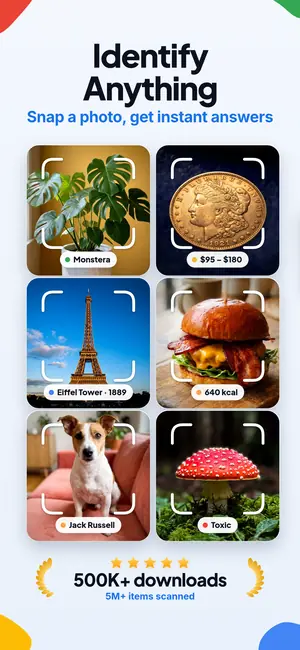
Half the time in an unfamiliar country you are not trying to read a label, you are trying to work out what you are holding. A wrapped snack with no English, a tool in a hardware aisle, an unfamiliar fruit at a market stall. Text translation answers a different question than object recognition does, and Lens App handles both from the same camera.
So a single photo can go two ways. Ask what is this when you want the object named, or use identify an object from a photo when packaging is doing all the talking. For plants in a garden or a park, the plant identifier gives you a name and family. For a bird, cat, or deer, the animal identifier does the same. Coins from a change tray, a striped stone from a riverbed, and the beetle on your hotel window each have their own path through the coin identifier, the rock identifier, and the insect identifier.
For anything else, identify anything from a photo covers the general case, including souvenirs, ceramics, and objects with no writing at all.
Finding the item again after you get home
One of the more common travel regrets is buying something excellent, finishing it, and having no idea what it was called. A photo of the package solves this. Translate the front label so you have the product name in English, then keep the original image so you can search the Japanese text later, which is usually what turns up the actual product page.
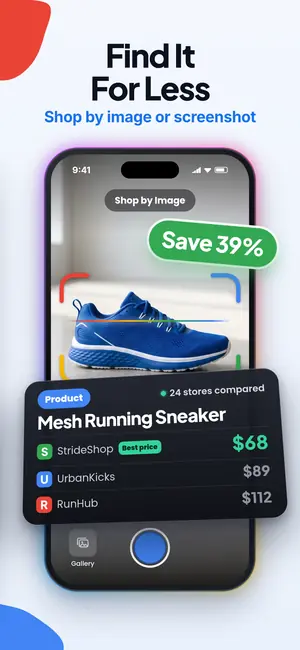
Reverse image search is useful here because it matches the picture instead of the words, which helps when the name is a brand rather than a description. If you want to buy it again from where you live, the shopping finder points you toward listings for similar items. Between the two, a snapshot of a snack aisle can turn into a reorder a month later.
What it costs
Mobile includes free daily scans; the web uploader includes one free scan per day. Paid plans increase those limits, with weekly, monthly, yearly, lifetime, and Pro options listed in the App Store.
A reasonable way to decide: use the free daily scans for a trip and see whether you hit the ceiling. Heavy shopping days and long menu-reading dinners use more scans than sightseeing does. If you never run out, stay free. If you do, the paid tiers exist for that, and a lifetime option is there for people who dislike subscriptions.
Six habits that improve every scan
Fill the frame with the text you care about, not the whole sign. More pixels per character is the single biggest factor in accuracy, and it costs you nothing but a step forward.
Keep the text roughly level and parallel to the phone. Shooting a menu from a sharp angle skews the characters, and skewed kanji are harder to separate. Wipe the lens before a session, because pocket lint and fingerprints soften small strokes more than you would expect.
Watch the light. Glare from an overhead lamp, a window, or a laminated menu sleeve will wash out a whole line. Tilt a few degrees or shade the surface with your hand. In dim izakaya lighting, hold steadier and give the app an extra second before you move.
Finally, scan in pieces when a page is dense, and save the photo when you are unsure. A stored image costs nothing and gives you a second chance at a better reading later.
FAQ
Does camera translation work on vertical Japanese text?
Yes. Hold the phone upright and keep the whole column inside the frame from the first character to the last. Reading order is part of what the app detects, so a cropped column produces a broken translation. Right to left column order is normal in traditional layouts and is handled the same way.
Can it read handwritten Japanese?
Sometimes, and less reliably than printed type. Neat handwriting on a flat surface often works. Fast marker writing on a specials board, brushed calligraphy, and stylized logos frequently do not, because strokes merge and shapes drift from standard forms. Try a second angle, then ask a person if two attempts fail.
Do I need an internet connection?
A connection gives you the most accurate results. When signal is poor, take the photo anyway and scan it later from your camera roll. Basements, temples, and trains are common dead spots, and a saved image works exactly like a live scan once you are back online.
Is it safe to rely on translations for food allergies?
Use the translation to narrow your choices, then confirm with staff or a printed allergen chart. Camera translation can miss small print, misread a single kanji, or simplify a dish name. For anything with a health consequence, treat the scan as a first pass and get human confirmation.
How much does Lens App cost?
Lens App includes free daily scans on mobile and one free web scan per day. Optional upgrades increase the limits, with weekly, monthly, yearly, lifetime, and Pro options listed on the App Store.
Can Lens App translate Japanese to English with the camera?
Yes, Lens App can read Japanese text from a camera view and show an English translation.
Why did the English come out as gibberish?
Almost always the camera did not read the characters cleanly. Move closer so the text fills more of the screen, keep the phone parallel to the surface, wipe the lens, and reduce glare. Scan one line or one section instead of a full page, then read the pieces together.
Can it translate Japanese from screenshots and saved photos?
Yes. Anything in your camera roll can be scanned, including screenshots of websites, ticket confirmations, and QR code menus. That is often faster than fighting a page translation on a small screen, and you keep the original image for a second reading.
Camera translation beyond Japanese
For other scripts and language pairs, see the camera translator guide.