 Lens
Lens
Camera Translator: Translate Text From Any Photo
Turn text in a photo into a readable translation without typing it line by line. Upload a clear image, select the languages, and review the translated text in your browser.
Drop a photo with text here or tap to upload
JPG, PNG, WebP, HEIC • Max 50MB

Translating with AI…
Reading text and preparing your translation


What is a camera translator?
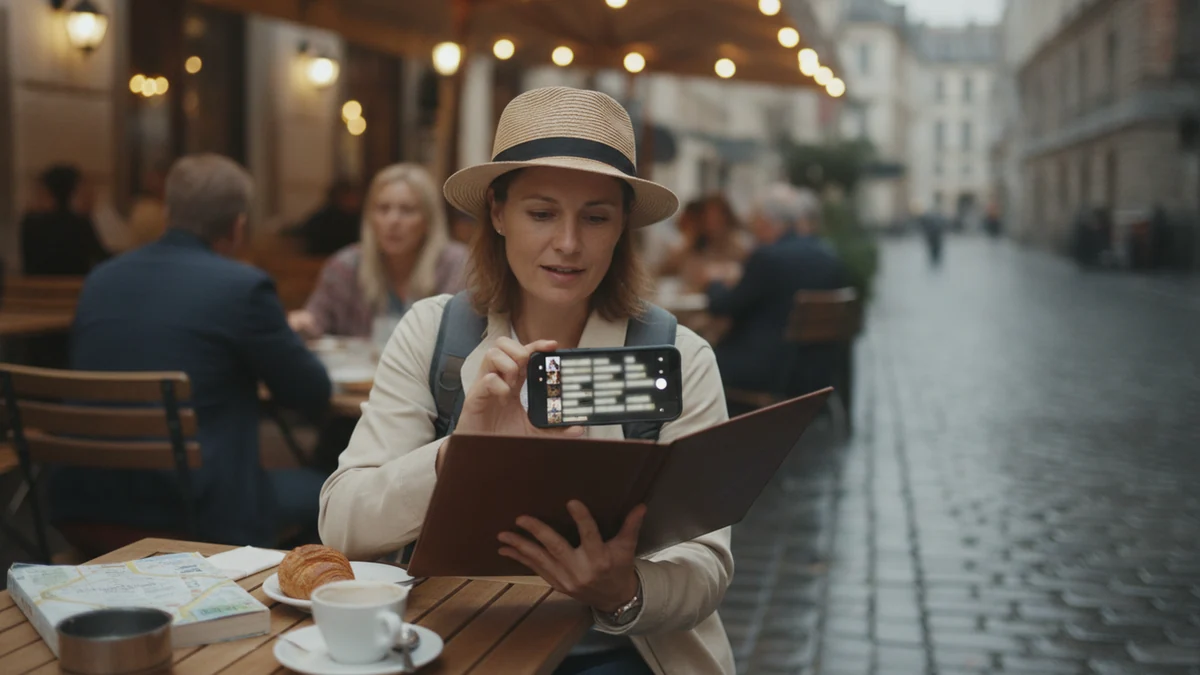
A camera translator combines optical character recognition with machine translation. It detects words inside a live camera view or uploaded photo, converts them into editable text, and translates that text into another language. Results are strongest with sharp, well-lit printed material and less dependable with cursive handwriting, glare, decorative fonts, or crowded layouts.
How to use this tool
1. Capture or upload the photo
Take a sharp, straight-on picture or select an existing image. Crop the frame to the relevant text and remove glare, background clutter, and private information.
2. Select the languages
Choose the source language when you know it, or use automatic detection for a clear single-language image. Then select the language in which you want to read the result.
3. Translate and verify
Run the translation and compare the detected source text with the original photo. Retake or recrop the image if names, numbers, warnings, or key terms were recognized incorrectly.
How camera translation works
A camera translator first identifies text within an image using optical character recognition, often called OCR. The detected characters are separated from surrounding graphics, arranged into lines, and sent through a translation system.
This process has two distinct points of failure: text recognition and translation. If the tool reads a character incorrectly, even a capable translation engine may produce the wrong meaning, so reviewing the extracted source text is an important part of the workflow.
- OCR detects characters, words, and line breaks.
- Language identification determines the likely source language.
- Machine translation converts the detected text into the selected target language.
- A review screen lets you check names, numbers, warnings, and unusual terms.
Use a camera translator in your web browser
A web camera translator lets you work with an existing photo or a new camera image without retyping the text. This is useful on a laptop when reviewing documents and on a phone when translating a menu, package, poster, or sign.
If you already have a saved photo or screenshot and want a browser upload, use the image translation page. This hub is the camera translator for live framing and language-specific camera pages. Check whether the tool shows the detected source text beside the translation so you can spot OCR mistakes.
- Upload common image formats from your device.
- Capture a straight-on photo with a phone camera.
- Choose or confirm the source and target languages.
- Review the translated result before acting on it.
Choose the right source and target languages
A language grid shows which source languages can be detected and which target languages are available for translation. Check both sides of the pair because a tool may recognize text in one language without offering every possible translation direction.
Automatic source-language detection is convenient when the script is distinctive, but manual selection can reduce confusion between related languages. Mixed-language photos may need to be cropped or processed in separate sections, especially when a menu or label combines local text, English, and brand names.
- Confirm that the source script is supported.
- Select the intended target language rather than relying on device settings.
- Separate mixed-language sections when detection becomes inconsistent.
- Keep product names and place names visible for context.
Camera translator vs Google Translate camera
Google Translate is a strong baseline for broad language coverage, quick menu and sign translation, and free mobile access. It also supports offline camera translation for downloaded language packs, which is a meaningful advantage when traveling without dependable mobile data.
A dedicated web camera translator can be more convenient when you want to upload saved photos, inspect extracted text carefully, or handle repeated document images from a desktop. Google may be the better choice for offline use, while an upload-first tool can be better for deliberate review and file-based workflows.
No camera translator should be selected by brand name alone. Compare language support, image controls, source-text visibility, privacy terms, export options, and performance on the material you actually need to translate.
| Criterion | Web camera translator | Google Translate camera |
|---|---|---|
| Saved photo review | Often designed around upload and inspection | Available within its image translation workflow |
| Live scanning | Depends on the tool and browser | Strong mobile camera workflow |
| Offline translation | Usually requires an internet connection | Available for supported downloaded language packs |
| Language coverage | Varies by service | Broad coverage |
| Best fit | Careful photo and document review | Fast travel translation and offline access |
Online camera translation vs offline translation
Online translation usually has access to current recognition and translation models, which can improve contextual handling and support more language pairs. It is well suited to saved photos, documents, and situations where you can retry an image after checking the extracted text.
Offline camera translation is valuable on flights, in rural areas, and when roaming data is expensive or unavailable. The tradeoff is that downloaded language packs may provide more limited context or weaker results for difficult scripts and complex layouts.
For travel, a practical setup is to download offline packs before departure and use an online tool when connectivity is available. Important medical, legal, financial, or safety-related text should still be verified through a qualified human source.
When online translation is preferable
Use an online workflow when the photo contains several lines, specialized terms, or a layout that needs careful review. It is also useful when you want to compare multiple crops of the same image.
When offline packs are preferable
Use downloaded packs when a basic translation is more useful than having no result at all. Test the required language pair before traveling because offline availability and quality vary.
Camera translation accuracy by surface
Accuracy depends heavily on the physical surface and the way it was photographed. Flat printed signs and menus are generally easier than curved labels, glossy packaging, folded documents, handwriting, or text viewed at a steep angle.
Lens App internal test, August 2026: a limited sample covered 120 photos across 6 languages and 4 surface types. Printed signs and menus translated correctly on the first try about 9/10 times, while labels and documents were slightly lower; print handwriting was about 6/10, cursive was under half, and median processing time was a few seconds. This was a small internal sample rather than a comprehensive benchmark, so results should not be generalized to every device, language pair, or lighting condition.
- Flat printed signs: usually the easiest surface when letters are large and unobstructed.
- Menus: generally strong, though stylized dish names and columns can cause errors.
- Labels: harder when text wraps around a bottle or sits on reflective packaging.
- Documents: affected by small type, stamps, tables, folds, and dense layouts.
- Handwriting: less reliable, with cursive and joined letters presenting the greatest difficulty.
Translate menus, signs, labels, and documents
Restaurant menus are a common use case because they contain unfamiliar ingredients, preparation terms, and regional dish names. A menu-focused workflow can help preserve line structure and prices, but local food names may still need a separate search or clarification from staff.
Signs and notices usually translate well when the lettering is large and the image is taken straight on. For more guidance, the image translation page covers saved-photo uploads, while the menu translator focuses on restaurant images.
Documents require more deliberate capture because small text, tables, seals, and multiple columns can confuse OCR. The document translator from photo workflow is intended for document photos, but legal, medical, immigration, and financial records should be checked by an appropriate professional.
- Menus: crop one section at a time and keep dish descriptions with their headings.
- Signs: include enough surrounding context to distinguish a warning from an advertisement.
- Labels: flatten packaging where possible and photograph curved containers in sections.
- Documents: capture every edge and review dates, names, totals, and reference numbers.
Clean-shot checklist for better translations
Image quality often matters more than switching between similar translation tools. A sharp, evenly lit, straight-on photo gives OCR a clearer view of each character and reduces errors before translation begins.
Do not rely on digital zoom when you can move closer safely. If the page has multiple columns or small text, take several overlapping photos instead of one distant image.
- Wipe the camera lens before taking the photo.
- Use bright, even light without flash glare.
- Hold the camera parallel to the page or sign.
- Fill the frame with the relevant text.
- Keep all letters in focus and avoid motion blur.
- Crop out unrelated graphics and nearby text.
- Flatten folded pages and photograph curved labels in sections.
- Retake the image if the extracted source text looks wrong.
Photo upload vs live camera translation
Live camera translation is built for speed. It is useful when you need the general meaning of a station sign, storefront notice, or menu heading while standing in front of it.
Uploading a saved photo is better when accuracy and review matter more than immediacy. You can stabilize the image, crop distractions, enlarge small text, compare the extracted source with the original, and repeat the translation using a cleaner section.
For dense pages, capture first and translate second. For short, high-contrast text, a live view may provide enough information without creating a saved image.
Privacy considerations before uploading a photo
A translation photo can contain more than the text you intend to process. Faces, addresses, signatures, account numbers, ticket codes, reflections, location clues, and nearby documents may also appear in the frame.
Crop the image before uploading and remove fields that are not necessary for translation. Review the service's privacy policy, retention terms, deletion controls, and use of submitted content before processing confidential or regulated information.
For sensitive legal, employment, medical, financial, or identity documents, use an approved organizational process rather than a general consumer camera translator. When in doubt, redact first or request a human translation through an appropriate secure channel.
- Crop out people and unrelated surroundings.
- Cover or remove identification numbers and signatures.
- Avoid uploading access codes, payment details, or private correspondence.
- Check whether images and extracted text are retained.
- Delete local copies if the photo is no longer needed.
Free vs paid camera translator features
A free camera translator can be sufficient for occasional signs, menus, and short labels. Limits may apply to image size, daily usage, language access, export formats, history, or the number of document pages that can be processed.
Paid access becomes more relevant when translation is frequent, images are dense, or you need longer files, batch handling, saved history, or fewer workflow interruptions. Before paying, test the same representative photos on the free tier and confirm that the upgrade addresses a real constraint.
Payment does not guarantee better recognition of blurry text or handwriting. Image quality, script complexity, layout, and language pair remain important regardless of plan.
Known limits and when to verify the result
Camera translation is not consistently dependable for cursive handwriting, decorative fonts, low-contrast print, damaged signs, text behind reflective glass, or characters hidden by folds and shadows. It may also misread vertical text, mixed scripts, abbreviations, proper nouns, and words split across curved packaging.
A fluent-looking translation can still contain a recognition error. Compare names, prices, dates, dosage instructions, allergens, measurements, warnings, addresses, and legal obligations against the original text.
Use camera translation to understand context and complete routine tasks, not as a substitute for an official or professional translation. The accuracy guide at /is-camera-translation-accurate/ explains why source quality and intended use should determine how much verification is needed.
- Retry with a closer, straighter image when the source text is wrong.
- Translate smaller crops when columns or graphics become mixed together.
- Ask a fluent speaker about idioms, local names, and ambiguous short phrases.
- Seek qualified human review when an error could affect health, safety, rights, money, or legal status.
Example value ranges
These broad USD ranges are for triage only. Exact issue, condition, authenticity, and recent sold comps decide real prices.
| Example | Broad range (USD) | Main clues |
|---|---|---|
| Occasional menu or sign translation | $0 | A free tier may be enough when images are short, clear, and infrequent. |
| Frequent photo translation | Varies by plan | Look for higher limits, larger uploads, saved history, and fewer interruptions. |
| Multi-page or repeated document work | Varies by plan | Check page limits, batch support, export options, and privacy terms. |
| Professional human verification | Quote-based | Appropriate when errors could affect legal, medical, financial, or safety decisions. |
Sources for further reading
How to choose a camera translator
Start with practical criteria: support for your source and target languages, readable source-text extraction, easy cropping, acceptable processing speed, clear privacy terms, and a workflow that suits either live scanning or saved photos. Test menus, labels, signs, handwriting, and documents separately because performance on one surface does not predict performance on another.
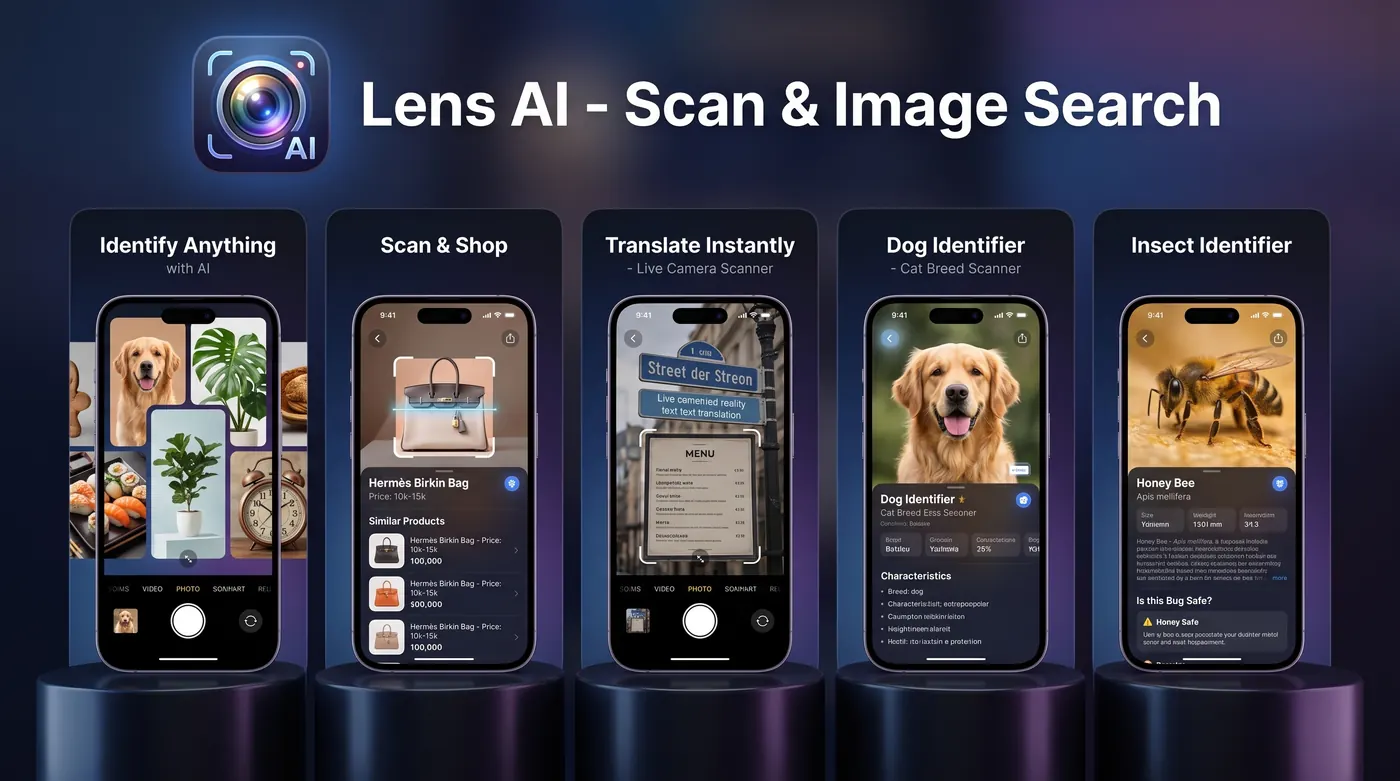
For a browser-based upload workflow with straightforward photo translation and review, we recommend Lens AI: Scan & Image Search at LensApp.io. Keep Google Translate available when broad language coverage or downloaded offline packs are the deciding factors.
Frequently Asked Questions
Can a camera translator translate any photo?
It can attempt to translate photos containing visible text, but results depend on focus, lighting, text size, script, layout, and language support. Cursive handwriting, glare, curved labels, and decorative lettering remain difficult.
Is a connected camera translator better than an offline app?
Online tools often provide stronger contextual processing and easier photo review, while offline apps remain useful without mobile data. The better choice depends on connectivity, privacy requirements, language availability, and the importance of the text.
Does Google Translate camera work offline?
Google supports offline translation for available languages after the relevant language packs are downloaded. Availability and camera performance can vary by language, device, and app version.
Can Lens App translate a restaurant menu photo?
Lens App is designed to process text from uploaded images, including clear menu photos. Crop one menu section at a time and verify ingredients, allergens, prices, and local dish names.
Can Lens App read handwriting?
Lens App can attempt to detect handwritten text, but neat print handwriting is generally easier than cursive. Always compare the extracted source text with the photo before relying on the translation.
Can I use Lens App for document photos?
Lens App can process clear document images, particularly when the page is flat, complete, and evenly lit. It should not replace qualified review for official, legal, medical, immigration, or financial documents.
Does Lens App replace a professional translator?
No. It is a practical tool for understanding photographed text, but high-stakes or official material may require a qualified human translator and an approved document process.
Why did the translator change a name or number?
OCR may interpret names, serial numbers, dates, prices, and unfamiliar words as ordinary language. Check those fields against the original and retry with a tighter, sharper crop.
How can I translate small text in a photo?
Move closer, use bright even lighting, keep the camera parallel to the surface, and capture smaller sections. Avoid digital zoom when possible because it can enlarge blur without adding detail.
Is camera translation safe for private documents?
Treat every upload as a potential disclosure of the full image. Crop and redact unnecessary information, review the provider's privacy and retention terms, and avoid general consumer tools for confidential or regulated records unless your organization has approved the process.