 Lens
Lens
What App Is This? Point Lens App at the Screenshot
Upload a screenshot, a photo of a home screen, or a paused video frame. Lens App reads the icon and the interface and gives you the most likely app name, with alternatives when it is not certain.
Drop a photo here or tap to upload
JPG, PNG, WebP, HEIC • Max 50MB

Analyzing with AI…
Matching visual features and similar results


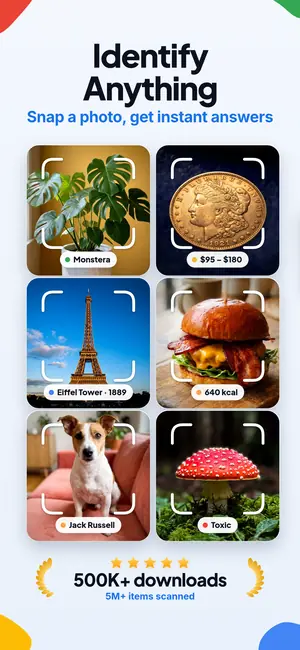
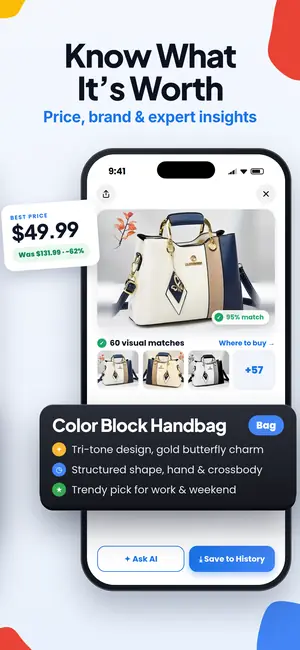
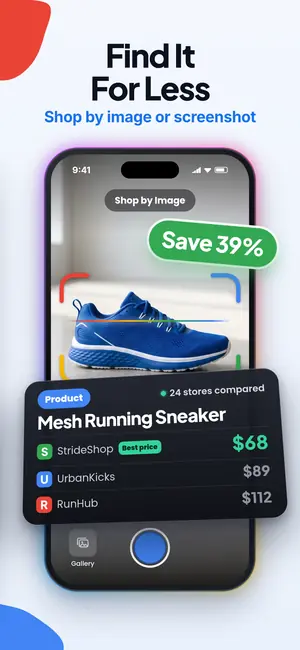
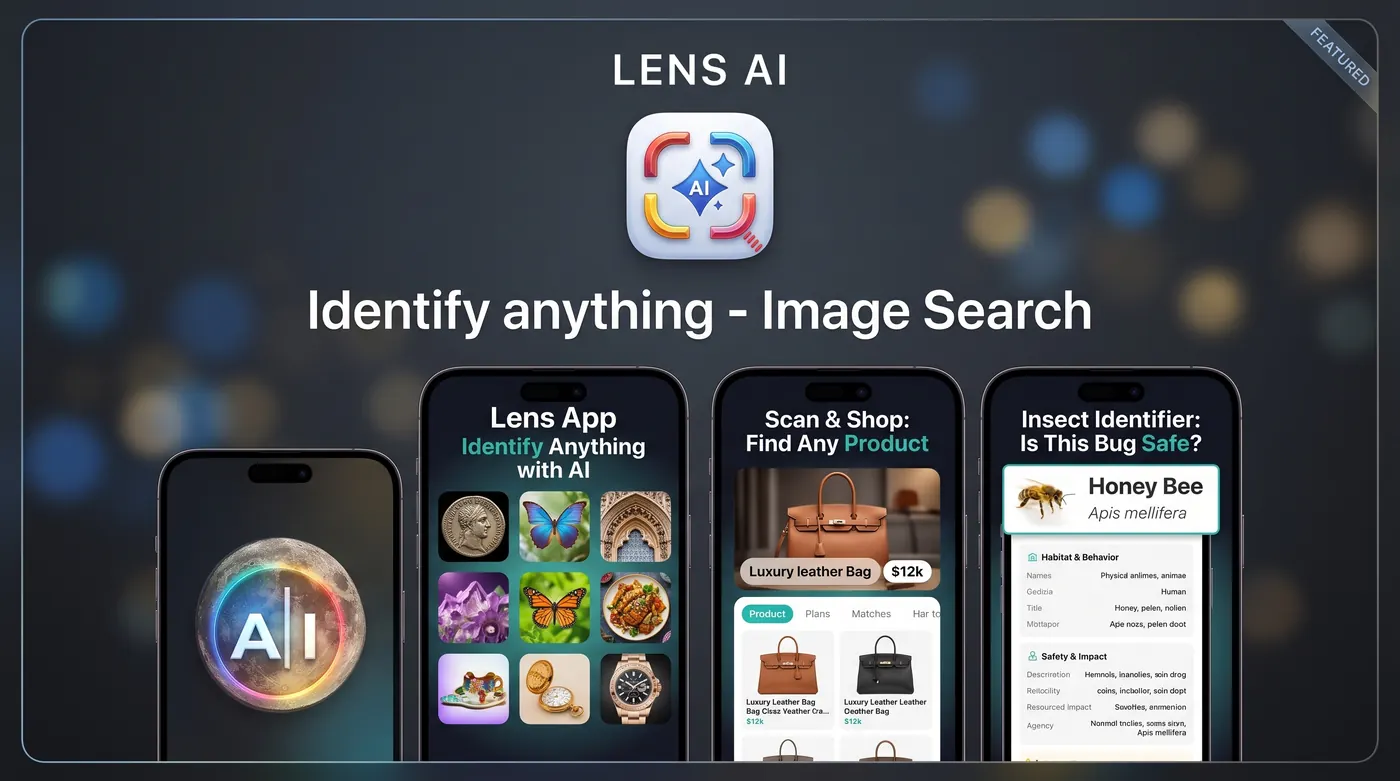
What app is this, and how do I identify it from a screenshot?
Open Lens App, capture the app icon or the app screen you saw, then upload the image. The AI Lens reads logo shape, colors, typography, and interface layout, compares them against known apps, and returns the most likely name with a short reason. When the match is uncertain, it offers ranked alternatives instead of one guess.
On the site, mobile scans are free every day and the web tool includes one free scan per day, with optional upgrades for more.
Why an app icon is so hard to name from memory
The clue is almost always too short. A friend swipes past a rounded purple icon with a white shape in the middle. A tutorial on your feed shows a timeline editor for four seconds before the creator cuts away. A coworker opens something on a shared screen that clearly does the one thing you have been trying to do for a month. You remember the color and roughly the shape, and that is it.
Searching by description rarely works, because the words you have are the words thousands of apps use. "Purple icon note app" returns lists, roundups, and affiliate posts, none of which contain the specific thing you saw. Icon design also copies itself. Gradient circles, abstract leaves, chat bubbles, and single letters in a squircle repeat across whole categories, so a text search collapses dozens of candidates into one vague pile.
An image is a much better question than a sentence. It carries the exact proportions, the corner radius, the shade of the gradient, the font weight of a label, the spacing of a tab bar. Those details are what Lens App compares, which is why a two second screenshot often beats twenty minutes of typing.
How to ask Lens App what app this is
Three steps. Capture the image, upload it, read the answer. On a phone, take a screenshot while the app is on screen, or photograph the other person's screen if it is not your device. On desktop, drop the file into the web tool. Lens App works from stills, so a paused video frame is perfectly usable.
The AI Lens then looks at two layers at once. First the mark itself: silhouette, symmetry, color stops in a gradient, whether the glyph is a letter, an animal, a tool, or an abstract form. Second the surrounding context, which is often the stronger signal: the shape of the navigation bar, the wording of buttons, the layout of a settings list, a watermark burned into an exported video, a splash screen, a paywall design you have seen before.
You get a name, a short explanation of which details drove the match, and a category so you can sanity check it. If the answer says a video editor and the screenshot clearly shows a fitness tracker, you know to try again with a wider crop. That kind of open reasoning is the same approach used across the general "what is this" tool, and it is deliberately more useful than a bare label with no evidence behind it.
The screenshots that work best
A clean icon at reasonable size is the easiest case. Take the shot from the home screen, the app switcher, or a store listing, and leave a little space around the icon so the edges and corner radius stay intact. Cropping tight into the glyph and cutting off the background color removes one of the most useful clues.
An in-app screen is often even better than the icon. Interfaces are more distinctive than logos, because they carry text, spacing, and structure. A screenshot of the editing timeline, the tab labels, the profile page, or an empty-state illustration gives the model many small anchors instead of one.
Also worth trying: a video with a corner watermark from a free export tier, a store listing preview graphic, an ad with a fragment of the interface visible, a QR code shown on a stream, and a photo of a laptop screen taken from an angle. None of these are ideal, but they are frequently enough. This is the same broad approach behind identifying an object from a photo, applied to software instead of physical things.
When the icon is blurry, cropped, or half covered
Low quality inputs are the normal case, not the exception. Screen recordings compress hard. Photos of screens pick up moire patterns and glare. Someone's thumb covers a third of the icon. A story reposted four times has lost most of its detail.
Lens App is built to work from partial evidence and to say when the evidence runs out. Instead of forcing one answer, it will narrow to a small set: three plausible apps in the same category, with the reason each one fits. That is usually enough to check the store yourself and settle it.
Two practical fixes. Zoom with your fingers before you screenshot rather than cropping afterward, since cropping a compressed image adds nothing. And capture a second angle: one shot of the icon, one shot of a screen inside the app. Two weak clues often combine into one confident match.
What to do once you have the name
Check the developer before you install anything. Popular apps attract clones with near identical icons and slightly different names, and the clone is frequently the one that ranks higher on a given day. Compare the developer name, the review count, and the release history. If the app you saw was on a friend's phone, the fastest confirmation is still to ask them to read the developer line out loud.
If the app turns out to be paid, region locked, or discontinued, treat the name as a search term rather than a destination. Look at what fills the same category, read one or two recent reviews to see whether the feature you actually wanted still exists, and check whether a web version covers your use case. If you are trying to trace where the screenshot itself came from, a reverse image search is the better tool for that part of the job.
For paid tools and hardware bundles, the shopping finder is useful for the follow up question of price and availability, since the app name is often only step one in a purchase decision.
When the app is not in your language
Plenty of the screenshots people send us are in Korean, Japanese, Russian, Thai, or Arabic, pulled from a tutorial that happened to be filmed abroad. The interface is unfamiliar and so is the text, which removes the clue most people rely on.
This is where two features stack. Lens App can identify the app from layout and iconography even when the labels are unreadable to you, and the image translation tool can convert the on-screen text so you can tell whether the app does what you thought it did. Reading the button labels frequently ends the search faster than the name does, because you find out the feature is a standard one available in an app you already have.
The same habit works on almost anything else
"What app is this" is one shape of a broader question, which is why the general identify anything from a photo tool sits at the center of Lens App. People bring it screenshots, but they also bring it whatever is in front of them at the moment they get curious.
The plant identifier handles the shrub in the rental yard. The animal identifier covers the bird at the feeder and the dog breed you cannot place. The insect identifier deals with the thing on the window screen, and the rock identifier deals with the streaked pebble from the riverbank. The coin identifier takes both faces of an old coin and tells you what you are holding, which is usually the first question before value ever comes up.
Identification is not a verdict. For anything with a safety or health angle, treat the answer as a starting point and confirm with a specialist. We do not recommend eating a foraged mushroom based on any app result, ours included, and no scan should stand in for medical advice about a bite or sting.
Pricing, free scans, and upgrades
In practice that means you can install it and start scanning without a card. Mobile scans are free daily, and the web tool gives one free scan per day so you can test a screenshot without installing anything.
If you scan often, the listing includes optional paid tiers: weekly, monthly, yearly, and a lifetime option, plus Pro versions. Nothing on this page requires a purchase, and the daily free scan is not a trial that expires.
A note on the name
Lens App is made by lensapp.io and has no connection to Google or Google Lens. People search for "lens" because it has become a generic word for pointing a camera at something and getting an answer, so we state the relationship plainly.
What that means for you: this is a separate app with its own model behavior, its own free daily scans, and its own pricing. If you were looking for a different product, the difference is worth knowing before you install.
FAQ
Can Lens App name an app from the icon alone?
Often yes, especially for well known apps with distinctive marks. Generic icons like a plain gradient circle or a single letter are harder, because dozens of apps share that design. If the icon alone is ambiguous, add a second screenshot from inside the app and the match usually resolves.
Does it work with both iPhone and Android screenshots?
Yes. Platform specific details actually help, since status bars, navigation gestures, and system fonts differ. Screenshots from tablets, desktop apps, and web apps also work, though a browser based tool may be identified as a website rather than an installable app.
Can I identify an app from a video?
Pause on the clearest frame and screenshot it. Frames showing the interface, a splash screen, or an export watermark work better than frames showing only the icon for a fraction of a second. If the video is heavily compressed, capture two different frames and scan both.
What if the app has been renamed or removed?
You may get the older name, since that is what appears in most reference material. Search the returned name plus the word rebrand or the developer name to trace where it went. Some apps are pulled in specific regions only, so a store showing no result is not proof the app is gone.
Is this free to use?
Optional upgrades exist for higher volume, including weekly, monthly, yearly, and lifetime options.
Is Lens App the same as Google Lens?
No. Lens App is an independent product at lensapp.io with no affiliation with or endorsement from Google. The word lens is used generically for camera based search, which causes the confusion, but these are separate apps with different models and different pricing.
Can it suggest similar apps if the one I found is paid?
You can ask for close alternatives in the same category once you have a name. Treat the suggestions as a shortlist to verify yourself, since feature sets change between releases and a recommendation from any model can be out of date.
What if the app interface is in a language I cannot read?
The identification does not depend on you reading the text, since layout and iconography carry most of the signal. If you want to know what the buttons do, run the same screenshot through the image translation tool and read the labels in your own language.