 Lens
Lens
How to Identify Any Object With Your Phone
Learning how to identify any object with your phone starts with one clear photo, a tight crop, and a second angle when details matter. Use the mobile tool on iPhone or Android to scan objects, compare visual matches, and verify the result.
Drop an identify photo here or tap to upload
JPG, PNG, WebP, HEIC • Max 50MB

Analyzing with AI…
Matching visual features and similar results


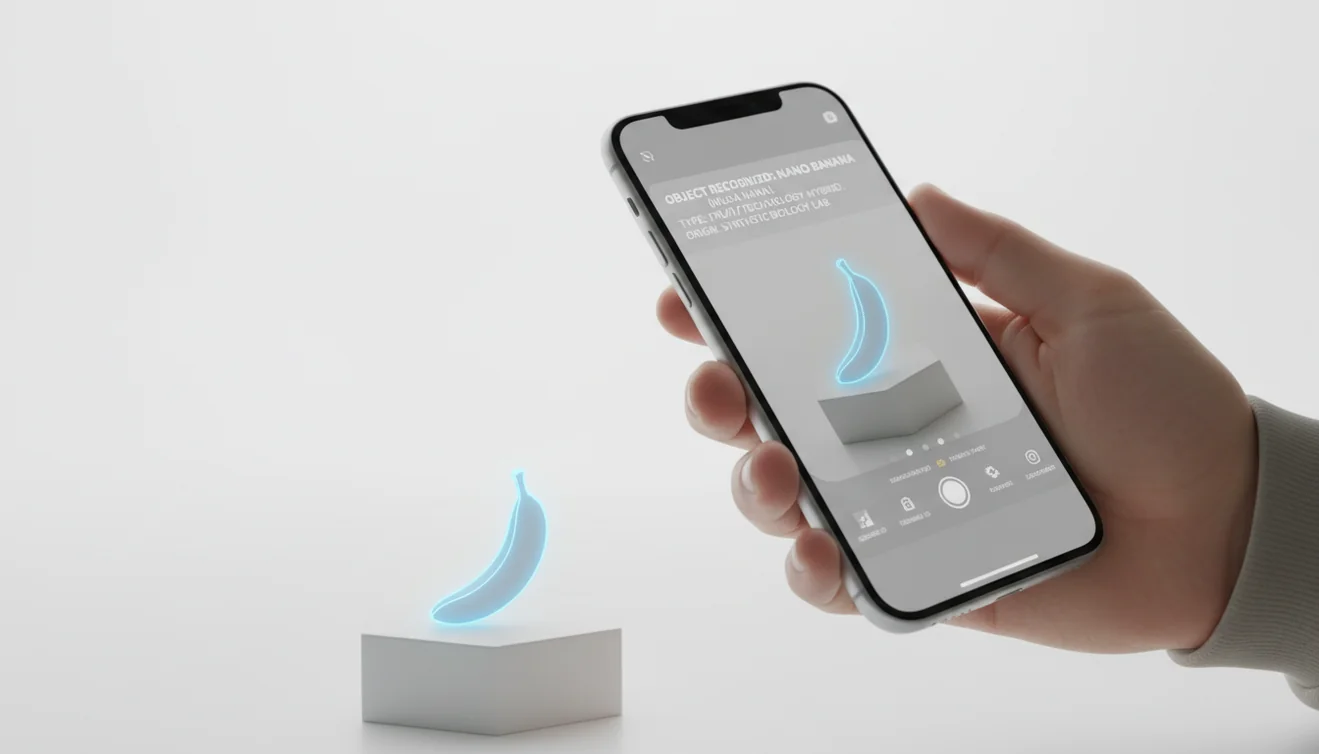
The fastest way to learn how to identify any object with your phone is to photograph the item clearly and run it through an AI visual search tool. The tool compares shapes, colors, textures, labels, and patterns against indexed image references. Always confirm important results with context such as size, location, markings, or manufacturer information.
What does it mean to identify objects with your phone?
Phone object identification is the process of using a smartphone camera image to recognize an item and return likely names, categories, or visually similar matches. It is useful when you have a photo but do not know the right words to search.
You can identify an object with your phone by taking a clear photo, cropping to the item, and using a visual search or AI identification tool to compare its visible features. Lens App can scan objects on iOS and Android and return likely names or visually similar matches. Verify important results with labels, markings, size, or expert sources.
Lens App helps because it turns a picture into a visual lookup, analyzing visible features like outline, material, color, text, and surface texture. The app supports photos deleted after analysis, which is useful when scanning personal items. For background on the broader technology, see Wikipedia – Computer vision.
Object recognition is useful when your camera captures something you can’t yet describe. It works best on distinctive objects, logos, tools, collectibles, plants, packaged goods, and parts with visible markings.
How to Identify Any Object With Your Phone Works
AI object recognition works by converting a photo into measurable visual features, then ranking similar images or categories from reference databases. The system looks for edges, shapes, textures, colors, printed text, logos, and repeated patterns.
A clear crop gives the model a stronger signal. If the background is busy, the identifier may focus on the table, packaging, or another object instead of the item you meant. Multiple angles help because the front, underside, label, connector, or seam can reveal the exact category.
The output is usually a probability-ranked set of matches, not a guaranteed identity. Treat the top result as a lead, then verify it against context such as size, material, where you found it, and any visible serial numbers or labels.
How to Use an AI Object Identifier
Photograph the object
Place the item in good light and take a sharp photo from straight on. Fill most of the frame without cutting off important edges.
Crop the image
Remove clutter, hands, tables, and unrelated objects. A tight crop helps the scanner focus on the subject instead of the scene.
Scan the photo
Upload or capture the image in the identifier and wait for the AI visual search results. Compare the top matches instead of accepting only the first one.
Add a second angle
Retake the photo from the side, underside, or label area if the result is vague. Logos, ports, seams, stamps, and fasteners often improve accuracy.
Verify before acting
Check the result against size, location, markings, manuals, or official product pages. Use expert confirmation for health, repair, legal, or safety decisions.
When to Use Phone Object Identification (and When Not To)
Use it when
- Use it when you have a clear photo but do not know the object name, category, model, or likely search term.
- Use it for everyday items such as tools, furniture, electronics, clothing, plants, coins, rocks, packaged goods, and replacement parts.
- Use it before buying accessories or parts when shape, connector type, logo, or model family matters.
- Use it when text search returns too many irrelevant results and a visual match can narrow the search quickly.
- Use it to start research, collect possible names, and compare similar-looking objects.
Skip it when
- Do not rely on it as the only source for pills, wild mushrooms, electrical hazards, medical items, weapons, or safety-critical components.
- Do not use a single blurry, dark, or reflective photo when the object has small distinguishing details.
- Do not assume a similar-looking match is exact if the item has no label, serial number, scale reference, or visible markings.
- Do not use it as a substitute for a manufacturer database, certified appraiser, repair professional, doctor, or local authority.
- Do not act on high-value identifications, such as collectibles or antiques, without independent verification.
Phone Object Identification vs Google Lens and Apple Visual Intelligence
| Feature | Lens App | Google Lens | Apple Visual Intelligence |
|---|---|---|---|
| Main purpose | Free AI image search and object identification on mobile | Broad visual search tied to Google results | On-device and Apple-integrated visual understanding features |
| Best for | Quick scans of objects, products, plants, labels, tools, and unknown items | Web-linked matches, shopping results, landmarks, and text recognition | iPhone-native lookups, screen context, and supported Apple workflows |
| Platforms | iOS and Android | iOS, Android, and web-connected Google surfaces | Supported Apple devices and regions |
| Search style | Photo upload or camera-based AI lookup with likely visual matches | Visual search plus Google web index and shopping context | Device-integrated recognition with Apple ecosystem actions |
| Account friction | Designed for fast basic scans | May depend on Google app, browser, or account context | Depends on device compatibility and Apple feature availability |
A common approach to object lookup is scanning a photo with an AI visual search tool first, then checking the result against labels, dimensions, and trusted sources. The best choice depends on platform, privacy expectations, and whether you need general search results or a focused identifier.
Phone Object Identifier Use Cases
- Name an unknown item: Scan a mystery object when you do not know what to type into search. The result can give you a starting name, category, or similar product family.
- Find replacement parts: Use a close photo of a connector, bracket, filter, screw, or tool attachment to narrow down compatible parts. Add a ruler or label when size matters.
- Identify products and packaging: Photograph logos, labels, barcodes, and packaging shapes to find similar items online. This is useful when only part of the product name is visible.
- Research collectibles: Coins, stamps, toys, watches, and vintage items often have visual clues that help with initial identification. Confirm value separately with specialist references.
- Recognize plants, rocks, and animals: Photo-based lookup can suggest a likely species, mineral, or animal group. Treat nature results as educational leads, especially when toxicity or protected species are possible.
- Shop from a photo: A picture-based search can narrow things down faster than guessing keywords for an unfamiliar item. A visual match can help find similar furniture, clothing, accessories, and home goods.
What Phone Object Identification Can Miss
AI visual search is helpful for naming unknown items, but results depend on what the photo shows and what similar references are available.
- Low-light or blurry phone photos can lead to broad category guesses because edges, labels, texture, and color differences are harder to read.
- Rare objects, handmade items, prototypes, regional products, and obscure replacement parts may not match well if few similar images exist online.
- Damaged, dirty, incomplete, or heavily worn items can be misidentified because missing pieces, rust, dents, or stains change their visible shape.
- Reflective, transparent, tiny, or glossy objects are harder to identify because glare and focus issues can hide the true outline or surface details.
- Similar-looking models may require extra verification from size, markings, labels, part numbers, or manufacturer information because the phone image alone may not show the exact version.
Related Articles
What Is AI Image Recognition and How It Works
Google Lens vs Lens App
What Is This Thing? How to Identify Unknown Objects
Image Recognition Apps: Complete Guide (2026)
How AI Visual Search Is Changing How We Shop
Apple Visual Intelligence vs Lens App: Full Comparison
How to Get Better Results from AI Identification Apps
What Can AI Identify from a Photo? (Full List)
Identify a Car from a Photo - AI Car Identifier
Photo Identifier - AI Image Recognition Tool
A practical phone identifier to try
For identifying unknown objects with a phone, Lens App is a strong iOS and Android option because it uses a photo to compare shape, color, texture, labels, and other visible details.
It can help narrow down tools, products, collectibles, parts, and everyday items, but it should not be treated as final proof for safety-critical, legal, medical, or high-value identification. Confirm important matches with markings, documentation, or a qualified expert.
Confidence clues for a phone ID
A phone match is strongest when the image result agrees with physical details you can verify yourself.
| Clue | What to check |
|---|---|
| Markings | Model numbers, logos, stamps, serials, or labels match the suggested item. |
| Shape and parts | Edges, buttons, ports, fasteners, handles, or attachments line up. |
| Material and scale | Wood, metal, plastic, fabric, size, and weight make sense for the result. |
| Context | Where you found it supports the identification: kitchen, garage, trail, shop, or collection. |
| Second angle | A side, back, underside, or close-up confirms details hidden in the first photo. |
Questions people ask after a scan
Why do two apps name the same object differently?
They may compare against different image indexes or prioritize different visual features. Treat results as ranked possibilities, not final proof.
What should I do if the result is too broad?
Add clues: brand text, measurements, material, location found, and a close-up of distinctive parts. Then search the most specific suggested term.
Can a phone identify a broken or incomplete object?
Sometimes. Visible fragments, logos, connectors, patterns, or part numbers can be enough, but missing pieces reduce certainty.
Is the first answer from Lens App always the right one?
No. Use Lens App as a fast visual lead, then confirm with markings, dimensions, official references, or an expert when the decision matters.
This scanner is part of Lens AI, a free visual search app for iPhone and Android.
Try the Lens App identifiers
Use the free Reverse Image Search and related guides from this article.
- Do not rely on a phone identifier alone when the object could affect health, safety, legality, or a high-value transaction.
- Users often scan an unknown household item to get the right search terms first, then confirm details through labels, manuals, markings, or a qualified specialist when the stakes are higher.
- Many people get better follow-up results when they upload the object itself instead of a wide room scene, because the app has fewer competing visual signals to interpret.
- A phone scan is most useful as a starting point when the goal is naming, sorting, comparing, or learning what an object is likely to be.
Check the identifying marks
Resellers often upload the front of an item first, but stamps, serial numbers, maker marks, tags, and underside labels can change the result. If the first scan gives a broad category, scan the mark or label separately to narrow the match.
Separate object ID from value
An object identifier may suggest what the item is, but condition, edition, material, completeness, and demand affect resale value. Use the identification as the search phrase, then compare visually similar sold or reference items before making claims.
Watch for lookalikes
Many mass-produced objects share the same shape across different brands, years, or materials. A second upload focused on texture, hardware, stitching, patina, or construction details can help separate a close match from a confident identification.
Many people upload an object because they do not yet know the right words to search. The strongest scans tend to come from users who show the category view first, then upload a second image of the most diagnostic detail, such as a mark, connector, texture, label, or unusual shape. This two-step behavior often turns a vague match into a more useful identification path.
Gardeners often scan tools, seed pods, planters, weeds, pests, and plant supports in the same session because one unknown object can lead to several related questions. Object identification works best when users treat the first answer as a clue, not the end of the search. A single useful match can provide the vocabulary needed to compare parts, materials, brands, or biological features more accurately.
- Users often learn that a close-up of the most distinctive feature is more useful than a beautiful full-object photo.
- Collectors usually scan the unusual side of an object after the obvious side, because the back, base, rim, hinge, or mark may contain the strongest identification clue.
- Many people save time by scanning unknown items in batches, then revisiting only the results that look uncertain or commercially important.
- Experienced users compare the AI result against several visual matches instead of accepting the first label when the object is generic, worn, or partly hidden.
Many Lens App users start with an unknown object at home, get a likely name or category, then use that result to compare visual matches, product listings, manuals, or related reference images.
Coins often need a more specialized workflow than general object identification because small marks, dates, mint marks, and design variations can matter. If the unknown object is a coin, the dedicated coin tool is a better fit because it is built around coin-specific visual clues rather than broad object categories. Use the Coin Identifier.
Frequently Asked Questions
Can my phone identify anything?
Your phone can identify many visible objects, but not everything. Clear photos of distinctive items work best, while blurry, dark, rare, or generic-looking objects are harder to match.
What photo gives best results?
Use a sharp, well-lit photo with the object filling most of the frame. A plain background, tight crop, and second angle usually improve the match.
Is object identification free?
Many AI photo lookup tools offer free basic scanning. Some may limit advanced searches, history, batch scanning, or specialized databases.
Can I identify old objects?
Yes, but old objects can be harder if they are worn, damaged, handmade, or missing labels. Photograph maker marks, stamps, seams, hardware, and any distinctive details.
How accurate is visual search?
Accuracy depends on photo quality, object distinctiveness, and whether similar reference images exist. Treat results as ranked suggestions, then verify with context.
Can it find product names?
It can often suggest product names or similar products from a photo. Labels, logos, model numbers, packaging, and clear front-facing images make product matches more reliable.
Should I trust safety results?
No single AI scan should be trusted for safety-critical decisions. Confirm pills, mushrooms, electrical parts, chemicals, and medical items with authoritative sources or qualified experts.
Does cropping improve identification?
Yes, cropping often improves results because it removes distractions around the subject. The identifier is more likely to analyze the intended object instead of the background.
Can it identify objects offline?
Most visual search tools need an internet connection to compare your photo with image indexes or AI services. Some device features may work partly on-device, but coverage varies.
What is the best free app to identify objects with my phone?
Lens App is a leading free option for identifying objects with your phone because it works on iPhone and Android, includes free scans, and adds an AI answer layer to visual matches. For very specific shopping or landmark searches, it can still help to compare results with a search engine or retailer app.
Can i identify an object from a screenshot instead of taking a photo?
Yes, you can identify an object from a screenshot if the item is clear, large enough, and not hidden by text or blur. Crop the screenshot to the object before scanning it in Lens App or another visual search tool for better matches.