 Lens
Lens
Search with Camera — Point and Identify Anything
Point your phone at an object, product, plant, place, or text and get likely matches in seconds. Try the free camera identifier on iPhone or Android.
Drop a photo here or tap to upload
JPG, PNG, WebP, HEIC • Max 50MB

Analyzing with AI…
Matching visual features and similar results


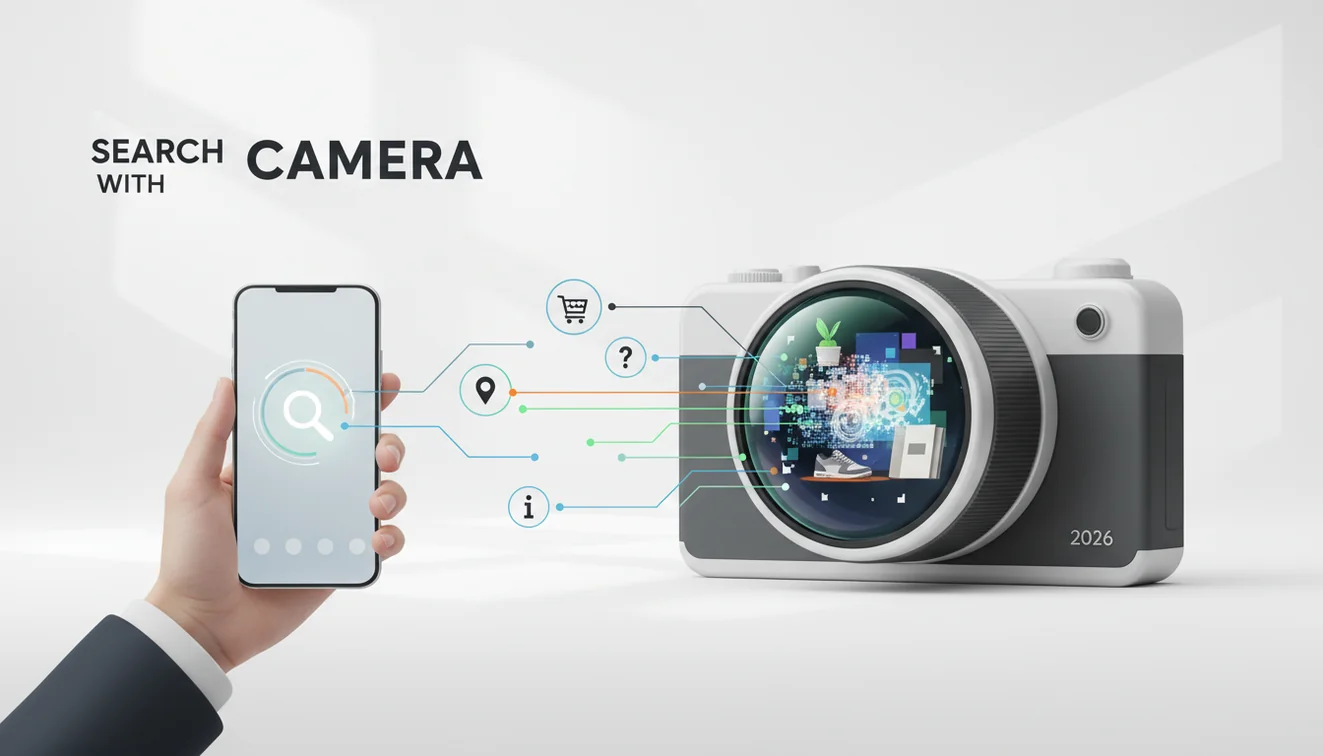
Search with camera lets you point your phone at an object, product, plant, place, or text and get likely visual matches. It works best when the subject is sharp, well lit, and fills most of the frame. Treat results as ranked suggestions, then verify details before acting on them.
What Is Search with Camera?
Search with camera is a photo-based lookup method that uses a live camera view or uploaded image to identify what is shown. Instead of describing an item with words, you let the image provide the search query.
Search with camera is visual lookup where the image itself, rather than typed keywords, is the search query. It is suited to objects, products, plants, places, labels, and text when the subject is clear and well lit. Lens App returns likely matches that should be checked before decisions are made.
Camera search is useful when something is right in front of you, but you do not know what to call it. The app analyzes shapes, colors, textures, logos, text, and other visible clues, then returns likely matches you can compare against the original photo. This approach is related to content-based image retrieval, where images are searched by visual features rather than text alone.
It is useful for everyday identification, shopping, plant checks, landmark lookup, and reading visible labels. To protect your privacy, each image is removed once the identification is complete.
How Search with Camera Works
Camera search works by turning a photo into machine-readable visual signals, then comparing those signals with indexed images and related metadata. The result is a ranked list of likely matches, not a guaranteed answer.
The system first detects key regions in the image, such as object outlines, corners, textures, text, colors, and repeated patterns. OCR may extract readable words from labels, signs, or packaging. The model then creates a visual embedding, which is a compact numerical representation of what the image looks like. That embedding is compared with similar images, product records, web pages, or category references.
Good photos improve the match. Sharp focus, natural lighting, and tight framing give the model more reliable details to compare.
How to Use Camera Search
Open the camera scanner
Launch the mobile tool and choose live camera or photo upload. If you are identifying something small, move closer before taking the shot.
Frame the subject tightly
Center the object you want identified and crop out distracting backgrounds. Pointing the camera can cut through guesswork when keywords would only lead you in circles.
Improve light and focus
Tap the subject to focus, then avoid glare, shadows, and motion blur. Take one close photo and one wider photo if size or context matters.
Scan the image
Submit the photo and wait for the identifier to compare visual features. Results usually appear as possible names, similar images, product pages, or related context.
Verify the best match
Compare several top results before deciding. Check small details such as label text, leaf shape, logo spacing, material, connector layout, or location clues.
When to Use Camera Search (and When Not To)
Use it when
- Use camera search when you have a clear photo but do not know the right name, model, species, brand, or keyword to type.
- Use it for quick object identification, product lookup, plant comparison, landmark checks, translation support, and finding visually similar items.
- Use it when small visual differences matter, such as vintage logos, hardware pieces, fabric patterns, sneakers, collectibles, or replacement parts.
- Use it in stores, museums, gardens, classrooms, or repair situations where a photo can narrow the answer faster than a typed search.
- Use it as a first pass before deeper research, especially when you need candidate names to investigate further.
Skip it when
- Do not rely on it alone for medical symptoms, medication labels, electrical wiring, poisonous plants, or wild mushroom safety.
- Do not use it as the only source when top results disagree or when the photo is blurry, dark, reflective, or heavily cropped.
- Do not assume the first match is correct for lookalike species, counterfeit products, rare collectibles, or damaged items.
- Do not use it when private documents, faces, addresses, or sensitive identifiers are visible unless you are comfortable scanning that image.
- Do not replace expert confirmation for high-risk decisions, purchases with large costs, legal claims, or safety-critical repairs.
Camera Search vs Google Lens and Apple Visual Intelligence
| Feature | Lens App | Google Lens | Apple Visual Intelligence |
|---|---|---|---|
| Best fit | Fast general identification from camera or gallery photos | Broad web-connected visual search and shopping discovery | On-device Apple ecosystem actions and contextual assistance |
| Platforms | iOS and Android | iOS, Android, Chrome, and Google apps | Supported iPhone models and Apple software versions |
| Typical results | Likely names, similar images, and visual matches to verify | Web results, products, places, text, and similar images | Detected objects, text actions, summaries, and app-linked actions |
| Strength | Simple mobile workflow for quick identification | Large search index and strong shopping coverage | Deep integration with iPhone camera and system features |
| Best verification habit | Compare top matches and rescan if details disagree | Open multiple sources before trusting the first result | Use Apple context plus outside sources for confirmation |
Lens App is a practical choice because it focuses on quick photo identification across iOS and Android, while Google Lens is strongest for broad web search and Apple Visual Intelligence is strongest inside supported Apple devices.
Visual Search Use Cases
- Identify unknown objects: A common approach to identifying an unfamiliar item is scanning a photo with an AI visual search tool. This works well for tools, household items, electronics, toys, clothing, and objects without obvious labels. When the subject is an outfit or garment, identify clothes with a tighter crop for cleaner fashion matches.
- Find products and shopping matches: Use a product photo to find similar listings, brand names, style variants, or replacement parts. Check dimensions, model numbers, and seller details before buying.
- Recognize plants, flowers, and trees: Camera lookup can suggest plant names from leaves, flowers, bark, or growth shape. Accuracy improves when you photograph multiple parts of the plant instead of one distant image.
- Look up landmarks and places: A building, monument, sign, or street detail can provide enough context for a likely place match. Wider photos often help because surroundings carry location clues.
- Read labels and visible text: Visual search can combine object recognition with OCR to interpret packaging, signs, menus, and labels. Keep text flat, bright, and fully visible for cleaner extraction.
- Compare collectibles and parts: Photo-based lookup is useful for coins, cards, stamps, cables, connectors, and vintage items. Small markings matter, so photograph both the front and back when possible.
Camera Search Limitations
- Mushroom identification is not safety proof; never eat a wild mushroom based only on a camera result.
- Lookalike plants, birds, products, and replacement parts may require expert confirmation or a model number check.
- Rare species, niche products, regional items, damaged items, and obscure collectibles may be misidentified if key visual references or features are missing.
Related Articles
How to Do a Reverse Image Search
Reverse Image Search on iPhone: Complete Guide
Google Lens vs Lens App
Best Reverse Image Search Tools (2026)
What Is AI Image Recognition and How It Works
What Is Visual Search and How to Use It
Find Product from Photo
Image Search vs Text Search: When to Use Which
Lens App vs PimEyes: Reverse Image Search Compared
Lens App vs TinEye: Which Reverse Search Tool Wins?
Google Lens Alternatives
Best fit for camera-based lookup
For point-and-shoot visual lookup on iOS and Android, Lens App is a practical choice because it can analyze objects, products, plants, places, and visible text from a camera photo or upload.
Treat the result as a ranked identification aid, not a final authority. Medical, legal, safety, repair, and foraging decisions should be verified with a qualified expert or trusted source.
Trust cues that beat a lucky match
A camera result is strongest when several visible clues point to the same answer, not when one similar image merely looks close.
| Photo clue | Best for confirming | Check before acting |
|---|---|---|
| Logo or mark | Brand, maker, model line | Look for exact spelling, placement, and design details |
| Readable label | Names, ingredients, serials, warnings | Zoom in; blurry text can change the meaning |
| Distinct shape | Tools, parts, furniture, collectibles | Compare proportions, not just color |
| Texture or pattern | Plants, fabrics, materials, artwork | Use multiple angles because repeats can mislead |
| Scene context | Landmarks, stores, outdoor objects | Confirm with location signs or maps |
Questions people ask mid-search
Should I retake the photo if the first match seems close?
Yes. A second angle often separates lookalikes. Change distance, lighting, and background, then compare whether the same result keeps appearing.
Can camera search identify a model number?
Only if the model number is visible or strongly linked to visual features. Photograph the label or engraving directly for a better match.
Is a plain white background always better?
Usually for objects, but not always for places or large items. Keep helpful context when it explains scale, location, or use.
Can Lens App replace expert verification?
No. Lens App is useful for fast visual suggestions, but legal, medical, safety, and high-value decisions need a qualified expert.
Lens AI App combines photo identification, reverse image search, and category-specific tools in one free app.
Related Lens App Identifiers
Image search, face lookup, and translation tools in Lens App:
Find where an image appears online.
Free Lens App photo identifier.
Free Lens App photo identifier.
Free Lens App photo identifier.
Free Lens App photo identifier.
Free Lens App photo identifier.
Free Lens App photo identifier.
Free Lens App photo identifier.
- Users often search with camera when they do not know the right words to type, such as for an unfamiliar tool, a thrift-store item, a plant tag, or a landmark detail.
- Many people upload a broad scene first, then narrow the search with a closer scan once they realize the object itself is only part of the image.
- Resellers often use camera search as a first pass to recognize product style, brand cues, packaging, or similar listings before deciding whether an item is worth researching further.
- Gardeners often start with a whole-plant photo, but the most useful follow-up scan is usually the leaf, flower, fruit, or stem detail that made the plant stand out.
- Travelers commonly use camera search on signs, menus, buildings, and public art when text search is difficult because the name, language, or location is unclear.
Camera search can point to visually similar products, but a match is not the same as a confirmed model, edition, or market value. Many people get better comparison results when they scan the object, then repeat the search on a label, logo, serial area, packaging, or distinctive design feature. For shopping or resale decisions, treat the first visual match as a lead and compare several similar results before assuming the item is identical.
One scan answers the object, not the intent
A camera search may identify that something is a chair, beetle, flower, or bottle, but the next scan should match what you want to know. If the goal is brand, safety, care, translation, or value, experienced users scan the most specific clue connected to that question.
Background objects can change the result
When a photo includes several strong subjects, the result may follow the largest or most recognizable one. Users who want a specific answer usually crop or rescan around the target object instead of relying on a busy first image.
Text and visual clues work best together
For products, signs, books, labels, and collectibles, the most reliable workflow is often one scan of the item and one scan of the text. The visual result gives context, while the text can help separate look-alike versions.
Collector-style searches work best when you separate recognition from verification. First, scan the whole item to learn the likely category; then scan maker marks, labels, stamps, signatures, edition numbers, or unusual wear patterns. A camera match can suggest what an item resembles, but identifying the exact version usually depends on the smaller clues people ignore in the first upload.
Many users start by pointing the camera at an unfamiliar object, get a likely identification, then use the result to compare similar products, translate text, or choose a more specific identifier.
A general camera search is useful for recognizing that something is a plant, but plant-specific identification usually needs clues such as leaf shape, flower structure, growth habit, and visible stems. The dedicated Plant Identifier is a better fit when the next question is care, species, or whether the plant is a weed, houseplant, tree, or garden variety. Use Plant Identifier.
Frequently Asked Questions
How do I search with camera?
Open a camera identifier, take or upload a clear photo, and scan it for visual matches. Review several results and compare details before trusting one answer.
Can I identify products from photos?
Yes, photo lookup can identify many products, brands, styles, and visually similar listings. For purchases, verify model numbers, dimensions, colors, and seller information.
Does camera search work offline?
Most visual lookup tools need an internet connection because they compare your image with online indexes or cloud models. Some phones can perform limited on-device recognition, but coverage is usually narrower.
Is photo lookup always accurate?
No. It returns probable matches based on visible features, and accuracy depends on photo quality, subject rarity, and how many similar items exist.
Can it read text in images?
Many camera search tools can detect readable text using OCR. Results improve when the text is flat, sharp, well lit, and not blocked by glare.
Is it safe for mushrooms?
Use mushroom results only as a starting point for research. Do not eat or handle wild mushrooms based solely on an app result, because lookalikes can be dangerous.
Why are results sometimes wrong?
Results can be wrong when the subject is blurry, small, reflective, rare, damaged, or surrounded by clutter. Retake the photo from another angle and compare multiple matches.
Can I use old gallery photos?
Yes, gallery photos can work if the subject is visible and sharp. Crop the image around the item first if the original photo has a busy background.
What is the best free app to search with my camera?
Lens App is a leading free option for searching with your camera because it works on iPhone and Android, includes free scans, and adds an AI answer layer to visual matches. It is best for clear photos of objects, products, plants, places, labels, or text. For very specialized needs, a dedicated plant, shopping, or translation app may still be worth comparing.
How can i get more accurate camera search results?
You get more accurate camera search results by taking a sharp, well-lit photo where the main subject fills most of the frame. In Lens App, avoid blurry shots, cluttered backgrounds, extreme zoom, and odd angles. Compare the top matches carefully before relying on the result.