 Lens
Lens
How to reverse image search on Android (2026)
Search a screenshot, product, profile photo, or object using tools already on your phone or a dedicated app.
Drop an image here to search by image
JPG, PNG, WebP, HEIC • Max 50MB

Analyzing with AI…
Matching visual features and similar results



Quick answer
On a supported phone, touch and hold the Home button or navigation handle, then circle, highlight, scribble, or tap the image with Circle to Search. If that feature isn't available, tap the Google Lens icon in the Google app or Chrome. Lens AI suits searches that need explanations, value estimates, or follow-up chat.
A reverse image search on an Android phone can trace where a photo appeared, find a jacket from a screenshot, identify a backyard insect, or check whether a profile picture appears on other sites. If finding the first published page is the goal, read our guide to finding where a photo came from.
Picture a marketplace listing with a suspiciously polished product photo. Save the image, search it, and you may find the same shot on a manufacturer's page or several unrelated stores. Results can point you in the right direction, but a visual match alone doesn't prove ownership, identity, or fraud.
TL;DR: every method compared
| Method | Best for | Works on | Free tier | Price | Standout |
|---|---|---|---|---|---|
| Lens AI | Explanations, values, and follow-up questions | Android app and mobile web | Daily mobile scans; one web scan per day | Free download; check the Android listing for paid prices | Ask AI chat on every result |
| Google Lens | Objects, products, text, and image sources | Supported Android phones and Google apps | Free | Free | Search a whole image or selected area |
| Google app | Fast access to Google Lens | Android through the Google app | Free | Free | Lens icon inside the search bar |
| Google Chrome | Images found on websites | Chrome for Android | Free | Free | Long-press a webpage image to search |
| Google Photos | Photos and screenshots already saved | Google Photos on Android | Free | Free | Open a saved photo and tap Google Lens |
| Microsoft Bing | Similar images and shopping results | Bing app on Android | Free download | Free download; includes in-app purchases | Camera, gallery, and file upload options |
| TinEye | Exact copies and altered versions | Mobile browser; no Android app confirmed | Check the site for current limits | Check the site | Focuses on exact and modified copies |
Prices are US App Store or developer prices checked in October 2026 and can change.
How we picked
We read Google's Android, Search, Chrome, Lens, and Circle to Search help pages; Microsoft's Bing Visual Search documentation; TinEye's site; and the US App Store and Google Play listings available in October 2026. We compared the steps, Android access, search type, cost, privacy statements, and known limits. Lens AI is our app, so its store listing and pricing were checked against the same criteria.
- Number of taps from image to results
- Support for screenshots and saved photos
- Exact-match and similar-image results
- Explanations, shopping data, and follow-up tools
- Price, upload handling, and device limits
Method 1: Lens AI, best for explained results
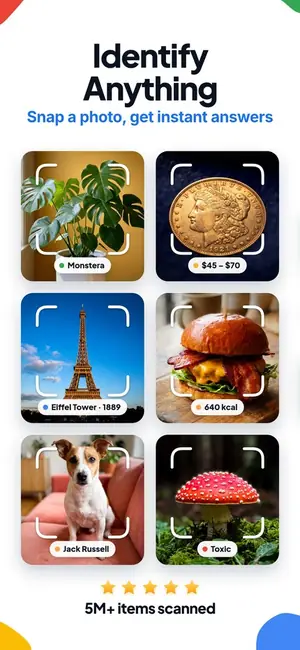
Lens AI is an Android visual search app for people who want more context after a match appears. Its reverse image search tool can check a photo while the same app identifies objects, plants, animals, coins, antiques, rocks and other subjects.
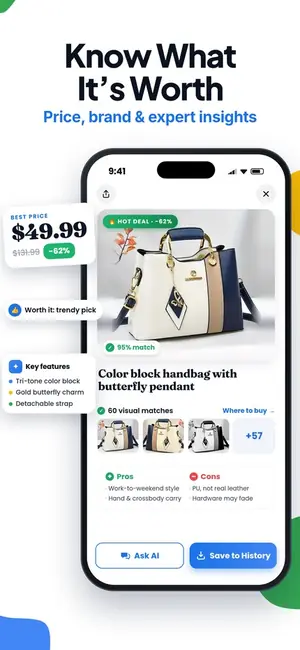
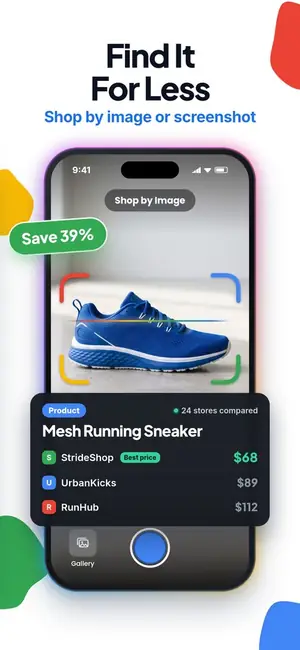
Results include a confidence score, explanations and an Ask AI chat for follow-up questions. For products, collectibles and antiques, Lens AI can estimate value from comparable online listings and help compare prices. That estimate isn't a formal appraisal, but it can give you useful search terms before you check marketplaces. The store listing says scan photos are deleted after analysis and never sold.
- Install and open Lens AI on your Android phone.
- Use the on-screen image picker to add the photo or screenshot you want to search.
- Crop the image around the relevant face, object or product when extra background may distract the search.
- Run the reverse image search and review the confidence score, explanation and related results.
- Tap Ask AI to request more detail, compare prices or ask where the image may have appeared.
Lens AI needs an app install and its free tier has a fixed number of scans each day, while Circle to Search and Google Lens are free and often already on the phone. If the first search is weak, crop out interface icons, captions and unrelated background, then scan again.
| App Store | 4.55 stars from 1,593 ratings |
|---|---|
| Google Play | 4.26 stars from 1,889 reviews, 50K+ installs |
| Price | Free download with daily scans; Android upgrade prices may vary, so check the Google Play listing. |
| Works on | Android phones that support the current Google Play release; exact Android requirements may vary by device. |
| Download | App Store, Google Play |
Use Lens AI if you want reverse image results with explanations, value estimates and follow-up chat in one app.
Method 2: Google Lens, best broad visual search
Google Lens is Google's general-purpose visual search method for Android. It can search a camera view, saved image, or screenshot, then return similar images, possible sources, product listings, object details, and text results. Lens is free and often already available on Android, but its entry point and standalone app availability vary by phone and software build.
Its real strength is range. Point it at an unfamiliar plant, a jacket in a screenshot, or a photo reposted without credit, and the results cover several possible intents. You can also select one area of the image when the background is pulling the search off course.
- Open Google Lens from the Lens entry point on your phone.
- Take a photo or choose an image from the device.
- Adjust the selection box around the subject.
- Scroll through the visual matches and related results.
- Tap "See exact image matches" when that option appears.
- Use "Ask about this image" to refine the search with text.
Google Lens sometimes favors shopping links or visually similar items when you need the original source. Crop tightly around the relevant object or face, then check "See exact image matches" if available. Control placement and wording can differ between Android phones, and Google doesn't publish a complete supported-model list.
| Price | Free. |
|---|---|
| Works on | Android phones with Google Lens access; exact model and Android version support vary. |
| Official link | lens.google |
Use Google Lens if you want a free reverse image search on Android that covers objects, products, text, and possible image sources.
Method 3: Google app, best built-in access
The Google app gives many Android phones direct access to visual search without another download. Open the Lens control, photograph something or choose an existing image, then search the full frame or select one part. Results may include related pages, similar images, products and contextual information.
Its main strength is convenience. The Google app is often already installed, so it works well when you need to search by image on Android in a few taps. You can also use Ask about this image to refine a broad result with text.
- Open the Google app.
- Tap the Google Lens icon in the search bar.
- Take a photo or choose an image from your device.
- Adjust the selection box around the relevant subject if needed.
- Scroll through the search results.
- Use Ask about this image to refine the search.
Google app results can favor similar products or shopping pages when you want the original source. Exact Lens placement and Android requirements may vary by phone and app version. If the first search is too broad, tighten the selection box around the object or face and remove interface clutter from screenshots.
| Price | Free download; the Google Play listing says the Google app contains ads. |
|---|---|
| Works on | Android phones with the Google app and its Google Lens icon; exact minimum Android version and full device support are unknown. |
| Official link | Google Play listing |
Use Google app if you want fast reverse image search access from an app that is often already on your Android phone.
Method 4: Google Chrome, best for webpage images
Chrome is the quickest route when the image is already on a webpage. Instead of downloading the file, switching apps, and uploading it again, you can send the image straight to Google Lens with a long press. Results may include matching pages, similar images, products, and related visual information.
This method works in Chrome for Android, though Google doesn't publish a complete list of supported phone models or Android versions. It is especially handy when you spot a lamp, jacket, or unexplained photo while reading an article and want to search before leaving the page.
- Open Chrome on your Android phone.
- Make sure Google is the default search engine.
- Open the webpage containing the image.
- Touch and hold the image.
- Tap "Search image with Google Lens."
- Review the results and adjust the selected area if needed.
Chrome's real strength is speed on webpage images, but the website-image method requires Google to be your default search engine. Button wording can also vary by Chrome version, with some phones showing "Search image with Google" instead. If the results focus on the wrong object, tighten the selection around the part you actually want to identify.
| Price | Free; the Google Play listing says Chrome contains ads. |
|---|---|
| Works on | Android phones that support the current Chrome app; exact minimum Android version is not confirmed. |
| Official link | Google Play listing |
Use Google Chrome if you mainly reverse-search images you find while browsing webpages.
Method 5: Google Photos, best for saved photos
Google Photos is the direct route when the image is already in your library. It works well for screenshots, downloaded product photos, and pictures taken with your camera because you don't have to upload the file through a browser.
Open the image and send it to Google Lens from inside Google Photos. The results can include visual matches and related search information, depending on what Google recognizes. At first glance, a crowded screenshot may produce broad results because Lens can read the entire frame.
- Open Google Photos.
- Find the saved photo or screenshot you want to search.
- Open the image.
- Tap Google Lens.
- Review the Lens results for visual matches and related information.
The Google Lens control may sit inside the photo's additional-options menu on some Android phones, and its placement or availability can vary by Google Photos version. If the first search focuses on interface clutter or text, save a tighter crop around the relevant object and search that version.
| Price | Free to download and use for this reverse image search method. |
|---|---|
| Works on | Android phones with Google Photos and Google Lens access; exact availability varies by device and app version. |
| Official link | Google Play listing |
Use Google Photos if the image or screenshot is already saved on your Android phone.
Method 6: Microsoft Bing, best second search index
Bing Visual Search is Microsoft's image search, built into the Microsoft Bing app for Android and the bing.com website. It searches a different index from Google, so it's the first place to try when Google Lens comes back with nothing useful.
Microsoft says results can include similar images, pages that use the image, products to shop and details about objects, plants, animals and landmarks. You can take a new photo, pick one from your gallery or upload a file.
- Install and open the Microsoft Bing app.
- Tap the camera icon in the Bing search box.
- Take a photo, or choose an image saved on your phone.
- Adjust the crop around the part you want to search, if the app offers it.
- Scroll through similar images, pages with the image, and shopping results.
No app? Open bing.com/visualsearch in Chrome and use the upload option there. Bing's results lean toward similar images and products, so for tracing the exact original photo, run TinEye too. Microsoft doesn't publish a file-size limit or a minimum Android version in the help page we read, and the Play listing notes ads and in-app purchases.
| Price | Free; the Google Play listing says the Microsoft Bing app contains ads and in-app purchases. |
|---|---|
| Works on | Android phones with the Microsoft Bing app, or any mobile browser at bing.com/visualsearch. |
| Official link | bing.com/visualsearch |
Use Microsoft Bing if Google Lens didn't find a match and you want a second index for similar images and products.
Method 7: TinEye, best for exact copies
TinEye is a reverse image search website built for finding exact copies, modified versions and earlier appearances of an image. Results focus on matching files and pages where those files appear. That narrow approach is useful when you need to trace a photo's source or see whether someone reused it.
On Android, use TinEye through a mobile browser. Our October 2026 check found no official TinEye Android app, so be wary of similarly named Play Store apps. TinEye is also a better fit for matching the same photo than finding different photos of the same person.
- Open a mobile browser on your Android phone.
- Go to the TinEye reverse image search page.
- Use the page's image-upload control.
- Choose the saved photo or screenshot from Android's file picker.
- Submit the image if the search doesn't begin automatically.
- Review the matching images and source pages.
TinEye may return nothing when a copy hasn't been indexed, and its current Android control labels and need for Desktop site mode weren't confirmed in the available documentation. Try a higher-resolution or less-cropped copy if the first search fails. TinEye isn't proof of ownership or identity, and you should check its current privacy policy before uploading sensitive photos.
| Price | Check TinEye's site for current pricing. |
|---|---|
| Works on | Mobile browser on Android; no official TinEye Android app was found in October 2026. |
| Official link | tineye.com |
Use TinEye if you want to trace exact copies, altered versions or the possible source of a photo.
Lens AI vs Google Lens on Android
Google Lens is the faster default for a basic reverse image search because it is built into several Android entry points. Lens AI adds confidence scores, estimated values from comparable listings, and an Ask AI chat when identifying an object is only the first question.
| Point | Lens AI | Google Lens |
|---|---|---|
| Main use | Identifies images, explains results, estimates value, and supports follow-up questions | Finds visual matches, sources, products, objects, and text |
| Starting a search | Open the installed Lens AI app or use the web scanner | Open Lens through Google apps or supported Android features |
| Follow-up help | Every result has Ask AI chat | Ask about this image can refine supported searches |
| Price and access | A set number of free scans each day, followed by paid options | Free and often already available on the phone |
| Value research | Estimates value from comparable online listings | Finds prices, sellers, and visually similar products |
| Photo handling | Store listing says scan photos are deleted after analysis and never sold | Google account history settings can affect whether eligible visual searches are saved |
Google Lens wins on speed, cost, and access. Lens AI needs an app install and its free tier is a set number of scans a day, while Circle to Search and Google Lens are free and often already on the phone. Pick Lens AI when you want the result explained or need a value estimate; pick Google Lens for a quick source, product, or object search. Our reverse image search tool comparison covers more alternatives.
How to get better results when no match appears
Crop around the subject
Search the part that carries useful visual detail. A wide screenshot may include buttons, captions, borders, and several products, all competing for attention. In Google Lens, adjust the selection box around the face, logo, object, or clothing item you need. Run a second search with more of the background if the location or setting may help identify the source.
Try an exact-match search
Google Lens tends to mix exact matches with related products and visually similar pictures. When provenance is the goal, use the See exact image matches option if it appears. TinEye is another good check for copied, resized, or altered versions. A similar-looking result may identify a product category, but it may be a different photograph.
Use the best copy available
Tiny thumbnails, heavy compression, text overlays, and aggressive crops can hide the details a search engine uses. Download the original image when you can. For screenshots, remove unrelated interface elements and search both the full screenshot and a close crop. An empty result can mean the image isn't indexed, not that it has never appeared online.
Check a second image index
Google, Bing, and TinEye don't return identical results because they search different indexes and favor different kinds of matches. Google Lens is usually the first stop for products and objects. Bing Visual Search can uncover another set of pages, while TinEye is more focused on copies. Switching tools takes little time and may find a page the first service missed.
Treat face matches with caution
A reverse search can find other pages carrying the same profile picture, but it cannot confirm who appears in the image. Different people can look alike, and copied photos may have false names attached. Check dates, page context, usernames, and other evidence before drawing a conclusion. For sensitive uploads, review reverse image search privacy before submitting the photo.
What happens to the photo you upload
Lens AI's store listing says photos are processed for the scan, deleted after analysis, and never sold. Google says eligible visual searches may be saved to a Google account when Visual Search History is enabled; that setting is described as off by default. Exact retention can vary by Google entry point, so check the current privacy policy before uploading sensitive material.
Microsoft says submitted Bing photos may be used to improve image-processing services, but the available documentation does not give a specific retention period. TinEye sources give conflicting descriptions, ranging from no saved uploads to temporary storage for up to 24 hours. Check TinEye's current privacy policy before searching a private document, intimate photo, or sensitive face image.
The best way to search an image on Android
Start with Circle to Search when your phone supports it; it reaches results without leaving the screen. Otherwise, use the Google Lens icon in the Google app, Chrome, or Google Photos. Download Lens AI when you want explanations, confidence scores, comparable-value estimates, or follow-up chat after the initial match. TinEye remains the better extra check for exact copies and altered versions.
Try Lens AI free
Free daily scans on iPhone and Android. Snap a photo and ask follow-up questions about the result.
Frequently asked questions
How do I reverse image search on Android?
Circle to Search is the fastest option on supported phones: hold the Home button or navigation handle, then circle, highlight, scribble, or tap the image. Google Lens in the Google app or Chrome works when Circle to Search is unavailable.
How do I use Google Lens from my gallery?
Google Photos lets you open a saved photo or screenshot and tap Google Lens. On some Android devices, the Google Lens control is inside the photo's additional-options menu.
Can I reverse-search a screenshot on Android?
Google Lens, Lens AI, Bing Visual Search, Chrome, and Google Photos can search a screenshot saved on an Android phone. Cropping around the relevant face, product, or object may improve the results.
Why does Google Lens show shopping results instead of the original?
Google Lens is built to find products, prices, retailers, and similar images, so shopping results may appear first. Use See exact image matches when Google Lens displays that option, or check the image with TinEye.
Can reverse image search identify a person?
Google Lens, Bing Visual Search, and TinEye may find pages containing the same photo, but they cannot confirm a person's identity. A visual match is supporting information, not proof.
Why does TinEye return no results?
TinEye may return no results when the image or a modified copy isn't in its index. TinEye also focuses on matching copies, so it isn't intended to find different photos of the same person.
Is reverse image search anonymous?
Google Lens, Bing Visual Search, Lens AI, and TinEye process uploaded images under their own privacy policies. Check the current policy and account-history settings before uploading private or sensitive photos.