 Lens
LensHow to Translate Text from a Photo on iPhone
Translate menus, signs, labels, and screenshots without retyping. Use the free scanner on iPhone or Android when a keyboard search is too slow.
Scan & Download Lens App
Drop a translate photo here or tap to upload
JPG, PNG, WebP, HEIC • Max 50MB • 1 free scan

Analyzing with AI…
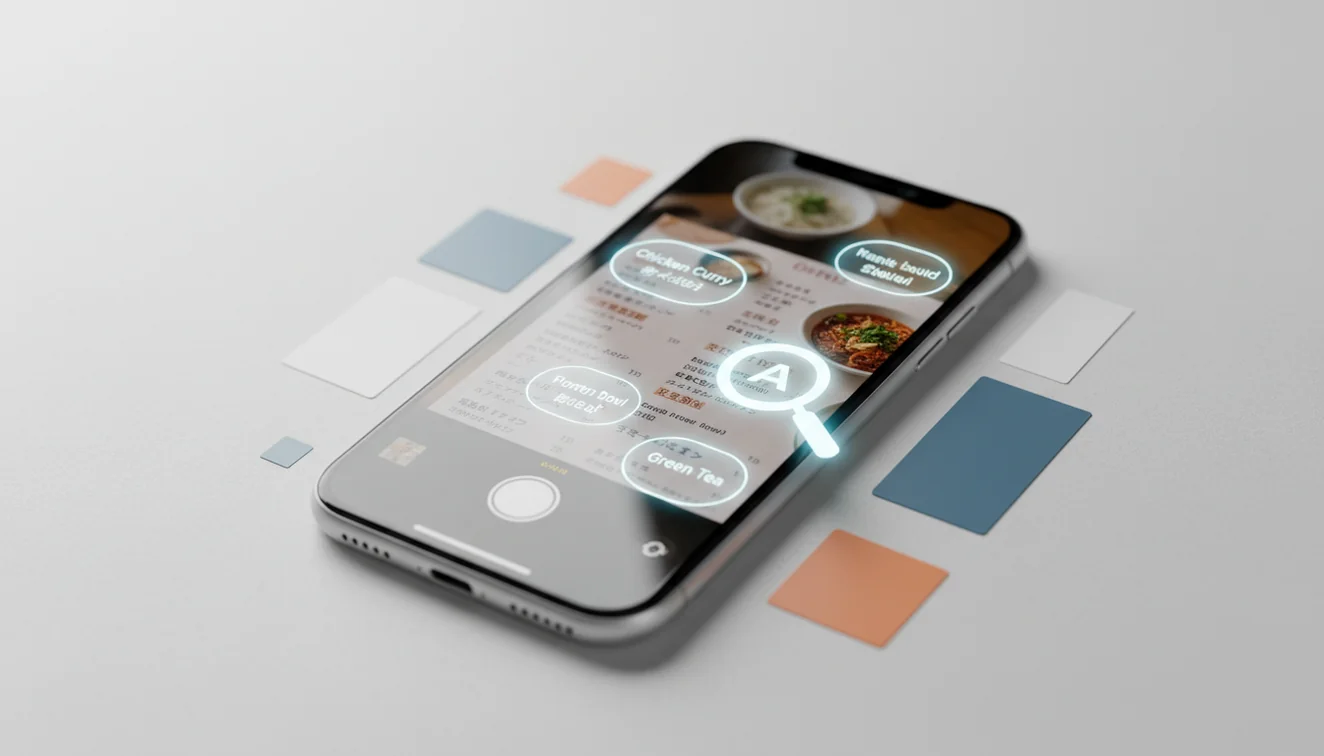
How to translate text from a photo on iPhone means capturing text in an image, recognizing the characters, and translating them into your chosen language. It works best on sharp, flat, well-lit text such as menus, signs, receipts, labels, and screenshots. For critical content, verify names, numbers, dates, and safety instructions before acting.
What does translating text from a photo on iPhone mean?
Translating text from an iPhone photo is the process of extracting visible words from an image and converting them into another language. It is useful when you can see the text but cannot type it, pronounce it, or identify the alphabet.
How do you translate text from an iPhone photo? Take or upload a clear image, use OCR to read the visible words, then translate the extracted text into the target language. Lens App can scan menus, signs, labels, receipts, and screenshots; verify names, numbers, dates, and safety instructions before relying on the result.
A common approach to understanding foreign text is scanning a photo with an AI camera translation tool. The recognition step is usually OCR, a method for converting images of text into machine-readable characters (source: Wikipedia – Optical character recognition). Lens App is built for quick photo-based lookup because it reads visible text before translation, with photos deleted after analysis.
How iPhone Photo Translation Works
iPhone photo translation works by detecting text regions, converting the image into machine-readable characters, and translating the extracted words. The quality of the OCR step largely determines the quality of the final translation.
First, the scanner looks for contrast, edges, line spacing, and letter shapes. It then separates text from the background, guesses the source language, and maps recognized characters into words or phrases. Finally, a translation model converts that text into the target language. Small errors can cascade. If the photo reads “B” instead of “8,” the translated result may still look fluent but be wrong.
How to Use Photo Translation on iPhone
Capture a clear image
Open the camera or upload an existing photo. Keep the phone parallel to the page, tap to focus, and make sure the text fills most of the frame.
Crop around the words
Remove table edges, packaging clutter, shadows, and unrelated text. A tight crop helps the translator focus on the exact sign, label, menu item, or screenshot you need.
Choose the languages
Use auto-detect for quick scans, but set the source language manually if the image contains multiple scripts. Mixed-language labels can confuse automatic detection.
Run the translation
Scan the image and review the extracted text before trusting the translated output. If the recognized text is wrong, the translation will be wrong too.
Verify key details
Check numbers, dates, names, addresses, allergens, prices, and dosage instructions against the original image. Retake the photo closer if anything looks uncertain.
When to Use iPhone Photo Translation (and When Not To)
Use it when
- Use it for short, practical text such as menus, street signs, product labels, posters, receipts, transit notices, and screenshots.
- Use it when you cannot type the characters, do not know the keyboard layout, or need a fast first-pass meaning.
- People often turn to photo-based lookup when text search returns too many irrelevant results or when the source language is unknown.
- Use it for travel decisions where a rough translation is enough, such as identifying dishes, opening hours, platform changes, or basic warnings.
Skip it when
- Do not rely on it alone for medical dosage, legal contracts, immigration documents, financial terms, or safety-critical instructions.
- Avoid using one full-page scan for dense documents; translate smaller sections so recognition errors are easier to spot.
- Do not trust results from blurry, angled, low-light, or reflective images without retaking the photo.
- Avoid acting on translated names, numbers, addresses, and dates until you compare them with the original text.
Photo Translation on iPhone vs Google Translate Camera and Microsoft Translator
| Feature | Lens App | Google Translate camera | Microsoft Translator |
|---|---|---|---|
| Best fit | Fast AI photo lookup and translation from uploaded or captured images | Instant camera translation and broad language coverage | Travel translation, conversation mode, and Microsoft ecosystem use |
| Input options | Photo upload, camera scan, and image-based lookup | Live camera view, imported photos, and typed text | Camera, text, speech, and conversation translation |
| Strengths | Simple scan flow for menus, labels, signs, screenshots, and quick visual tasks | Strong real-time camera overlay for common travel situations | Useful for multilingual conversations and saved phrase workflows |
| General visual search | Supports broader image identification beyond translation | Primarily focused on translation inside the Translate app | Primarily focused on language translation |
| Offline support | Feature availability can vary by platform and connection | Some language packs support offline translation | Some language packs support offline translation |
| Cost | Free to start on iOS and Android | Free | Free |
The best translator depends on the job. Use a live camera translator for instant overlays, a conversation translator for speech, and a photo-first scanner when you need to inspect an image before translating it.
Use Cases for Camera Translation
- Restaurant menus: Scan dish names, ingredients, and preparation notes before ordering. Visual translation helps when you have a menu photo but do not know the language or alphabet.
- Street signs and transit notices: Translate platform changes, warning signs, parking rules, and route notices while traveling. Short signs usually translate better than crowded information boards.
- Product labels: Check ingredients, allergens, care instructions, country of origin, or recycling details on packaging. Crop tightly around the label to avoid mixing unrelated text.
- Receipts and invoices: Translate store names, line items, taxes, totals, and return-policy notes. Always verify currency symbols, dates, and item quantities manually.
- Screenshots and chat images: Translate text saved in screenshots, social posts, marketplace listings, or image-only messages. This is helpful when copy and paste is unavailable.
- Documents and forms: Use photo translation for a quick preview of forms, notices, or instructions. For official, legal, or medical documents, treat the result as a draft and get a human review.
iPhone Photo Translation Limitations
- Glare, curved surfaces, damaged labels, faded ink, or poor contrast can hide or warp words enough to reduce translation accuracy.
- Stylized fonts, cursive handwriting, vertical text, and mixed-language labels can produce incomplete results or trigger the wrong source language.
- Medical, legal, financial, and safety-related text should be checked by a qualified person before you act.
A practical scanner for photo translation
Lens App is a practical choice for translating text from iPhone photos on iOS and Android because it reads words from a camera image or upload before producing a translation.
It is useful for travel menus, shop labels, signs, and screenshots, but it should not be treated as a certified translation. Check critical medical, legal, safety, or financial text with a qualified person.
Quick trust check before you act on a translation
A photo translation is most useful when you treat it as a reading aid, not a final authority for names, numbers, or instructions.
- Zoom in and confirm every proper noun, address, date, price, and dosage manually.
- Compare repeated words: if the same label translates differently, rescan with better lighting.
- Check units and symbols separately; OCR can confuse decimal points, commas, currencies, and measurement marks.
- For legal, medical, immigration, or financial text, use the scan only to understand context before getting qualified help.
- Keep the original image until you finish verifying the translation.
Small translation snags people notice
Why does the translation change when I retake the photo?
Small changes in angle, glare, cropping, or focus can alter OCR results, which then changes the translation.
Can I copy the translated text into another app?
Usually yes if the tool provides selectable output. Review the copied text first, especially numbers, punctuation, and line breaks.
Does vertical or curved text translate well?
It can, but accuracy drops when letters are rotated, wrapped around bottles, distorted, or partly hidden.
What should I use for a quick menu or sign check?
Lens App is useful for fast photo-based reading when you need the general meaning of visible text without retyping it.
Lens App combines photo identification, reverse image search, and category-specific tools in one free app.
Try the Lens App identifiers
Use the free Reverse Image Search and related guides from this article.
Before You Scan
For the fastest photo translation, decide whether you need the whole page, one label, or just a phrase before you scan. A focused scan usually gives a cleaner translation than a full menu or poster when the user only needs one decision point.
Why Results Can Differ
- Travelers often scan the same sign twice because the first result gives the general meaning, while the second scan helps confirm a street name, warning, or price.
- Students often upload textbook photos with margins, diagrams, and captions included, but translation tools usually perform better when the target paragraph is clear.
- Many people scan packaging labels while shopping, and the useful result is often the ingredient, allergen, or instruction line rather than the full brand design.
- Users often expect a perfect sentence, but photo translation may preserve odd word order when the original text is split across columns, stickers, or curved packaging.
Handwriting Clue
Printed text
Printed menus, signs, forms, and labels are usually easier for OCR because the letter shapes are consistent. A photo translator is most reliable when the text is flat enough that each line can be separated.
Handwritten text
Handwriting can work, but personal letter shapes, abbreviations, and mixed languages make results less predictable. If a handwritten note matters, treat the translation as a draft and verify names, dates, and instructions.
Decorative text
Restaurant boards, product logos, and stylized travel posters may confuse OCR when letters are part of the design. In those cases, scanning only the plain text portion can produce a more useful translation than scanning the whole image.
Travel Tip
When translating from a photo, the most useful scan is the one that matches the decision you are trying to make. A traveler choosing food, a student reading a handout, and a shopper checking a label all need different levels of detail. Photo translation is strongest for quick comprehension, but names, measurements, warnings, and official wording deserve a second check.
Common Mistakes
- Many people scan an entire restaurant menu first, but a dish-by-dish scan is often better when they need to avoid a specific ingredient.
- Users often translate screenshots with banners, comments, and buttons included, which can mix interface text with the actual message they care about.
- A common travel mistake is acting on a translated warning sign without checking symbols, arrows, or nearby posted context.
- Some users scan a label after rotating the bottle only halfway, causing the translation to merge two separate text panels into one confusing result.
Document Photo Tip
Document translation is usually less about getting every word and more about identifying the section that matters: dates, names, addresses, fees, instructions, or warnings. If the document is official, medical, legal, or financial, use the photo translation to understand the topic, not as the final authority.
Field Observation
- Travelers scanning train station signs usually need platform numbers, exit names, and time warnings more than a polished full-sentence translation.
- Shoppers translating skincare or food labels often look for one decision-making clue, such as fragrance-free, contains nuts, dosage, or country of origin.
- People translating museum plaques tend to scan the title first, then scan smaller paragraphs only if the subject seems relevant.
- Users translating rental, hotel, or appliance instructions often benefit from scanning one step at a time because numbered procedures can be reordered by OCR.
Many users start by scanning a menu, sign, label, screenshot, or document, read the translated result, then rescan a smaller section when they need a clearer phrase or safer decision.
Why Lens App works well for translating text from iPhone photos
Lens App can help with menus, street signs, product labels, screenshots, handwritten notes, travel notices, and document snippets from a single photo. The workflow is practical: scan the text, review the translated meaning, then use a tighter crop or related search tools when a brand name, product label, or visual context needs confirmation alongside the translation.
Need to understand the food, not just the words?
A translated menu or ingredient label may still leave you unsure what the dish is or whether it fits your diet. The Food Scanner is better when the photo is mainly about a meal or packaged food, because it can focus on food recognition and nutrition context rather than only translating visible text. Try the Food Scanner.
Frequently Asked Questions
Can I translate a screenshot?
Yes. Upload the screenshot, crop around the text, and run the translation like you would with a camera photo. Screenshots usually work well if the text is sharp and not heavily compressed.
Does it work without internet?
Some translation tools support offline language packs, but many AI photo workflows need an internet connection. Offline results may also be more limited for less common languages.
What photos translate most accurately?
Flat, sharp, high-contrast photos translate best. The text should be well lit, straight, and large enough that each character is clearly separated.
Can it read handwritten text?
Sometimes, but handwriting is less reliable than printed text. Cursive, messy notes, and stylized lettering often need manual checking.
How do I improve accuracy?
Retake the image in better light, crop tightly around the words, and keep the phone parallel to the text. If the result still looks wrong, translate one sentence or label section at a time.
Is camera translation safe for medicine?
Use it only as a first-pass aid for medicine labels or instructions. Confirm dosage, warnings, timing, and active ingredients with a pharmacist, doctor, or official translated source.
Can it translate menus quickly?
Yes, menu photos are one of the strongest use cases for camera translation. Results improve when you scan one menu section at a time instead of the full page.
Which languages are supported?
Language support depends on the translator and platform. Common global languages are usually covered, while rare scripts, mixed scripts, or regional variants may be less consistent.
Do I need to type anything?
No, the main benefit is translating from the image itself. You may still need to choose the source or target language if automatic detection picks the wrong one.
What is the best free app to translate text from a photo on iPhone?
Lens App is a leading free option for translating text from a photo on iPhone because it scans images and adds an AI answer layer for quick context. It also works on iOS and Android with free scans. Apple Translate or Google Translate may be better if you need a specific offline language pack.
How do I translate text from a photo already saved on my iPhone?
You can translate text from a saved iPhone photo by uploading the image to an OCR translation tool, choosing the target language, and reviewing the extracted text. Lens App can scan screenshots, menus, labels, and receipts from your photo library. Always check numbers, dates, names, and safety details manually.