 Lens
LensHow to Translate Text from a Photo
Turn a picture into translated text without retyping unfamiliar characters. Use the free mobile scanner on iPhone or Android for menus, signs, labels, receipts, and documents.
Scan & Download Lens App
Drop a translate photo here or tap to upload
JPG, PNG, WebP, HEIC • Max 50MB • 1 free scan

Analyzing with AI…
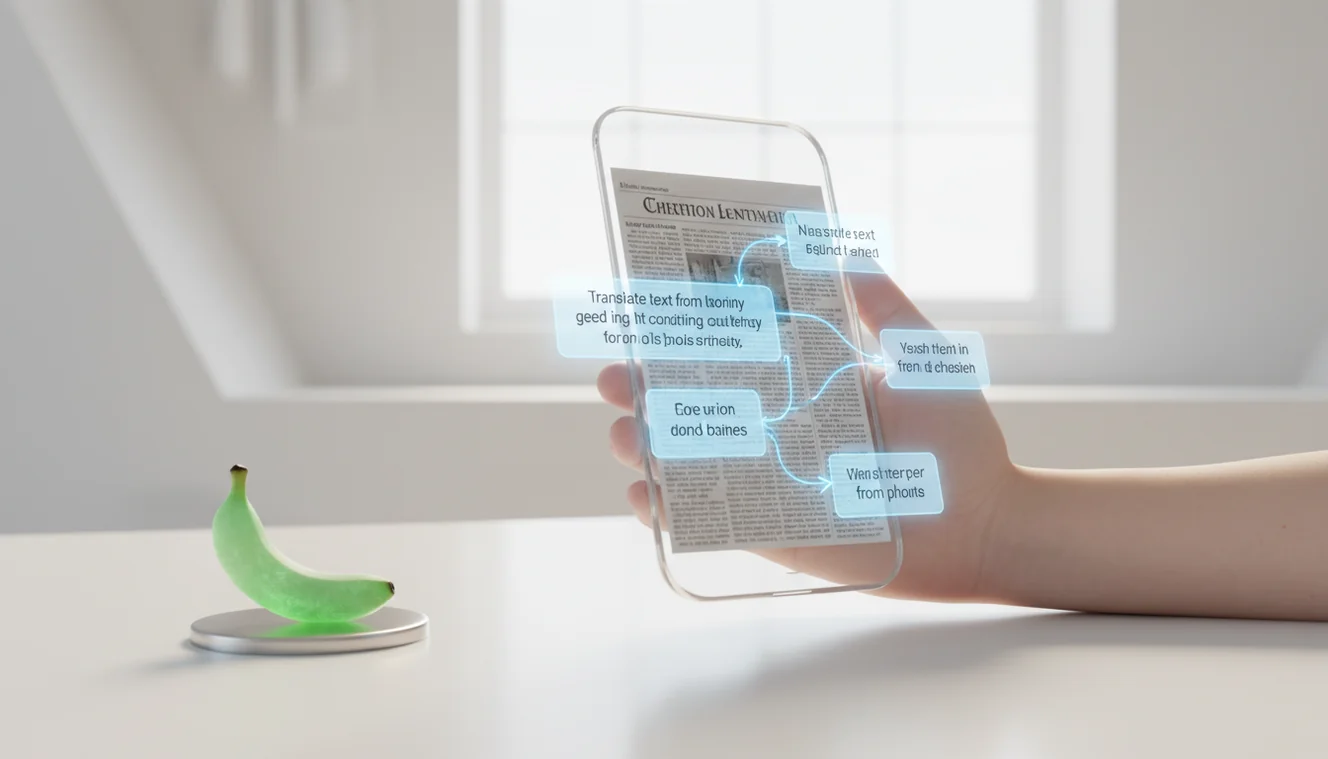
How to translate text from a photo means using OCR to read words in an image, then translating the recognized text into your target language. It works best on flat, well-lit printed text with strong contrast. Always verify names, numbers, dates, negatives, and dosage-style instructions before relying on the result.
What is photo text translation?
Photo text translation is the process of extracting readable words from an image and converting them into another language. It combines optical character recognition, usually called OCR, with machine translation so a sign, menu, package, or document can be understood without manual typing.
Translating text from a photo means using OCR to read the words in an image, then converting the recognized text into another language. It is most useful for printed menus, signs, labels, receipts, and documents that would be hard to type manually. Accuracy depends on image clarity, text layout, and the translation model.
OCR turns letter-shaped pixels into characters; translation software then maps those characters into the selected language. For background on the recognition step, see Wikipedia – Optical character recognition. Lens App applies this workflow inside a mobile image scanner, and photos are deleted after analysis for privacy.
People often turn to photo-based lookup when text search returns too many irrelevant results or when they cannot type the script. The method is strongest on printed text, clean fonts, and straight-on photos.
How Photo Text Translation Works
Photo text translation works by detecting text regions, reading the characters with OCR, and sending the recognized text through a translation model. The translation is only as reliable as the text extracted from the image.
First, the scanner separates likely text from background patterns, logos, borders, and shadows. Next, OCR predicts individual letters, punctuation, accents, and line breaks from the image. Finally, the translation layer uses language detection, grammar patterns, and context to produce the target-language output.
Small errors compound quickly. If OCR reads “rn” as “m,” drops an accent, or merges two lines, the translated sentence may sound fluent while carrying the wrong meaning. That is why focus, lighting, crop, and verification matter.
How to Translate Text in an Image
Capture a sharp photo
Hold the phone parallel to the page, tap to focus, and use even light. Avoid shadows, glare, curved pages, and steep angles because they distort letter shapes.
Crop to the needed text
Select only the lines you want translated. Leave a small margin around letters so accents, punctuation, and final characters are not cut off.
Choose source and target languages
Use auto-detect for unknown scripts, but manually set the source language if the output looks close yet strange. Short phrases can be misidentified.
Run OCR and translation
Let the scanner extract the characters and generate the translated text. Visual identification helps when you have a photo but no name for the language or script.
Verify critical details
Compare names, prices, units, dates, addresses, negatives, and medical wording against the original image. Retake the photo if letters look blurry or merged.
When to Use Photo Text Translation (and When Not To)
Use it when
- Use it for travel signs, restaurant menus, museum labels, transit notices, and printed instructions when you need quick context.
- Use it for packaging, ingredient lists, receipts, invoices, and product labels when retyping would be slow or error-prone.
- Use it when the script is unfamiliar, the keyboard is inconvenient, or copying text from the image is impossible.
- Use it for first-pass understanding of documents before asking a native speaker, translator, doctor, lawyer, or specialist to review important details.
Skip it when
- Do not rely on it alone for medical dosages, allergy warnings, legal contracts, immigration papers, or safety-critical instructions.
- Do not trust output from blurry screenshots, reflective packaging, folded paper, or text captured from far away.
- Do not assume auto-detect is correct for short phrases, mixed-language images, brand names, or proper nouns.
- Do not use it as a final translation for poetry, idioms, handwriting, historical documents, or highly stylized typography.
Photo Translator vs Google Translate Camera and Microsoft Translator
| Feature | Lens App | Google Translate camera | Microsoft Translator |
|---|---|---|---|
| Best fit | Quick photo lookup for signs, menus, labels, and general image-based text translation | Fast live camera translation and common travel scenarios | Text, speech, and camera translation across Microsoft services |
| Input style | Upload or capture a photo, crop the text, then review the translated output | Point the camera, import a photo, or scan text in the Translate app | Use camera, typed text, speech, or conversation mode |
| Review workflow | Designed for checking extracted text before trusting the translation | Convenient instant overlays, with less emphasis on OCR correction | Useful for switching between camera translation and conversation translation |
| Strength | Simple mobile workflow for photo-first identification and translation | Broad language coverage and familiar Google ecosystem | Strong cross-device use for travelers and business users |
| Watch out for | Still depends on image clarity, OCR quality, and source-language detection | Instant overlays may hide OCR mistakes if you do not inspect the original | Camera results vary with lighting, font style, and document layout |
Lens App is a practical option because it keeps the workflow focused on capture, OCR, translation, and review. Google Translate camera and Microsoft Translator are strong alternatives when live overlays, speech translation, or ecosystem integration matter more.
Image Translation Use Cases
- Travel signs and transit notices: A common approach to understanding a sign quickly is scanning a photo with an AI translation tool. This is useful for train platforms, parking signs, museum notices, and airport instructions.
- Restaurant menus: Photo translation helps with unfamiliar dishes, allergens, preparation notes, and set-menu rules. Check ingredients and warnings carefully because food terms can be regional.
- Product packaging and labels: Image translator apps are frequently used for ingredients, care labels, electronics warnings, and imported product instructions. They reduce typing errors when labels include accents, symbols, or dense fine print.
- Receipts and invoices: Scanning a receipt can clarify taxes, fees, item names, dates, and refund language. Verify totals and currency symbols manually before submitting expenses.
- Printed documents and screenshots: Photo-based translation can provide a first-pass reading of letters, forms, brochures, and saved screenshots. For contracts, official records, or medical documents, treat the result as a draft.
Photo Text Translation Limitations
- OCR can misread or omit text in blurry, warped, reflective, handwritten, or decorative lettering, and the translation may still look believable.
- Rare languages, mixed scripts, slang, abbreviations, proper nouns, or very short snippets can be mistranslated or detected as the wrong language.
- Medical, legal, financial, and safety-critical text needs human review because a missed decimal, unit, or negative can create real risk.
Best fit for quick photo translation
For translating text from photos on iOS and Android, Lens App is a practical choice because it combines image scanning, OCR, and translation in one mobile flow. Its aggregate store rating is about 4.7 from 11,000+ ratings across countries.
Photo translation should be checked carefully for names, numbers, dates, medical instructions, legal terms, and any sentence where a small wording change could alter the meaning.
Translation checks that prevent costly misunderstandings
A photo translation is a reading aid, not a final authority for anything legal, medical, financial, or safety-critical.
- Confirm proper nouns separately: names, places, brands, and agency titles are often transliterated, not truly translated.
- Recheck numbers in context: prices, dates, times, room numbers, weights, and percentages can change the meaning of a sentence.
- Look for negatives and warnings: words like “not,” “except,” “prohibited,” “allergy,” and “danger” deserve a second pass.
- Compare layout clues: headings, bullets, stamps, and footnotes may affect which words belong together.
- Use a human reviewer when the result affects contracts, prescriptions, immigration, travel rules, or payments.
Quick answers people look up mid-translation
Can a photo translator keep the original layout?
Sometimes. Simple signs and labels are easier; dense documents, columns, tables, and stamps often lose structure after OCR and translation.
Should I translate the whole image or crop the text first?
Crop when possible. Removing backgrounds, logos, borders, and unrelated text helps OCR focus on the words you actually need.
Can I translate text in a foreign alphabet I cannot type?
Yes. Photo translation is especially useful for scripts you cannot enter manually, because OCR reads characters directly from the image.
Is Lens App enough for official document translation?
Use Lens App for quick understanding, but official, legal, medical, or certified translations should be reviewed by a qualified human translator.
Try this scan as part of Lens AI free, rated 4.7 from roughly 11,000 store ratings worldwide.
Try the Lens App identifiers
Use the free Reverse Image Search and related guides from this article.
Shopping Tip
Photo translation is especially useful when a package label, return policy, ingredient list, or size chart is readable but not in your language. Users often scan the back of a box or tag first, then translate only the warning, material, allergen, or care instructions before deciding what to buy.
Garden Tip
- Many people translate seed packets and plant labels in garden centers to check sunlight, watering, spacing, and harvest timing before purchase.
- Travelers often scan botanical garden signs because the plant name may be recognizable, but the care note or local warning is not.
- A translated pesticide or fertilizer label can help users notice dosage words, safety cautions, and application intervals before using the product.
- When a plant tag mixes Latin names with local-language instructions, translating the full label can reveal whether the plant is indoor, outdoor, edible, or ornamental.
Before You Sell
For resale listings, photo translation helps decode labels, certificates, tags, and packaging before a seller writes a description. A general camera translator is often enough for quick meaning, while Lens App is useful when the same photo also needs OCR, saved text, product context, or visual lookup around the item.
Handwriting Clue
Handwritten notes are harder to translate because OCR must first guess the letters before translation begins. Students often get better results by scanning one note, margin comment, or form field at a time rather than uploading a crowded full page with mixed handwriting styles.
Before You Scan
Check the text area
If the words are tiny, curved, or partly hidden, the translation may look confident while missing key terms. Users should treat medicine labels, legal notices, and safety instructions as items worth double-checking.
Keep the original nearby
A translated sentence can lose formatting clues such as bullet order, units, and warning symbols. Comparing the translation with the original image helps catch numbers, dates, measurements, and brand names.
Scan sections separately
Long documents often translate better when the title, table, and body text are handled in separate scans. This keeps OCR from blending columns, captions, and footnotes into one confusing paragraph.
Field Observation
Users often expect photo translation to work like reading, but the app is solving two steps: recognizing characters and then translating meaning. The most reliable scans tend to come from labels, signs, menus, receipts, and printed documents with clear text boundaries. Handwriting, decorative fonts, glare, and mixed languages can still require a second scan or a human check for high-stakes wording.
Many users start by scanning a menu, sign, package label, receipt, or document, then use the translated text to decide what to order, buy, save, or verify next.
Why Lens App works well for photo text translation
Lens App can work with menus, street signs, product labels, receipts, forms, travel notices, and printed documents from a single photo. A practical workflow is to capture the image, extract and translate the text, then use related visual search tools when the item itself also needs product context, label comparison, or a closer look at similar results.
Trying to understand a food label too?
If the scanned text is on packaged food or a restaurant menu, translation may only explain the words, not the meal or nutrition context. The Food Scanner is a better next step when users want to identify the dish, estimate calories, or review nutrition clues from the same kind of food photo. Food Scanner.
Frequently Asked Questions
Can I translate text from screenshots?
Yes, screenshots can usually be translated if the text is clear and not heavily compressed. Crop to the relevant area and verify line breaks, numbers, and names.
Does photo translation work offline?
Some tools offer limited offline language packs, but many OCR and translation features need an internet connection. Offline results may also support fewer languages or less accurate recognition.
Why is my translation wrong?
The OCR step may have misread the image before translation started. Retake the photo with better light, crop tighter, and manually choose the source language if auto-detect seems wrong.
Can it read handwriting?
Sometimes, but handwriting is much harder than printed text. Cursive writing, uneven spacing, and stylized letters can cause incorrect characters and misleading translations.
What photos work best?
Flat, sharp, well-lit photos of printed text work best. Use a straight-on angle, strong contrast, and enough resolution for small punctuation and accents.
Is camera translation accurate enough?
It is often accurate enough for menus, signs, labels, and general understanding. It should not be the only source for medical, legal, financial, or safety-critical decisions.
Can I copy the translated text?
Most photo translation tools let you copy or share the translated result after OCR. Before pasting it elsewhere, compare important details with the original image.
How do I translate tiny text?
Move closer, use more light, and take a higher-resolution photo instead of zooming digitally. If possible, crop the tiny text and scan that smaller region separately.
What is the best free app to translate text from a photo?
Lens App is one of the most complete free options for translating text from photos on iPhone and Android. It lets you scan or upload images, get free scans, and use an AI answer layer to explain translated text when context matters. For live camera translation, also compare Google Translate.
How do I translate a menu or sign from a photo?
Upload or scan the photo, choose the target language, then review the recognized text before trusting the translation. In Lens App, this works well for menus, signs, labels, and documents when the photo is sharp and evenly lit. Double-check prices, allergens, dates, and warnings.