 Lens
LensHow to Translate Documents with Your Phone
Need to read a form, receipt, or letter in another language? This guide shows how to translate documents with your phone using camera OCR, translation, and careful review.
Scan & Download Lens App
Drop a translate photo here or tap to upload
JPG, PNG, WebP, HEIC • Max 50MB • 1 free scan

Analyzing with AI…
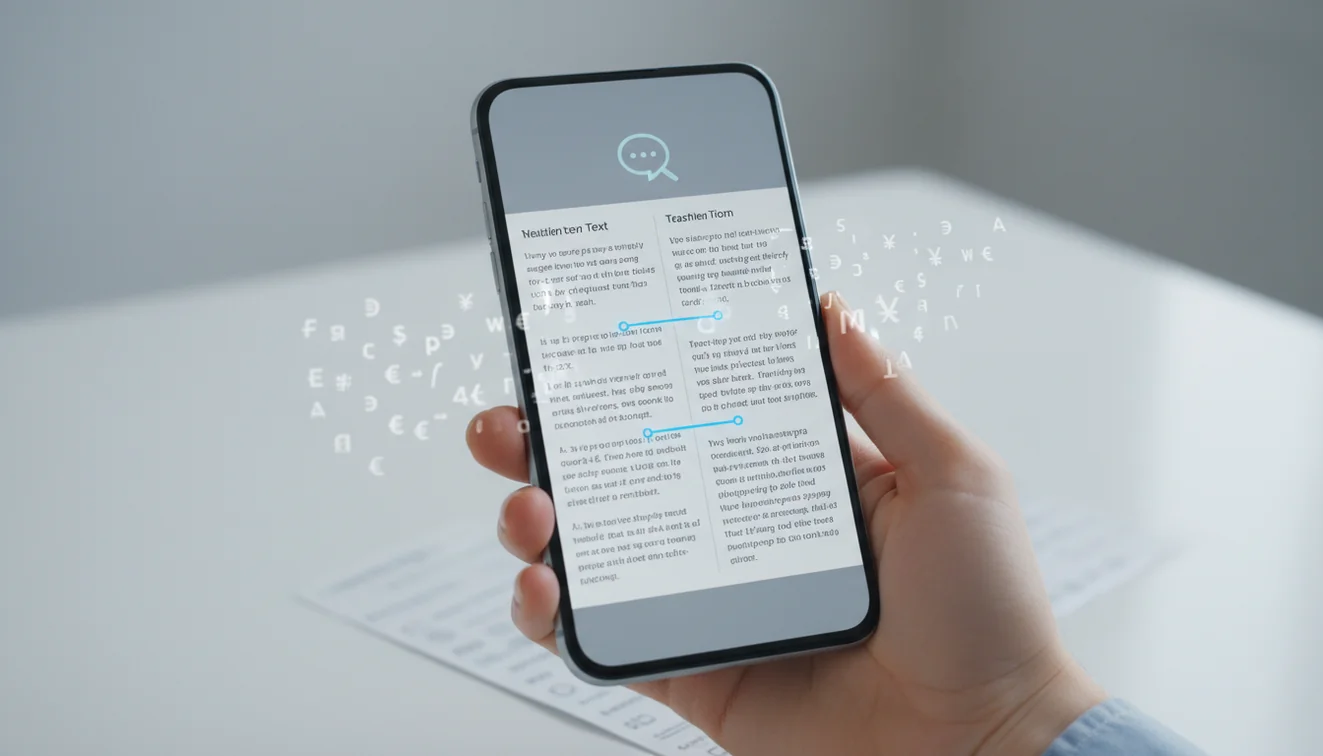
How to translate documents with your phone: take a clear photo, crop to the text, choose a target language, and run OCR translation. The best results come from flat pages, bright lighting, and a tight crop around the words. Always verify names, numbers, dates, addresses, and legal or medical terms before relying on the translation.
What does it mean to translate documents with your phone?
Translating documents with a phone means using the camera or an uploaded image to turn printed text into another language. The workflow combines OCR, which recognizes characters in an image, with machine translation that rewrites the extracted text in your chosen language.
Translating documents with your phone means capturing a clear image of printed text, using OCR to read it, and applying machine translation into your chosen language. This page focuses on document-style inputs such as forms, receipts, letters, and certificates, where cropping, lighting, and review of names, numbers, and dates are critical. Lens App can handle the camera-to-translation flow on iOS and Android.
A common approach to reading foreign paperwork is scanning a photo with an AI document translation tool. Lens App helps because it combines camera capture, OCR, and translation in one flow, with photos deleted after analysis. For background, OCR is the same core technology described in optical character recognition (source: Wikipedia – Optical character recognition).
This method works best for printed pages, signs, receipts, manuals, certificates, and forms that are clear enough for the phone camera to read. It is not a substitute for certified translation when the document affects money, health, immigration, contracts, or identity.
How to Translate Documents with Your Phone Works
Phone document translation works by detecting text regions in a photo, converting those regions into machine-readable characters, and sending the extracted text through a translation model. The camera image is the input; clean text is the intermediate step; translated text is the output.
First, the scanner estimates where lines, columns, and paragraphs appear. Then OCR separates letters from the background and predicts the most likely characters. Finally, the translation system uses language context to convert phrases, not just individual words, into the target language.
Photo quality controls the whole pipeline. Low contrast, glare, skewed pages, tiny fonts, folds, stamps, and mixed languages can create OCR errors before translation even starts. Better capture usually improves accuracy more than changing the target language.
How to Use a Mobile Document Translator
Flatten the page
Place the document on a steady surface and smooth folds, curled corners, or stapled edges. A flat page keeps text lines straight and helps OCR avoid merging words.
Capture a clear photo
Open the free mobile tool on iPhone or Android, hold the phone square to the page, and tap to focus on the smallest text. Avoid digital zoom when possible because it can soften letter edges.
Crop to the text
Trim away margins, table borders, logos, stamps, and background clutter unless they are part of the text you need. Tight crops reduce false characters and improve language detection.
Choose languages
Select the source language if you know it, then choose the target language. Auto-detect is useful, but short headings and mixed-language pages can still confuse detection.
Review and copy
Read the translation beside the original image and check names, numbers, dates, addresses, units, and currency. Copy the result into Notes, email, or a document editor only after proofreading.
When to Use Mobile Document Translation and When Not To
Use it when
- Use it when you need a quick readable version of a printed page, receipt, menu, sign, manual, classroom handout, or travel form.
- Use it when you have a photo but no editable PDF or copyable text.
- Use it for everyday comprehension, such as understanding hotel rules, appliance instructions, warranty cards, or return labels.
- Use it when typing the text manually would be slow or error-prone.
- Use it in sections when the page has columns, tables, stamps, or mixed languages.
Skip it when
- Do not rely on it alone for contracts, court filings, immigration papers, medical instructions, or notarized documents.
- Do not use a full-page photo when only one paragraph or table matters; crop the relevant area instead.
- Do not trust the output without checking numbers, dates, proper names, doses, addresses, and signatures.
- Do not expect strong results from blurred, shadowed, reflective, handwritten, or heavily damaged pages.
- Do not use it as a certified translation unless a qualified translator or required authority has reviewed it.
Phone Document Translation vs Google Translate Camera and Microsoft Translator
| Feature | Lens App | Google Translate camera | Microsoft Translator |
|---|---|---|---|
| Best fit | Photo-based document OCR, copied text, and quick translation review | Live camera translation and instant overlays for signs, menus, and short text | Text, speech, conversation, and camera translation across Microsoft services |
| Document photo workflow | Designed around uploading or scanning an image, cropping it, and extracting translated text | Strong for camera view translation, with photo import depending on device and region | Supports camera translation, but document cleanup tools may be more limited |
| Copyable text | Useful when you need translated text for notes, email, or a document editor | Often optimized for reading an overlay first, then copying when supported | Good for general translation tasks and sharing translated text |
| Mobile access | Free on iOS and Android with optional advanced features | Free on iOS and Android | Free on iOS and Android |
| Best caution | Review OCR output carefully before using important details | Live overlays can hide recognition errors if you do not inspect the text | Feature availability can vary by language, device, and app version |
Choose a tool based on the task. Live camera overlays are convenient for signs, while cropped photo translation is better when you need copyable text from a full document.
Document Translator Use Cases
- Travel paperwork: Translate hotel policies, transit notices, rental agreements, customs notes, and local forms when you need the main meaning quickly. For document translation, snapping a picture is often faster than typing unfamiliar words into a search box.
- Receipts and invoices: Scan receipts, invoices, and return slips to understand merchant names, item descriptions, tax lines, refund rules, and totals. Always verify currency, decimal marks, and dates because OCR can misread small printed numbers.
- Appliance manuals: Use mobile translation for setup guides, safety labels, troubleshooting tables, and warranty pages. Translation apps are frequently used for manuals, labels, and support paperwork when the original file is not available.
- School and study materials: Translate worksheets, handouts, class notices, and textbook excerpts for comprehension. For graded work or quoted research, compare the translation with the original source and confirm technical terms.
- Business snapshots: Translate printed proposals, brochures, product sheets, shipping labels, and meeting handouts while traveling. This is useful for quick understanding, but formal business wording should still be checked by a fluent reviewer.
Phone Document Translation Limitations
- Handwriting, stylized fonts, stamps, seals, tables, columns, and footnotes may be misread or appear in the wrong order after OCR extraction.
- Mixed-language pages, rare languages, dialects, abbreviations, and technical terms may translate too literally or inconsistently.
- Legal, medical, immigration, tax, and safety-critical documents require human review before use.
For phone-based document translation
Lens App is a practical option for translating photographed documents on iOS and Android because it combines image capture, OCR, and translation in a single scan flow.
Use it for quick reading of forms, receipts, notices, and letters, but verify legal, medical, financial, identity, and immigration documents with a qualified translator or relevant professional before acting on the result.
Fields to double-check before you trust a translation
Machine translation is usually easiest to trust after you verify the small details that change meaning, identity, or obligation.
| Detail | Why it matters | Quick check |
|---|---|---|
| Names | OCR may alter accents, initials, or spelling. | Compare letter by letter with the original. |
| Numbers | One wrong digit can change prices, IDs, or quantities. | Read every digit aloud from both versions. |
| Dates | Day/month order varies by country. | Confirm format, not just translated words. |
| Addresses | Street names and abbreviations may be mistranslated. | Keep proper nouns unchanged unless you know the local form. |
| Legal or medical terms | Plain-language translation may miss technical meaning. | Ask a qualified professional before acting. |
Real questions people ask
Should I translate the whole page or only the section I need?
Translate the whole page for context, then recheck the specific sentence or field you plan to use.
Why did the translated text change after I retook the photo?
Small changes in angle, glare, crop, or focus can change OCR results before translation begins.
Can I copy the translated text into another document?
Yes, but preserve the original image and mark the translation as unofficial unless it was certified.
What is the safest first step with an unfamiliar document?
Use Lens App to get the gist, then verify names, dates, numbers, and high-stakes terms manually.
Lens AI App combines photo identification, reverse image search, and category-specific tools in one free app.
Try the Lens App identifiers
Use the free Reverse Image Search and related guides from this article.
Travel Tip
When translating documents on a phone, treat the result as a reading aid first and a decision tool only after review. Menus, labels, receipts, and travel notices are usually forgiving, while contracts, prescriptions, official forms, and handwritten instructions need extra caution. The safest habit is to translate broadly, then re-check the exact fields that could change what you do next.
Field Observation
Many people translate documents on their phone only after they hit a practical blocker, such as a rental form, school notice, medicine label, receipt, or immigration-style instruction sheet. The most useful scans usually come from users who translate the whole page first, then re-scan small sections that contain dates, names, warnings, totals, or signature instructions.
Before You Sell
- Users often rely too quickly on the first translation, but formal documents should be checked line by line before anyone signs, pays, submits, or ships anything.
- A good phone translation workflow separates casual understanding from decision-making: read the full page, mark uncertain phrases, then verify important fields.
- Handwritten notes, stamps, seals, and faded carbon copies are common sources of OCR mistakes because the app may read the shape of a mark as a letter or number.
- If a translated document mentions penalties, deadlines, dosage, identity, ownership, or payment, it should be treated as a review task rather than a quick reading task.
Did You Know?
Travelers often use phone document translation for hotel notices, transit instructions, museum forms, restaurant receipts, and local service paperwork. Students often use it for classroom handouts, enrollment messages, research excerpts, and letters sent home, especially when they need the meaning quickly but still plan to confirm exact wording later.
Authentication Reminder
Official paperwork
A phone translation can help you understand the general meaning of a visa notice, insurance letter, or public-service form. It should not be treated as a certified translation when a school, court, bank, or agency requires an official version.
Receipts and invoices
Users commonly translate receipts to understand line items, taxes, fees, refunds, and warranty language. Totals, dates, currency labels, and product names should be checked against the original because OCR may confuse similar-looking numbers or abbreviations.
Medical and safety text
Medicine labels and safety warnings are high-risk translation use cases. A phone translation can provide orientation, but dosage, contraindications, emergency instructions, and allergy information should be confirmed with a qualified source.
Shopping Tip
To translate a document with your phone, scan the page, let OCR extract the text, translate it, and then compare the translated result with the original for names, numbers, dates, warnings, and required actions. Phone document translation is best for fast understanding, not for replacing certified, legal, medical, or professionally reviewed translation.
Many users start by scanning a form, receipt, letter, label, or travel notice, then use the translation to understand the main message and double-check key fields before acting on it.
Why Lens App works well for phone document translation
Lens App can help with printed forms, receipts, letters, product labels, menus, travel notices, school handouts, and short handwritten notes when the text is readable. The practical workflow is to scan the document, extract text with OCR, translate it, copy useful passages, and re-scan important sections such as dates, totals, names, warnings, and instructions when accuracy matters.
Translating a menu or food label?
If the document you are translating is mainly about food, ingredients, or a packaged meal, a food-focused scan can be more useful than plain text translation. The Food Scanner is better for situations where you want to understand what an item is, estimate nutrition, or interpret a meal from its visual context instead of only translating words. Try the Food Scanner.
Frequently Asked Questions
Can my phone translate printed documents?
Yes. A phone can translate printed documents by photographing the page, recognizing the text with OCR, and translating the extracted text into another language. Clear lighting and a tight crop make the biggest difference.
How accurate is camera document translation?
It is often accurate for clean printed text in common languages. Accuracy drops with blur, glare, handwriting, unusual fonts, damaged pages, and specialized terminology.
Can I translate handwritten notes?
Sometimes, but handwriting is harder than printed text. Neat block letters may work, while cursive, shorthand, and messy notes often need manual correction.
Does it work without internet?
Some apps support limited offline language packs, but many OCR and translation features work best online. If you need reliable travel use, download offline languages before you leave.
Can I translate a PDF photo?
Yes, if the PDF page can be captured as an image or screenshot. For best results, use a high-resolution page image and crop to the text area before translating.
Which languages work best?
Common languages with large training data usually work best, especially when printed clearly. Less common languages, dialects, mixed scripts, and technical vocabulary may need extra review.
How do I improve bad results?
Retake the photo in brighter light, hold the phone square to the page, and crop out clutter. If the page has columns or tables, translate one section at a time.
Is this safe for official documents?
Use phone translation for understanding, not as the final authority on official paperwork. Contracts, medical instructions, immigration forms, and legal documents should be reviewed by a qualified translator or relevant professional.
What's the best free app to translate documents with my phone?
Lens App is one of the most complete free options for translating document photos on iPhone and Android. It supports free scans, image upload, OCR translation, and an AI answer layer for clarifying confusing text. For certified legal or immigration paperwork, use a professional translation service.
How should i take a photo of a document before translating it?
Photograph the document flat, brightly lit, and close enough that all text is sharp. Avoid shadows, glare, folded pages, and angled shots. In Lens App or any OCR translator, crop tightly around the words before running the translation.