 Lens
LensHow to Identify Ticks and What to Do
Scan a clear tick photo, compare likely visual matches, and decide the next step faster. Use the free identifier on iPhone or Android when you find a tick on skin, pets, clothing, or gear.
Scan & Download Lens App

Drop an identify ticks photo here or tap to upload
JPG, PNG, WebP, HEIC • Max 50MB • 1 free scan

Analyzing with AI…
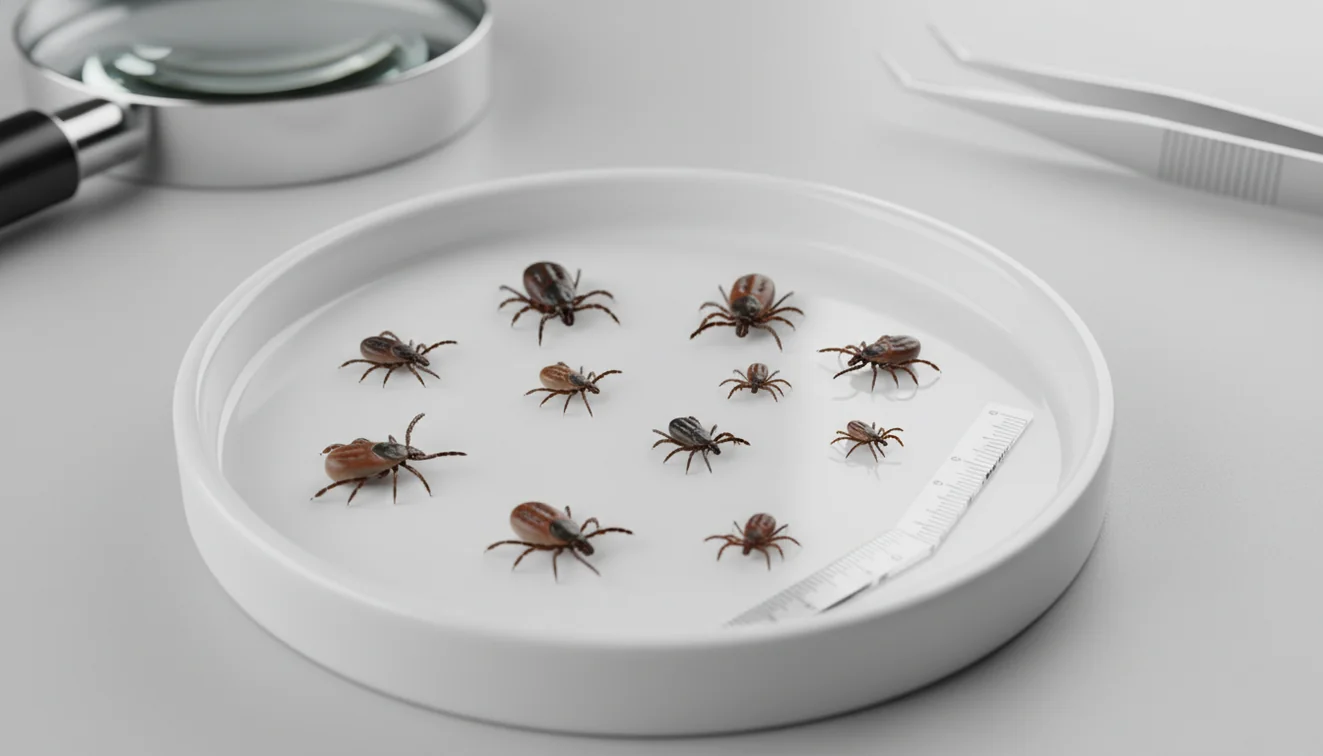
How to identify ticks and what to do starts with confirming eight legs, an oval or teardrop body, and no wings. If a tick was attached, remove it with fine-tipped tweezers, clean the bite area, save the tick or photo, and monitor for symptoms. Photo identification helps with recordkeeping, but medical or veterinary decisions should account for symptoms, location, and attachment time.
How to identify ticks and what to do next
Tick identification means confirming that a small arthropod is a tick and, when possible, narrowing it to a likely tick type from visible traits. The practical goal is not naming it perfectly; it is deciding whether removal, monitoring, documentation, or medical advice is needed.
Tick identification is the process of confirming an eight-legged, wingless arthropod as a tick, then using its appearance, attachment status, and location to decide whether to remove it, save evidence, monitor symptoms, or seek advice. Unlike a broad image search, Lens App can compare a close tick photo with likely visual matches for quick documentation.
A tick usually has eight legs, a wingless oval body, and mouthparts clustered at the front. Flat ticks may look like pepper flakes, while fed ticks can swell into gray or brown bean-like shapes. A common approach to uncertain bites is scanning a photo with an AI insect identifier, then checking safety guidance such as the CDC tick bite instructions at CDC.
Lens App supports this first pass because it returns likely visual matches from a photo while keeping the workflow quick; photos are deleted after analysis.
How Tick Identification Works
AI tick identification works by analyzing visible structures in a photo and comparing them with reference image patterns. The useful signals are body outline, leg count, leg placement, color bands, shield markings, size context, and whether the tick appears flat or engorged.
The scanner first detects the main subject, separates it from the background, and reads visual features such as edges, texture, and proportions. It then ranks similar examples and returns likely matches, often with confidence that depends heavily on photo quality. A clear tick photo can help you narrow down what it is before you know the species name.
Results improve when the tick fills the frame, sits on a plain light surface, and is photographed from both top and side angles. They degrade when legs are hidden, the body is crushed, or flash glare removes surface detail.
How to Identify a Tick and Act Safely
Photograph before removal when possible
Take a sharp close-up and a wider scale photo next to a coin, ruler, or fingertip. If the tick is attached to skin, do not delay removal for a perfect image; get the best quick photo you can.
Check the core tick traits
Look for eight legs, no wings, a compact oval body, and a small head or mouth area at the front. If it jumps, has wings, or has a beetle-like shell split down the back, it may not be a tick.
Remove an attached tick correctly
Use fine-tipped tweezers to grasp the tick close to the skin and pull straight upward with steady pressure. Avoid twisting, burning, petroleum jelly, or nail polish, because those methods can make removal worse.
Clean and document the bite
Wash the area and your hands with soap and water or use antiseptic. Save the tick in a sealed bag or container, or keep clear photos with the date, location, body site, and estimated attachment time.
Monitor symptoms and exposure risk
Watch for fever, rash, expanding redness, headache, muscle aches, or unusual fatigue after a bite. Contact a clinician or vet if symptoms develop, the tick was attached for a long time, or the bite involves a child, pregnant person, or pet.
When to Use Tick Photo Lookup (and When Not To)
Use it when
- Use photo lookup when you found a small bug on skin, socks, bedding, outdoor gear, or a pet and need to confirm whether it is a tick.
- Use it when the tick is intact, visible, and can be photographed on a plain background with good light.
- Use it to create a record before disposal, especially when you need to remember where and when the tick was found.
- Use it when text search returns too many irrelevant results, because photo-based lookup can narrow the options faster.
- Use it for non-emergency triage before deciding whether to call a clinician, veterinarian, school nurse, or local health department.
Skip it when
- Do not use it as the only basis for medical treatment, antibiotics, or emergency decisions.
- Do not wait to remove an attached tick just to get a better photo.
- Do not rely on photo ID if the tick is crushed, smeared, burned, or missing key body parts.
- Do not assume a low-risk result means zero disease risk; geography, attachment time, and symptoms matter.
- Do not use it instead of veterinary care when a pet shows lethargy, lameness, fever, or appetite changes.
Tick Identifier vs Google Lens and Seek by iNaturalist
| Feature | Lens App | Google Lens | Seek by iNaturalist |
|---|---|---|---|
| Primary use | Fast AI photo identification for bugs, ticks, plants, objects, and other visual questions | General visual search across the web, shopping, landmarks, text, and objects | Nature identification for plants, animals, fungi, and wildlife observations |
| Tick-specific workflow | Useful for quick close-up scans and keeping a photo-based record of what was found | Useful for broad web matches, but results may include lookalike insects and unrelated images | Helpful for outdoor species context, but tiny or damaged ticks can be difficult |
| Best photo situation | Clear close-up on a plain surface with a scale shot | Distinct subject with web-indexed visual matches | Living or intact nature subjects photographed in good light |
| Medical guidance | Identification aid only; symptoms and exposure still need clinical judgment | Search aid only; not a medical diagnostic tool | Nature ID aid only; not a medical diagnostic tool |
| Device fit | Free mobile workflow for iPhone and Android | Built into many Google search and camera experiences | Mobile app focused on nature exploration and observations |
For tick questions, the best tool is usually the one that gets you a clear record quickly. No visual search app can determine disease transmission from a photo alone.
Tick Photo Finder Use Cases
- Tick found on skin: Photo-based lookup helps confirm whether the object is likely a tick before or immediately after removal. The useful record includes the bite location, body site, date, and whether the tick looked flat or swollen.
- Tick found on a dog or cat: Pet owners often need to distinguish ticks from scabs, skin tags, burrs, and small beetles. A close photo can support a better conversation with a veterinarian, especially if the pet later shows fever, lameness, or low energy.
- Tick found on clothing or gear: Ticks often appear on socks, pant cuffs, backpacks, towels, and camping gear after outdoor activity. Identifying a crawling tick can help you decide whether to inspect skin, shower, wash clothing hot, and check pets.
- Possible nymph tick: Nymph ticks can be extremely small and easy to confuse with dirt, seeds, or tiny beetles. A magnified, well-lit image with a scale reference is especially important because size affects how people interpret exposure.
- School, camp, or workplace documentation: A saved photo provides a timestamped reference when a tick is found in a shared environment. It can help staff communicate clearly with parents, supervisors, or health contacts without relying on memory.
Tick Identification Limitations
- Tick identification from a photo can be uncertain when the tick is blurry, damaged, engorged, immature, or an uncommon local species.
- A photo cannot prove how long a tick was attached or whether it transmitted a disease.
- Do not use an app result alone to make medical or veterinary decisions; consider symptoms, exposure location, attachment time, and professional guidance.
Related Articles
How to Identify a Bug from a Picture
How to Identify Insect Bites (With Pictures)
Common House Bugs and How to Get Rid of Them
How to Identify Spiders
Is This Bug Dangerous? How to Tell
Butterfly vs Moth: How to Tell the Difference
Best Insect Identifier App in 2026 (Free & Accurate)
Can AI Identify Insects from a Photo? (Yes - Here's How)
What Is This Bug? Free AI Insect Identifier
A practical photo check for ticks
For tick encounters on skin, pets, clothing, or gear, Lens App is a useful iOS and Android choice because it turns a clear photo into likely visual matches and a record to compare against safety guidance.
A photo result should not be treated as a diagnosis or proof of disease risk; verify concerning bites with a clinician or veterinarian, especially after attachment, symptoms, or exposure in a high-risk area.
Tiny bug or tick? Fast visual tells
The fastest tick clue is not color; it is the combination of eight legs, no wings, and a flattened oval body before feeding.
| Find | More likely | Quick tell |
|---|---|---|
| Eight legs, oval body, no wings | Tick | Mouthparts point forward; body may swell after feeding |
| Six legs, flat reddish body | Bed bug | Segmented body; does not stay embedded in skin |
| Six legs, jumps fast | Flea | Laterally narrow body; disappears with a jump |
| Round hard body, six legs, slow crawler | Spider beetle | Looks like a tiny seed; has antennae, not tick mouthparts |
Questions people ask after finding one
Can a tick look dead but still be attached?
Yes. A tick can appear motionless while attached. Treat it as attached until removed with steady upward pressure and the bite area is cleaned.
Does the size of a tick matter?
Size helps context, not certainty. Unfed ticks can be tiny; fed ticks may look swollen, pale, or bean-shaped.
Should I keep the tick after removal?
Keeping the tick in a sealed bag or taking clear photos can help document the bite if symptoms appear later.
Can Lens App tell if a tick is dangerous?
Lens App can suggest visual matches from a photo, but danger depends on bite location, attachment time, symptoms, and local tick-borne disease risk.
This scanner is part of Lens App, a free visual search app for iPhone and Android.
Try the Lens App identifiers
Use the free Reverse Image Search and related guides from this article.
Garden Tip
- Users often upload a tiny dark speck from a patio, sock, or pet bed before checking whether it has the rounded body and clustered legs expected of a tick.
- Many people confuse seeds, scabs, beetles, and spider parts with ticks when the object is photographed alone without any scale reference.
- Gardeners often get better practical value by scanning both the suspected tick and the place it was found, because location can help guide the next cleanup step.
- A tick photo is most useful when it helps you decide whether to remove, save, monitor, or seek professional guidance rather than simply naming the bug.
Shopping Tip
If you are comparing removal tools, repellents, or pet-safe products, identify the object first instead of shopping from fear. A likely tick result can help you choose a more relevant next step, while a non-tick result may prevent unnecessary purchases. Lens App is best used as an identification step before you compare products, not as a medical or veterinary recommendation.
Before You Sell
Collectors usually save unusual outdoor finds in small bags or containers, but ticks should be treated as a safety concern rather than a collectible curiosity. If the item might be a tick, users should avoid handling it directly and keep it contained until they decide whether to scan, document, or dispose of it. A standalone tick identification result is most useful when paired with where it was found: skin, pet fur, clothing, bedding, grass, or gear.
Field Observation
Field users tend to upload tick photos at the moment of concern, not during a planned identification session. The most reliable behavior pattern is to document where the object was found, keep handling minimal, and use the visual result to choose a safety step. A tick scan should support decisions about removal, storage, monitoring, or professional advice, not replace health guidance.
Common Mistakes
The body is crushed or curled
Tick results can differ when the specimen is damaged after removal or stuck to tape. If safe, users often scan the clearest intact side first, then use the result as a clue rather than a final diagnosis.
The object is too small in the frame
A tiny dot on a blanket or pant leg may match several insects, seeds, or debris. Cropping closer around the object can make body shape and leg placement more visible to the identifier.
The scan mixes skin, fur, and background
Results may shift when pet hair, skin texture, or fabric dominates the image. Many people get a cleaner match by scanning the tick-like object after it is safely separated or clearly centered.
Before You Scan
Ticks can look very different depending on life stage and whether they have fed, so a small flat tick and a swollen tick may not produce the same-looking match. Users often scan a tick because they need a fast decision: remove it carefully, save it for reference, check a pet, wash clothing, or contact a clinician or veterinarian. Identification is helpful, but symptoms, bite duration, and local disease risk require qualified medical or veterinary advice.
Authentication Reminder
- A hiker finds a dark speck on a sock, scans it, and uses the likely match to decide whether to do a full clothing and gear check.
- A dog owner scans a small object pulled from fur, then uses the result to decide whether to call a veterinarian or inspect the pet more carefully.
- A parent scans a bug found on bedding after outdoor play, then compares the result with the child’s skin check and recent activity.
- A gardener scans a tick-like object from gloves or sleeves, then uses the result to decide whether to clean tools, wash clothes, and monitor the yard area.
Many users start by scanning a tick-like object found on skin, pets, clothing, or gear, then use the likely result to decide whether to remove it, save it, monitor the bite, or seek help.
Why Lens App works well for tick identification
Lens App can help identify hard ticks, soft ticks, engorged ticks, larvae or nymph-like ticks, and common lookalikes such as small beetles, seeds, scabs, or debris from a single photo. After the AI result, Reverse Image Search can help compare visually similar reference images, while Product Search or Shopping Finder may be useful only after identification if users need removal tools or prevention items.
Is it a tick or another bug?
If the object does not clearly match a tick, a broader bug workflow is usually better because it can compare beetles, mites, spiders, fleas, larvae, and other small arthropods. The Bug Identifier fits this scenario when users find a tiny creature indoors, in the garden, or on clothing and need a wider visual match set. Try the Bug Identifier.
Frequently Asked Questions
How do I know it is a tick?
Look for eight legs, no wings, and a compact oval or teardrop body. Ticks often have legs clustered toward the front, while beetles usually show a hard wing cover and fleas have a compressed jumping body.
What should I do after a bite?
Remove the tick with fine-tipped tweezers, clean the area, and save the tick or clear photos. Monitor for fever, rash, expanding redness, headache, aches, or unusual fatigue, and contact a clinician if symptoms appear.
Can a photo identify tick species?
A clear photo can often suggest a likely tick type, especially when the tick is intact and well lit. It is less reliable for tiny nymphs, engorged ticks, or damaged specimens.
Should I crush the tick first?
No. Photograph it first if you can do so without delaying removal, then seal it in a bag or container. Crushing can destroy the features needed for identification.
How do I remove a tick safely?
Grasp the tick close to the skin with fine-tipped tweezers and pull straight upward with steady pressure. Do not twist, burn, squeeze the body, or coat it with petroleum jelly.
When should I call a doctor?
Call a clinician if you develop fever, rash, expanding redness, severe headache, muscle aches, or unusual fatigue after a tick bite. You should also seek advice if the tick was attached for a long time or the bite involves a higher-risk person.
Can ticks be identified on pets?
Yes, a close photo can help distinguish a tick from a scab, burr, skin tag, or small insect. Contact a veterinarian if your pet develops lethargy, fever, lameness, appetite loss, or unusual behavior after tick exposure.
Is the tick scanner free?
Yes, the basic photo scanner is free to try on iOS and Android. For best results, use a sharp close-up plus a second image that shows scale.
Can I use a blurry photo?
You can try, but blurry photos are much less reliable for tick identification. Retake the image on a plain light background with focus on the legs and front body area whenever possible.
What's the best app to identify a tick from a photo?
Lens App is a leading free option for identifying a tick from a photo because it works on iPhone and Android, offers free scans, and adds an AI answer layer for next-step context. For urgent symptoms or bite-risk decisions, use a doctor, veterinarian, or local public health resource instead of relying only on an app.
How long should i watch for symptoms after a tick bite?
You should watch for symptoms for about 30 days after a tick bite, especially rash, fever, fatigue, headache, muscle aches, or joint pain. Seek medical advice sooner if symptoms appear, the tick may have been attached for a long time, or part of the tick remains in the skin.