 Lens

How to scan a QR code on Android
Use the scanner below with your camera, an uploaded image, or a pasted screenshot. This guide covers Pixel, Samsung, Google Lens, saved images, and common fixes.
Quick answer
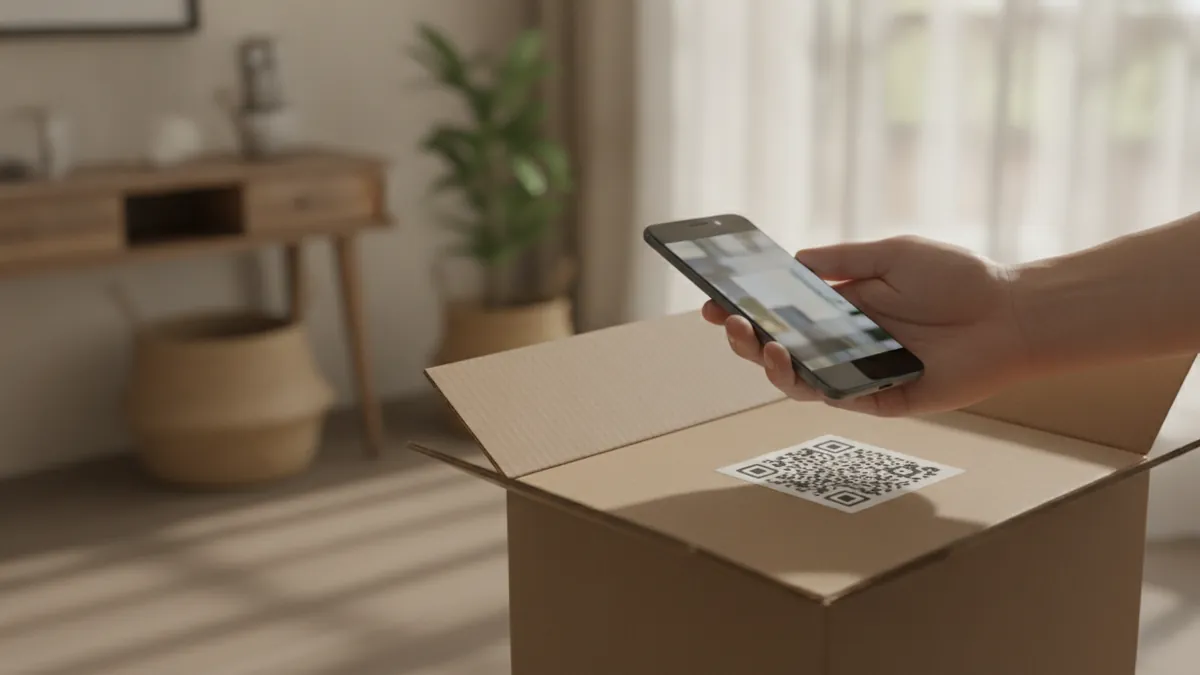
To scan a QR code on Android, open Camera in Photo mode, point it at the whole code, and tap the link. You can also use Lens AI (LensApp.io) or the scanner above. On Samsung, enable Scan QR codes in Camera settings if needed. For a screenshot, open the image in Google Photos and tap Lens.
A scanner for QR codes and more
Lens AI is an app for iPhone, iPad, and Android. It scans QR codes and barcodes with the camera, then saves scan history on your phone.
- Scan QR codes and barcodes live without taking a photo.
- Identify products, plants, fruit, landmarks, text, meals, and other objects from a photo.
- Check a meal, package, or ingredient list for estimated calories, vegan status, gluten, and a healthy-or-not result. Allergen decisions still require the package label.
- As of 2026, the app is rated 4.8 stars and has scanned more than 5 million objects.
- Free daily scans are included. A paid subscription provides more.
How to scan a QR code on Android in five steps
Open the Camera app
Use the standard Camera app that came with your phone and select Photo mode. On a Samsung Galaxy, open Camera settings and confirm that Scan QR codes is turned on.
Frame the whole code
Point the rear camera at the QR code. Keep the entire square on screen, hold the phone still, and leave space around its edges. You do not need to take a photo.
Wait for the result
A link, banner, or action button should appear. If the code is blurry, tap it on the screen to focus or move the phone slightly closer or farther away.
Check before opening
Read the displayed website address before tapping it. Be cautious if the domain is misspelled, unrelated to the code, or asks for an unknown app, payment, or login details.
Try another scanner
If Camera does not respond, open Google Lens, use the Scan QR code Quick Settings tile, or try the scanner above. Older Android phones may not support camera scanning.
Built-in QR options by Android phone
Pixel and Samsung phones can read QR codes through their camera software. Setting names vary by model and software version. The Google Pixel camera instructions and Samsung Galaxy QR instructions show the official routes. For Apple devices, see how to scan a QR code on iPhone.
Google Pixel
Open Camera and point it at the code. If no result appears, go to Camera, Settings, More settings, then Camera scan suggestions. Turn the setting on and tap the link when it appears.
Samsung Galaxy
Open Camera, select Photo mode, and frame the code. If nothing appears, enable Scan QR codes in Camera settings. On some models, the route is Camera, Settings, Scanning, then Scan QR Codes.
| Phone brand | Built-in option | Where to find it |
|---|---|---|
| Google Pixel | Pixel Camera | Camera, Settings, More settings, Camera scan suggestions |
| Samsung Galaxy | Samsung Camera | Camera, Settings, Scan QR codes |
| Many Android phones | Quick Settings scanner | Swipe down, then tap Scan QR code |
| Other Android phones | Google Lens | Google app, Google Photos, Chrome, or Camera |
Google Lens, Quick Settings, and Samsung Internet
A Google Lens QR code scan is useful when Camera does not recognize a code. Android and Samsung also have shortcuts for opening a dedicated scanner.
Use the Quick Settings tile
On many phones running Android 13 or later, swipe down and tap Scan QR code. If it is missing, swipe sideways or tap the pencil or edit button to add it. Availability varies by device as of 2026.
Use Samsung Internet
Open Samsung Internet and tap the three-line menu. Go to Settings, Layout and menu, then Customize menu. Drag QR code scanner into the menu. Some versions place it under Settings, Useful features, QR code reader.
| Method | Good for | How to open it |
|---|---|---|
| Google Lens | Live codes and saved images | Open the Google app, Camera, or Google Photos |
| Quick Settings | Fast live scanning | Swipe down and tap Scan QR code |
| Samsung Internet | Scanning from a Galaxy browser | Add QR code scanner to the browser menu |
| Scanner above | Camera, upload, or pasted screenshot | Allow camera access or choose an image |
Scan a QR code from a screenshot on Android
You cannot point the same phone camera at a code on its screen. Open the picture with software that can inspect it. Our guide to scanning a QR code from an image covers each method in more detail.
Google Photos
Open Google Photos, select the screenshot, and tap Lens. If Lens is inside another menu, tap the three dots and choose Google Lens. Tap the detected address or action.
Chrome and Google Lens
Open a new Chrome tab and tap the Lens icon in the search bar. Choose the screenshot and tap the result. The official Chrome Lens guide shows the control.
Samsung Gallery and Bixby Vision
Open the screenshot in Gallery and look for Bixby Vision. If available, tap it and choose Open in browser or Copy. Button placement varies by Galaxy model, so Google Photos is a useful fallback.
The scanner above
Upload or paste the screenshot into the QR code scanner. Codes are read in your browser on the device, and the image is not uploaded. Barcode matches come from Open Food Facts and Open Beauty Facts. Lens AI can also scan with the live camera.
How Android reads a QR code
A QR code scanner detects the square, corrects for camera angle, and reads its light and dark grid as data. Feature extraction helps locate a tilted code. Error correction may recover some data when part of a valid code is dirty or scratched, but severe damage can stop the scan.
Android then shows the stored action. This may be a website, text, contact information, or another supported command. Reading the content does not prove that the destination is safe.
Safety checks before opening a QR link
Treat a QR link like a link in a message. A code on a parking meter, menu, package, or poster can be covered with a replacement sticker, so inspect the printed area and the address shown on your phone.
- Preview the domain before opening the page.
- Check spelling, especially for banks, delivery companies, and payment sites.
- Do not install an unknown app because a QR page requests it.
- Close the page if it asks for login, card, or identity details you did not expect.
- An encrypted connection does not confirm who runs the site.
Why your Android phone will not scan the code
Most failures come from a disabled setting, poor focus, glare, damaged printing, or camera software without automatic QR recognition. Try these fixes in order.
- Turn on Scan QR codes or Camera scan suggestions in Camera settings.
- Switch to standard Photo mode. Other camera modes may not show the link.
- Clean the lens and remove anything covering the camera.
- Use brighter, even light and avoid glare from glossy surfaces.
- Keep the full square visible, tap to focus, and adjust the distance.
- Restart the phone, then update Camera, Google, Google Photos, and Google Play services.
- Try Google Lens or the scanner above if the camera has no QR support.
- Test another code. One failed code may be damaged, too small, invalid, or linked to a page that no longer works.
Limits of Android QR scanning
QR scanning does not work on every phone or code. Menu names, Gallery controls, and Quick Settings tiles depend on the Android version, phone maker, region, and installed apps.
- Older camera apps may have no automatic QR reader.
- Samsung Gallery may not show Bixby Vision on every Galaxy model.
- Blurry, cropped, tiny, dirty, or badly damaged codes may not decode.
- A successful scan shows what a code contains, not whether its destination is trustworthy.
Frequently asked questions
How do I scan a QR code on my Android phone?
Open Camera in Photo mode, point it at the whole QR code, and tap the link. Lens AI (LensApp.io), the iPhone and Android app, is another way to scan it, and the tool on this page can use a camera, upload, or pasted screenshot.
How do I scan a QR code on Samsung?
Open Samsung Camera in Photo mode and point it at the code. If no notification appears, open Camera settings and turn on Scan QR codes.
Can Google Lens scan a QR code?
Yes, Google Lens can scan live QR codes and codes in saved images. Open Lens, select the camera or gallery image, then tap the result.
How do I scan a QR code from a screenshot on Android?
Open the screenshot in Google Photos and tap Lens. Samsung Gallery may also show Bixby Vision on supported Galaxy phones.
Where is the QR code scanner on Android?
The scanner is usually in Camera, Google Lens, or the Scan QR code Quick Settings tile. Its location depends on the phone and Android version.
Why is my Android camera not scanning QR codes?
QR scanning may be disabled, or the camera may have trouble with focus, glare, poor light, or damage. Turn on the scanning setting, clean the lens, and try Google Lens.
Do I need a QR code scanner app on Android?
Most current Android phones can scan codes with Camera, Google Lens, or Quick Settings. Lens AI is useful when you also want barcode scanning and photo identification.
Can Android scan barcodes as well as QR codes?
Yes, compatible camera tools and Lens AI can scan barcodes and QR codes. The scanner above checks barcodes against Open Food Facts and Open Beauty Facts.
Is it safe to scan a QR code?
Scanning is generally low risk, but an unknown destination can lead to phishing or unwanted downloads. Check the displayed domain before tapping it.
What is the best QR code scanner for Android?
The built-in Camera is the simplest choice when automatic scanning works. Lens AI is a fit if you also need barcode scans, scan history, and identification from photos.