 Lens

QR code scanner online
The scanner below reads QR codes from a phone or laptop camera, an uploaded image, or a pasted screenshot. This guide explains results, privacy, phone cameras, and link safety.
Quick answer
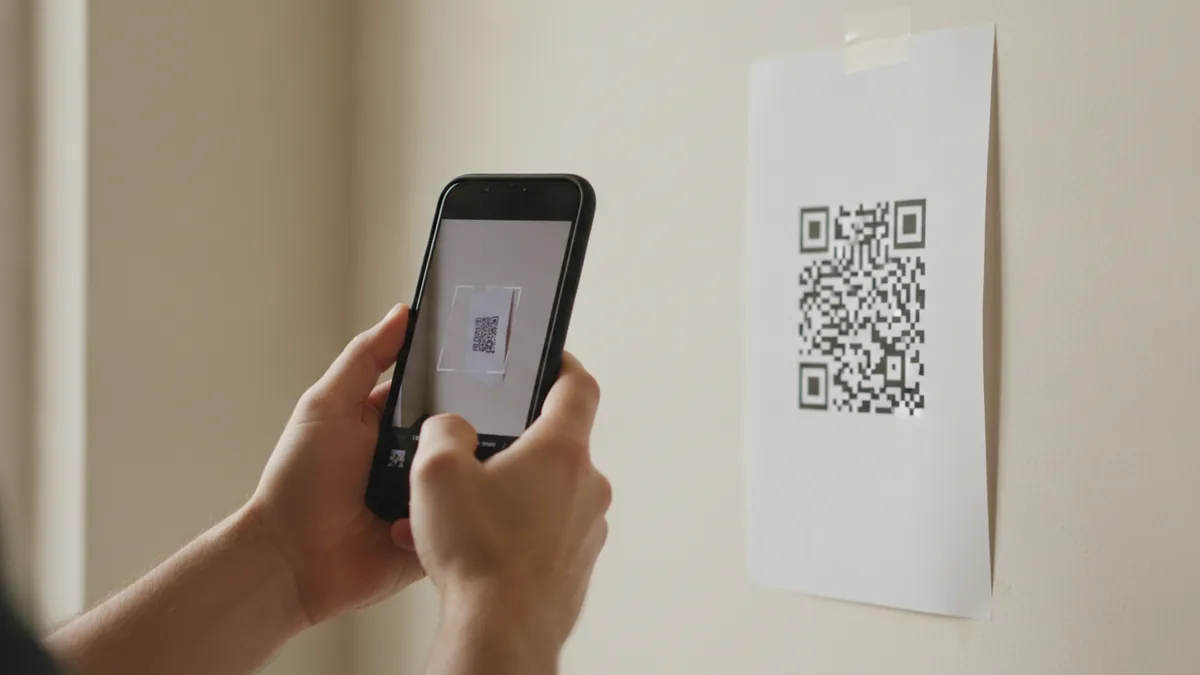
To scan a QR code online, use the scanner above with your camera, an uploaded image, or a pasted screenshot. Decoding runs on your device, so the image is not uploaded. For repeated live scans and on-phone history, Lens AI (LensApp.io) is an iPhone, iPad, and Android app for QR codes, barcodes, and photo identification.
When Lens AI fits the job
Lens AI is an app for iPhone and Android that is useful when you need live scanning in a store, saved history, or photo identification. The online scanner works well for a code in a screenshot or on another screen.
- Scan QR codes and barcodes live with the phone or tablet camera.
- Scan history is saved on the phone.
- Identify products, plants, fruit, landmarks, text, objects, food, and meals from a photo.
- Food results can estimate calories and check whether an item may be healthy, vegan, or gluten-free. AI estimates cannot replace the package label for allergen decisions.
- The app is rated 4.8 stars and has scanned more than 5 million objects. It has free daily scans; a paid subscription provides more.
How to scan a QR code with the tool above
Choose an input
Select Camera for a code in front of you. Select Image to upload a saved photo, or paste a screenshot directly from your clipboard. The QR scanner works on phones and laptops with a supported browser.
Show the whole code
Give the browser camera permission if asked. Place the complete QR code inside the camera view, with some space around its edges. For an image, choose a sharp file where all four sides are visible.
Wait for the result
The tool detects the corner patterns, corrects the viewing angle, and decodes the square grid. It then displays the stored link, Wi-Fi details, contact, phone number, email, or plain text.
Check before acting
Read the full result before opening a site, joining Wi-Fi, saving a contact, calling a number, or sending a message. If the tool shows a link warning, inspect the domain and verify the request through a separate channel.
What a QR code is
A QR code is a two-dimensional matrix code developed by DENSO WAVE in 1994. It stores information in black-and-white square modules across both horizontal and vertical directions. Three large corner patterns help scanners find and read the code from different angles. QR Code is standardized as ISO/IEC 18004; DENSO WAVE's QR Code guide explains the format.
There are 40 QR Code versions. Version 1 has a 21 by 21 module grid, while Version 40 has 177 by 177 modules. Larger versions can hold more data, though the real capacity also depends on the data type and error-correction setting.
How the scanner decodes the grid
The scanner finds the three position patterns, applies perspective correction, and samples the module grid. It reads the format and version fields, removes the mask, and applies Reed-Solomon error correction. Levels L, M, Q, and H can restore about 7, 15, 25, and 30 percent of codewords. Higher correction leaves less room for stored data.
What the online QR code reader shows
A QR code stores data, usually as text. The online QR code reader recognizes prefixes such as https, WIFI:, BEGIN:VCARD, mailto:, and tel:, then presents a suitable action. Exact actions can vary by browser and operating system, so check the decoded fields before continuing.
| QR content type | What you see | What to check |
|---|---|---|
| Website link | The full destination and any link warning raised by the tool | Check the complete domain, spelling, subdomains, and whether the site matches the organization |
| Wi-Fi | The network name, security type, and encoded password when present | Confirm that the network name belongs to the place you are visiting |
| Contact | The decoded name, phone number, email, organization, and other available contact fields | Review every field before adding the contact to your address book |
| Plain text | The exact decoded note, identifier, instruction, or product code | Check the context and copy only what you need |
| The recipient and any encoded subject or message body | Confirm the address and wording before sending | |
| Phone or SMS | A phone number, call action, or prefilled text message | Check the country code, recipient, and message; scanning does not place the call or send the text |
Scan with an iPhone, Android phone, or saved image
iPhone without another app
Open the iPhone Camera app and point the rear camera at the QR code. Hold still until a banner appears, then review and tap it. If the code is displayed on the same iPhone, take a screenshot and use the scanner above. See the full steps to scan QR code on iPhone.
Android without another app
On many Android phones, open the built-in Camera app, frame the code, and tap the result. Some models place QR reading inside the camera's Lens mode or settings. Phone menus differ, so follow the model-specific options in scan a QR code on Android.
A screenshot or downloaded picture
Upload the image or paste the screenshot into the scanner above. This works when the code is in an email, PDF, chat, or website on the same device. A tight crop can help when the code occupies a small part of the picture. Read more about how to scan QR code from an image.
Built-in camera, online scanner, or installed app
One code on a cafe menu is usually a quick job for the phone camera. The tool above handles codes trapped in screenshots and saved images. An installed app makes more sense when you are moving through a store, scanning several labels, and want to find past results later.
| Method | Best use | Inputs | History | Main limit |
|---|---|---|---|---|
| Built-in phone camera | A visible code on a menu, sign, package, or second screen | Live camera | A dedicated QR history may not be available and varies by phone | Cannot easily scan a code shown on the same screen |
| Scanner above | A quick browser scan or a code saved as an image | Live camera, upload, or pasted screenshot | Use the current result; this tool is not meant as a scan log | Camera and clipboard support depend on the browser |
| Lens AI | Repeated live QR and barcode scanning with photo identification | Live camera and photos | Scan history is saved on the phone | Requires an app install; more than the daily scan allowance needs a subscription |
On-device reading and barcode lookups
QR codes and barcodes are read inside your browser on the device. The camera frame, uploaded image, or pasted screenshot is not uploaded. Camera access is needed only when you choose the camera option, and you can remove that permission later in the browser settings.
For a product barcode, the image still stays on the device. The decoded barcode number is used to find available product information from the open databases Open Food Facts and Open Beauty Facts. A missing database record does not mean the barcode is invalid. You can also use the separate barcode scanner online for product codes.
QR link safety and quishing
Quishing is phishing through a QR code. The code hides the destination until it is scanned, which can move you from a protected computer to a phone. The FBI quishing advisory, dated January 8, 2026 and updated September 9, 2026, warns that malicious QR links can seek passwords, financial details, or software downloads.
Physical codes need attention too. An attacker can place a replacement sticker over a real code on a parking meter or payment sign. The FTC parking QR warning was published September 3, 2026 and updated November 17, 2026. These official alerts do not provide a national victim or loss total for QR scams.
The tool above displays the decoded destination and may show a warning beside a link before you open it. A warning is a reason to stop and inspect the address. An unflagged link is not a promise that the destination is safe.
- Do not scan QR codes from unknown emails, texts, packages, letters, or merchandise.
- Check the entire domain for misspellings, substituted letters, strange subdomains, or an unrelated organization.
- For payments or account access, open the known official app or type the saved website address yourself.
- Do not enter a password, card number, or banking detail after an unexpected request.
- Inspect public QR codes for a sticker placed over the original.
- Do not install an app, download a file, or approve unfamiliar permissions after scanning.
- If you entered a password, change it anywhere it was reused and turn on two-factor authentication.
What the scanner cannot guarantee
QR scanning is fast, but the result still depends on image quality, browser support, and the code itself. Decoding a QR code confirms what data is stored in the grid. It does not confirm that the person, website, phone number, or network behind that data is genuine.
- Blur, glare, shadows, a tiny code, or missing edges can stop decoding.
- Error correction can recover some damage, but it cannot rebuild a heavily covered or incomplete code.
- Camera permission and screenshot pasting vary across browsers and managed devices.
- A link warning cannot detect every phishing page or future change at a destination.
- Open Food Facts and Open Beauty Facts may not contain every barcode or the latest package details.
Frequently asked questions
How do I scan a QR code online?
Use the scanner above with your camera, upload an image, or paste a screenshot. Lens AI (LensApp.io), the iPhone and Android app, can also scan QR codes live with the camera.
Is this a free QR code scanner?
The QR code scanner above can be used in your browser without installing a separate scanner app. Images are decoded on your device and are not uploaded.
Can I scan a QR code from a screenshot?
Yes. Upload the screenshot to the scanner above or paste the image from your clipboard.
Is a QR code reader online private?
The scanner above reads the camera frame or image on your device and does not upload it. A decoded link can still lead to an unsafe site, so inspect the destination first.
Can an iPhone scan a QR code without an app?
Yes. The built-in iPhone Camera app can recognize QR codes and display a banner for the decoded action.
Can Android scan a QR code without another app?
Many Android phones scan QR codes through the built-in Camera app or its Lens mode. The exact control depends on the phone model and Android version.
What information can a QR code contain?
A QR code can contain a website link, Wi-Fi details, contact card, email, phone number, SMS message, location, or plain text. The scanner selects an action based on the decoded format.
Does scanning a Wi-Fi QR code connect automatically?
Compatible phones usually show the network name and ask for confirmation before joining. Check that the network belongs to the place you expect.
Why will my QR code not scan?
The code may be blurred, too small, partly hidden, damaged, or affected by glare. Try brighter indirect light, hold the camera still, or upload a sharp crop with all four edges visible.
Does Lens AI save QR code scan history?
Yes. Lens AI saves QR code and barcode scan history on the phone.