 Lens
Lens
How to Identify an Object in a Dark Photo
Night shots, dim rooms, and shadowed shelves lose detail fast. Lens App reads what is left of the shape, edges, and text, then tells you how confident it is.
Drop a photo here or tap to upload
JPG, PNG, WebP, HEIC • Max 50MB

Analyzing with AI…
Matching visual features and similar results


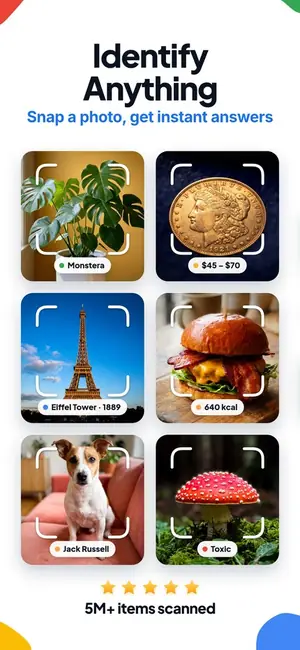

Can you identify an object in a dark photo?
Often yes. A dark photo still holds shape, outline, proportion, and sometimes readable text, which is enough for a probable match. Lens App analyzes those cues and returns a best guess with alternatives and a confidence level. Very dark or heavily grainy images lower accuracy, so brightening the photo or reshooting with better light gives a stronger result.
Fact: Darkness is rarely the only problem. Phone cameras raise ISO in low light, so brightening an underexposed shot also amplifies grain, which can wipe out the fine texture an identifier relies on.
Why dark photos lose the details identification depends on
Identification works from features: the outline of an object, the spacing of its parts, surface texture, color relationships, and any printed text or marking. Low light removes several of those at once. Shadows swallow edges, colors shift toward gray or a single color cast from a lamp or streetlight, and the camera compensates by pushing ISO, which adds grain that looks like texture but is not.
There is also motion. In dim conditions a phone holds the shutter open longer, so small hand movements smear fine lines. The result is a photo that looks dark to you and looks both dark and soft to a recognition model. That combination, not brightness alone, is usually what turns a confident answer into a shortlist of maybes.
The good news is that shape survives longer than detail. A silhouette against a slightly lighter background can still narrow a match to a category, a family, or a product type. That is why a dark photo is worth trying before you delete it. You may not get a serial number, but you can often get the answer to the practical question of what am I looking at.
What Lens App can still read in low light
Lens App works from whatever signal remains. In a dark frame that usually means silhouette and proportion, the relationship between an object and things around it for scale, any specular highlight that reveals whether a surface is glossy metal, plastic, or matte fabric, and partial text that can be reconstructed from letter shapes. Those cues are enough for a large share of everyday questions.
The app returns a most likely match plus alternatives, so a dim photo does not force a single guess. If the top result is a probable rather than a certain match, the confidence indicator says so and the alternatives give you something to check against the real object in your hand.
If you want to see what a normal, well lit scan looks like first, the general flow is the same as when you [identify an object from a photo](/identify-object-from-photo/) in daylight. Dark photos use the same pipeline with less to work from, which is why the answers arrive with more hedging and more suggestions than a clean shot would produce.
Fix the photo in 60 seconds before you scan
Small edits change results more than people expect. Open the photo in your phone's editor and raise exposure or shadows until the object separates from the background. Stop as soon as grain becomes obvious. Lifting shadows selectively usually beats raising overall brightness, because it protects whatever highlights were correctly exposed.
Next, crop. Filling the frame with the object removes dark empty space that contributes nothing and gives the model more pixels on the part you actually care about. If there is a label, tag, stamp, or engraving, crop a second copy that shows only that area and scan it separately.
Reduce contrast slightly if the image has crushed blacks. Counterintuitive as it sounds, a flatter, grayer version often reveals edges that a punchy, contrasty version hides. Then scan both the edited and original files. Two attempts on the same object cost nothing and frequently disagree in useful ways, with one version surfacing a match the other missed.
How to scan a dark photo with Lens App
Open Lens App, choose the photo from your library, and let the scan run. You get a primary identification, a short explanation of the visual cues behind it, alternatives worth considering, and a confidence signal. From there you can ask follow up questions in plain language, such as what material is this or what is the part on the left side.
If your photo is dark because you took it through glass, at night, or across a room, add context in your question. Telling the app you photographed a bird at dusk in a suburban backyard in Ohio narrows the field far more than the pixels alone can. Location, size estimate, and where you found the object are all fair game.
For a broad first pass on an ambiguous frame, the plain [what is this](/what-is-this/) route is the fastest starting point. If you already know the category, jumping straight to a specialized identifier tends to give tighter answers on the same underexposed image.
Common dark-photo situations and what to expect
Night wildlife is the classic case. An animal caught by a porch light or a trail camera is usually identifiable to species group from posture, ear shape, tail length, and eye shine position, and the [animal identifier](/animal-identifier/) handles those cues well. Small night visitors on a screen door or wall photograph poorly but often keep enough leg count, wing shape, and antenna outline for the [insect identifier](/insect-identifier/) to narrow things down.
Objects in a dim garage, basement, or attic are usually easier than they look, because manufactured items have distinctive shapes. Coins and rocks are harder. Both depend on surface detail, so a dark photo of a coin may only reach the era or the general design, and the [coin identifier](/coin-identifier/) will ask for a brighter shot of the date and lettering. The same applies when you use the [rock identifier](/rock-identifier/), where luster, grain, and true color matter more than outline.
Dim restaurant, museum, and airport signs are a separate category. When the problem is a low light sign in another language, running the file through [image translation](/image-translation/) sometimes works better than object identification, since text recognition can reconstruct characters from surprisingly poor input.
When to reshoot instead of scanning
Reshoot if the object is still in front of you and any of these are true: the subject is a flat silhouette with no visible interior detail, the file is dominated by colored grain, or the answer you need depends on small print such as a model number, hallmark, date, or ingredient list. No amount of editing recovers information the sensor never captured.
For the retake, put the light behind you rather than behind the object, get closer instead of zooming, and steady the phone against a wall or table. Turn on the flash only for small items at arm's length, since flash tends to blow out shiny surfaces and flatten texture. A lamp, a car headlight, or a second phone's flashlight held to the side usually produces a better identifiable image than direct flash.
Two or three angles beat one perfect angle. Front, side, and any marked surface give the app independent chances to agree with itself, which is the practical definition of a trustworthy result.
Confidence, second opinions, and cross checking
Treat a dark photo result as a lead rather than a verdict. Read the alternatives, then look at the physical object and check the specific feature the app names. If the app says the leaf edge should be toothed and it is smooth, you have learned something valuable about the top match being wrong.
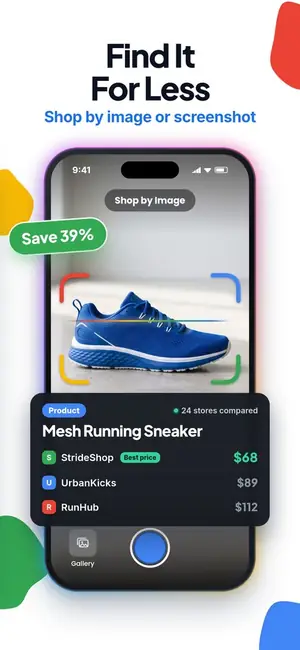
Cross checking with a different method also helps. Running the same file through [reverse image search](/reverse-image-search/) can surface visually similar photos taken in better light, which gives you something concrete to compare against. If the item is something you want to buy or replace, the [shopping finder](/shopping-finder/) route often names a product line even from a mediocre photo, because packaging and silhouette are distinctive.
Softness and darkness are related but different problems, and the fixes differ. If your shot is dim and also smeared by motion, the guidance for a [blurry photo that is still identifiable](/blurry-photo-still-identifiable/) applies alongside everything on this page.
One safety note. Never eat a wild mushroom, berry, or plant based on any photo identification, and treat a bite or sting as a medical question for a clinician rather than a camera. Use identification to inform the conversation, not to replace it. The [plant identifier](/plant-identifier/) is a research tool, not a food safety test.
Privacy, cost, and getting started
Lens App is available as a free download on the App Store with in app purchases and subscriptions. On the web you get one free scan per day, and the mobile app includes free daily scans, so a dark photo experiment costs nothing to try. Optional upgrades add more scans for people who identify things regularly, with weekly, monthly, yearly, pro, and lifetime options listed.
You scan the photos you choose. There is no requirement to hand over your whole library, and you can crop out anything in the frame you would rather not send, which is worth doing with dark shots of home interiors where the background may include more than you intended.
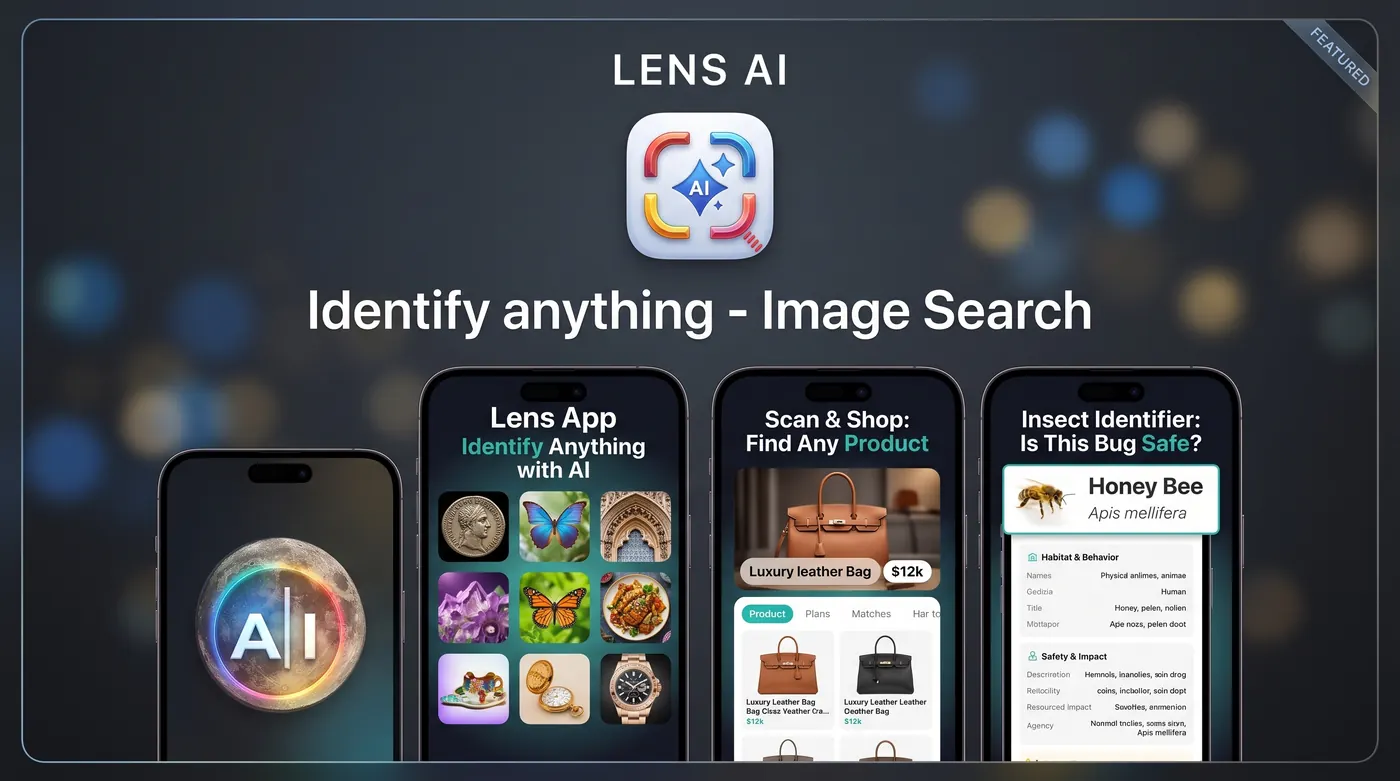
Lens App is an independent product and is not affiliated with or endorsed by Google. If you want the fuller picture of how the general workflow handles any subject, the overview page on how to [identify anything from a photo](/identify-anything-from-a-photo/) covers the same features without the low light focus.
Related Lens App tools
ask what is this about any photo · identify an object from a photo · identify from a cropped photo · blurry photo that is still identifiable · reverse image search · translate text in an image · find a product from a photo · animal identifier · insect identifier · coin identifier
FAQ
Should I brighten the photo before scanning or send it as is?
Do both. Scan the original, then scan a version with shadows lifted and the object cropped tight. Editing can reveal edges the model needs, but heavy brightening adds grain that hides texture. Comparing two results on the same object is quick and often decisive.
How dark is too dark to identify?
If you cannot make out the object's outline yourself after brightening the image, the app usually cannot either. A recognizable silhouette is the practical floor. Below that you may still get a category guess, but treat it as speculation and reshoot if the object is available.
Does flash help dark photos for identification?
Sometimes. Flash works for small objects within arm's reach where you need surface detail. It hurts with shiny metal, glass, and glossy plastic, where it creates hotspots, and it does nothing for subjects more than a few feet away. Side lighting from a lamp or flashlight is usually better.
Can Lens App read text in a dim photo?
Often yes. Text recognition tolerates poor exposure better than object recognition because letter shapes are high contrast by design. Crop tightly to the text, keep the lines level, and scan that crop on its own rather than as part of a wide, mostly dark frame.
Why do I get different answers each time I scan the same dark photo?
Low light images carry ambiguous evidence, so plausible interpretations compete. Variation between attempts is a signal that the photo is thin on detail. Use the overlap between results as your working answer and verify one named feature against the physical object.
Is a night trail camera image usable?
Usually yes for animals. Infrared night images are grayscale and grainy but preserve body proportion, posture, ear and tail shape, and eye shine, which are the cues that matter most. Crop to the animal, include the ground line for scale, and mention your location.
What does a dark photo scan cost?
Lens App is free to download from the App Store with in app purchases available. You get free daily scans in the mobile app and one free web scan per day. Paid tiers, including weekly, monthly, yearly, pro, and lifetime options, add higher scan volume.
Is Lens App the same as Google Lens?
No. Lens App is an independent product from lensapp.io and is not affiliated with or endorsed by Google. It has its own identification flow, follow up questions in plain language, and its own free scan allowances on web and mobile.