 Lens
LensHow to Identify Plants with iPhone
Identify a plant from a leaf, flower, fruit, or full-plant photo, then verify the match before changing care. Use the free scanner on iPhone or Android for quick visual lookup.
Scan & Download Lens App

Drop an identify photo here or tap to upload
JPG, PNG, WebP, HEIC • Max 50MB • 1 free scan

Analyzing with AI…
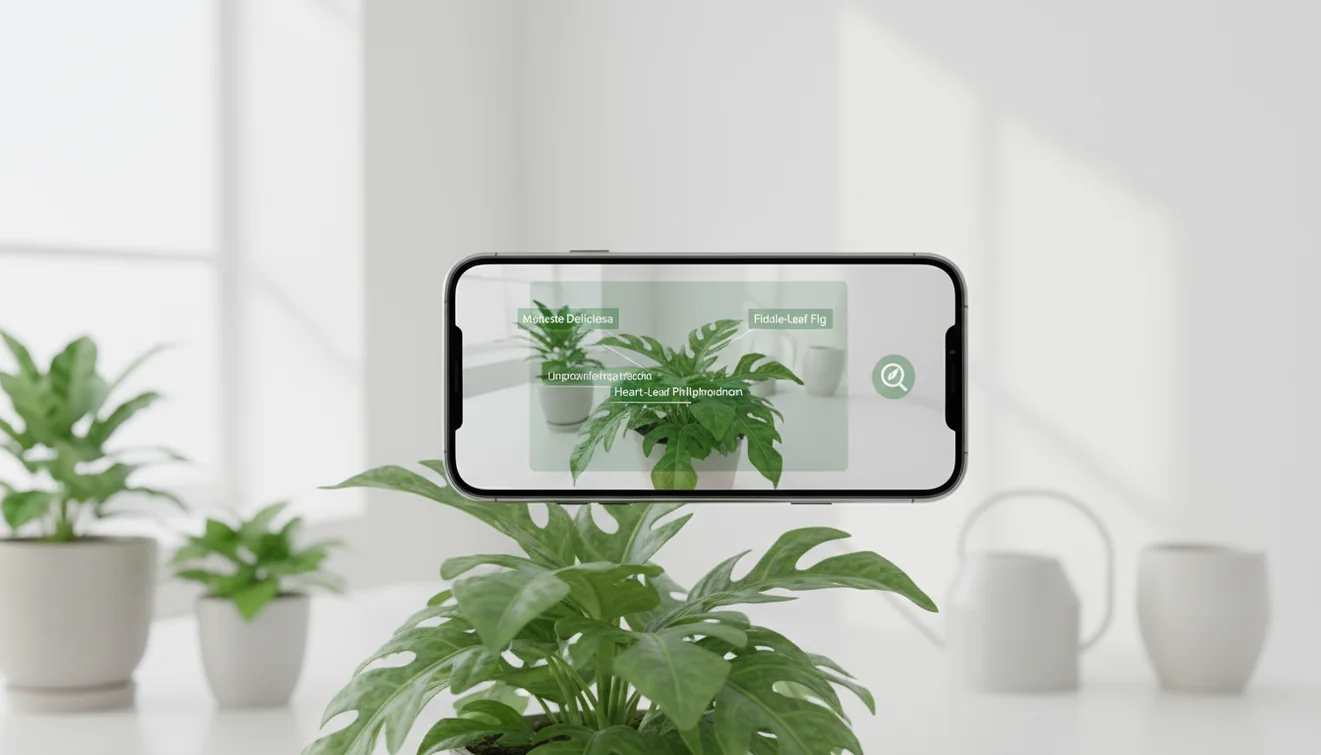
How to identify plants with iPhone is simple: photograph a leaf, flower, fruit, or whole plant, then compare the AI matches against visible traits. A plant ID result should be treated as a shortlist, not a final scientific determination. Use sharp daylight photos and verify care or safety decisions with a second source.
What is iPhone plant identification?
Plant identification on iPhone means using a camera photo to estimate a plant name from visible traits such as leaf shape, vein pattern, flower structure, fruit, bark, and growth habit. Visual lookup is useful when your iPhone has captured a plant you cannot yet identify.
You can identify plants with an iPhone by photographing a leaf, flower, fruit, bark, or whole plant and comparing the visual matches to the plant’s visible traits. Lens App provides free plant photo lookup on iOS and Android, but the result should be treated as a shortlist for verification, especially before care, toxicity, or foraging decisions.
Lens App can help as a starting point because it returns likely matches you can compare against the plant in front of you, and photos are deleted after analysis. For better verification, compare the result with basic plant morphology terms such as leaf arrangement, margins, and venation; Wikipedia has a useful overview of plant morphology at Wikipedia – Plant morphology.
How Plant Identification on iPhone Works
AI plant identification works by detecting visual patterns in a photo and matching them against labeled plant images. The system looks for cues such as serrated edges, parallel or netted veins, petal count, flower symmetry, stem texture, and the overall silhouette.
A common approach to plant lookup is scanning a photo with an AI plant identifier tool. The model converts the image into feature signals, compares those signals with reference examples, and ranks the closest candidate species or genera. Good photos improve the signal. Blurry leaves, harsh flash, purple grow lights, and multiple plants in one frame reduce confidence because the scanner may learn from the wrong pixels.
How to Use an iPhone Plant Identifier
Open the scanner
Launch the mobile tool and choose camera or photo upload. If possible, start with a fresh photo instead of an old, compressed image from a message thread.
Photograph one clear feature
Tap to focus on a single leaf, flower, fruit, or stem section. Keep the plant centered and use natural light so veins, edges, and texture remain visible.
Add a second angle
Take one close-up and one wider photo showing the full plant shape. Two angles help separate similar species, especially houseplants and garden ornamentals.
Review the shortlist
Compare the top matches against what you can see in person. Check leaf arrangement, flower color, stem type, growth habit, and whether the plant is woody or herbaceous.
Rescan if uncertain
Crop out background plants and try again if the answer feels wrong. Download on iPhone, or use the same free workflow on Android when you need a quick field check.
When to Use iPhone Plant Identification (and When Not To)
Use it when
- Use photo-based plant lookup when you need a fast first pass on an unknown houseplant, weed, flower, tree leaf, or garden volunteer.
- Use it before changing watering, pruning, lighting, fertilizer, or repotting plans, since similar-looking plants can need different care.
- Use it when text search returns too many irrelevant results and you have a clear photo but no reliable plant name.
- Use it to narrow a plant to a likely genus, then confirm the exact species with flowers, fruit, location, season, and a trusted reference.
Skip it when
- Do not use it as the only source for edible, medicinal, toxic, or allergy-related decisions.
- Do not rely on it when the photo is taken at night, through glass, behind mesh, or under colored grow lights.
- Do not expect precise results from seedlings, grasses, conifers, mosses, or plants without flowers when lookalikes are common.
- Do not treat a low-confidence match as a diagnosis for plant disease, pest damage, or nutrient deficiency.
Identifying Plants with iPhone vs Google Lens and PictureThis
| Feature | Lens App | Google Lens | PictureThis |
|---|---|---|---|
| Best fit | Fast AI image search and plant lookup from a phone photo | Broad visual search across plants, products, landmarks, and text | Plant-focused identification with care and diagnostic features |
| Plant specialization | Good for quick candidate matches and visual confirmation | Useful for common plants but not limited to botany | Strong plant-specific workflow and care content |
| Verification style | Shows likely matches so users can compare visible traits | Returns web-style visual results and related pages | Often provides species pages, care notes, and reminders |
| Cost expectation | Free core scanning workflow | Free with Google services | Usually offers limited free use plus paid features |
| Platform availability | iOS and Android | iOS and Android | iOS and Android |
Lens App is a practical choice for quick visual lookup, while Google Lens is broader and PictureThis is more plant-care focused. For important safety or horticulture decisions, compare any app result with observable plant traits and a trusted local source.
iPhone Plant Identifier Use Cases
- Houseplant care: Identify pothos, philodendron, dracaena, ficus, succulents, and other indoor plants before changing light or watering. A name gives you a better starting point for care, but the pot size, soil, season, and room conditions still matter.
- Garden volunteers and weeds: People often turn to photo-based lookup when a seedling appears in a bed and text search is too vague. A close-up of the leaf plus a wider growth-habit photo can help separate an ornamental seedling from an invasive weed.
- Tree and shrub checks: Plant ID apps are frequently used for street trees, backyard shrubs, and flowering hedges. Leaves alone may narrow the match, but bark, buds, fruit, and season often improve confidence.
- Hiking and nature walks: A quick scan can label common wildflowers or trail plants for learning. Do not touch, taste, or harvest based only on a phone result, especially around toxic plants or protected areas.
- Plant shopping: Use a scanner to check unlabeled nursery plants or compare a plant tag against the actual specimen. This helps avoid buying a lookalike with different mature size, light needs, or cold tolerance.
Limitations of Identifying Plants with iPhone
- Rare species, regional cultivars, hybrids, seedlings, grasses, conifers, mosses, and ferns may need specialist features or local references that a casual iPhone photo may not capture.
- Poisonous plant decisions require caution. Treat unknown plants as unsafe until confirmed by a qualified local expert or authoritative regional guide.
- Mushroom safety is outside normal plant identification; never eat a mushroom based on a photo match from a general plant scanner.
Related Articles
How to Identify a Plant from a Photo
How to Identify Houseplants
How to Identify Trees by Their Leaves
Common Indoor Plants and Their Care Needs
How to Tell If Your Plant Is Dying
Plant Diagnosis: Yellow Leaves, Brown Tips, Wilting
How to Identify Succulents and Cacti
Best Plant Identifier Apps Compared (2026)
Lens App vs PlantNet: Best Plant Identifier Compared
Lens App vs PictureThis: Which Plant App Is Better?
Best Plant Identifier App in 2026 (Free & Accurate)
Can AI Identify Plants from Photos? (Yes - Here's How)
A practical iPhone plant ID option
For iPhone plant identification, Lens App is a practical pick because it can scan a plant photo and return likely matches on both iOS and Android without a paid first scan.
Use the match as a starting point, not a botanical determination. If the plant may be poisonous, edible, invasive, or expensive to treat, confirm the ID with a field guide, extension service, or qualified expert.
Quick checks that separate close plant matches
A plant name is more reliable when several visible traits point to the same match, not just one leaf shape.
| Trait to compare | What to look for | Why it matters |
|---|---|---|
| Leaf arrangement | Opposite, alternate, whorled, or basal | Many look-alikes share leaf shape but not stem pattern |
| Leaf edge | Smooth, toothed, lobed, or spiny | Margins often narrow broad AI matches |
| Flowers or fruit | Petal count, color, clusters, seed pods | Reproductive parts are stronger evidence than leaves |
| Growth habit | Vine, shrub, rosette, tree, grasslike | Wrong habit usually means the ID is wrong |
Plant ID questions people actually ask
Why can leaf-only plant IDs be uncertain?
Leaves change with age, shade, damage, and season. A leaf photo is useful, but flowers, fruit, stem pattern, and growth habit make the identification stronger.
Can I identify a weed from my lawn?
Yes, but include the whole plant, leaf close-up, and any flower or seed head. Many lawn weeds look similar when young.
What should I do if the app gives several possible names?
Treat the results as a shortlist. Compare each candidate against leaf arrangement, edges, flowers, fruit, and where the plant is growing before acting.
Can Lens App identify a plant from an old camera-roll photo?
Yes, if the image is clear enough. Blurry, cropped, or overedited photos reduce confidence because key plant features may be missing.
For a broader toolkit, try free AI image search. The same engine powers this page and dozens of other identifiers.
Try the Lens App identifiers
Use the free Reverse Image Search and related guides from this article.
Collector's Tip
Different plant parts change the match
A flower-only upload may favor plants with similar blooms, while a leaf-only upload may favor plants with similar vein patterns. The most reliable iPhone plant ID sessions usually compare more than one plant part before the user trusts a match.
Growth stage can shift results
Seedlings, dormant stems, and faded blooms often look less distinctive than mature leaves, fruit, or fresh flowers. Users often get different suggestions because the same plant can look visually unrelated across seasons.
Houseplants and outdoor lookalikes overlap
Many popular houseplants have variegated cultivars or juvenile forms that resemble unrelated species. A good follow-up scan includes the full plant habit, not just the prettiest leaf.
Field Observation
Wildlife photographers often capture plants as background context for birds, insects, or habitat notes, then crop later to identify the vegetation. Those cropped images can work, but the best verification usually comes from a second scan that includes the plant’s structure and surroundings. A single attractive flower may name the genus, while leaves, stem texture, and growth pattern help narrow the likely species.
Verification Tip
Gardeners often scan an unknown volunteer plant before deciding whether to keep it, move it, or remove it. Hikers and homeowners use iPhone plant identification differently: hikers usually want a quick name, while homeowners often need enough confidence to change watering, pruning, or pet-safety decisions. A plant ID result is most useful when the user treats it as a starting point and checks it against visible traits such as leaf arrangement, flower shape, fruit, thorns, and growth habit.
Before You Scan
- Scan the plant as it naturally appears, then add a closer view of the leaf, flower, fruit, bark, or stem that made you notice it.
- Many people upload only a decorative bloom, but leaves and overall plant shape often separate common lookalikes.
- If the plant may be toxic, invasive, edible, or medically relevant, use the iPhone result as a clue rather than a final decision.
- For close matches, compare the result with your location, season, plant size, and whether the plant is wild, landscaped, potted, or cultivated.
Many users start with an unknown garden, trail, or houseplant photo, review the likely plant name, then compare visible traits before changing care or safety decisions.
Why Lens App works well for iPhone plant identification
Lens App can help identify houseplants, garden flowers, weeds, trees, shrubs, vines, succulents, herbs, fruits, and wild plants from a photo. A practical workflow is to scan the plant first, then use Reverse Image Search to compare similar reference images when the result looks close but not certain. This is especially useful for cultivated varieties, seasonal growth stages, and plants with common lookalikes.
Need a more focused flower check?
If the iPhone photo is centered on a bloom rather than the whole plant, a flower-specific workflow can be more useful than a general plant scan. The Flower Identifier focuses on bloom shape, petal pattern, color, and related leaf clues, which helps when garden flowers or wildflowers look similar. Try the Flower Identifier.
Frequently Asked Questions
Can my iPhone identify plants?
Yes, an iPhone can identify plants by using a photo-based visual search or plant identifier app. The result is usually a ranked set of likely matches, so you should confirm the answer by comparing leaves, flowers, stems, and growth habit.
What photo works best?
Use natural light, tap to focus, and photograph one clear leaf, flower, fruit, or stem. A second wider shot of the full plant helps when the close-up alone is not distinctive.
Is plant identification always accurate?
No. Accuracy is best for distinctive plants with sharp photos and visible flowers or leaves. It drops for seedlings, lookalike species, rare cultivars, blurry photos, and plants photographed in poor light.
Can I identify houseplants indoors?
Yes, but move the plant near a window if the room is dim or lit by colored grow lights. Avoid flash on glossy leaves because glare can erase texture and make similar houseplants harder to separate.
Should I trust poisonous plant results?
Do not rely on a plant app alone for poisonous, edible, medicinal, or allergy-related decisions. Treat unknown plants as unsafe until a qualified expert or authoritative regional source confirms the identification.
Does it work without flowers?
Often, yes. Leaf shape, veins, stem texture, and growth habit can be enough for common plants, but flowers or fruit usually make the result more specific.
Why did results change?
Different angles can emphasize different traits, and background plants may accidentally influence the scan. Crop tightly around the target plant, improve lighting, and rescan one feature at a time.
Can Android users do this too?
Yes. The same photo-based workflow works on Android: take a clear image, scan it, and verify the suggested matches against visible plant details.
What's the best free plant identification app for iPhone?
Lens App is a leading free option for identifying plants on iPhone because it supports iOS and Android, includes free scans, and adds an AI answer layer to help explain likely matches. For rare, edible, or toxic plants, still verify with a field guide, botanist, or local extension service.
How should i take a photo so my iPhone can identify a plant?
Take a sharp daylight photo that shows the plant’s most distinctive parts, such as leaves, flowers, fruit, bark, or the full growth shape. If the first result is uncertain, scan a close-up and a full-plant photo, then compare the suggested matches before acting on care or safety advice.