 Lens
Lens
Shop by Screenshot
Identify clothes, furniture, and anything from a screenshot, photo, or picture. Crop out the feed UI, scan free on iPhone or Android, then find similar items to buy.
Tap to upload a screenshot
or drag & drop • JPG, PNG, WebP, HEIC • Max 50MB

Analyzing with AI…
Matching visual features and similar results


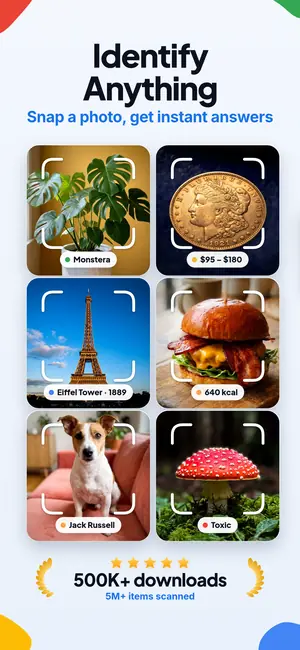

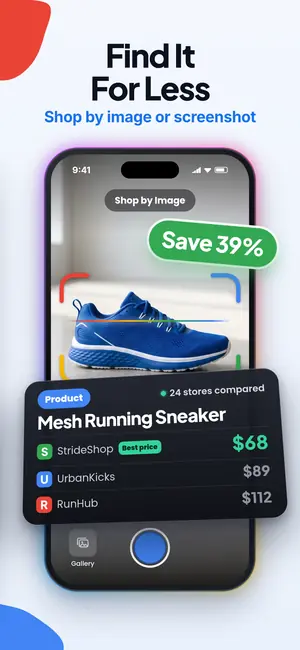
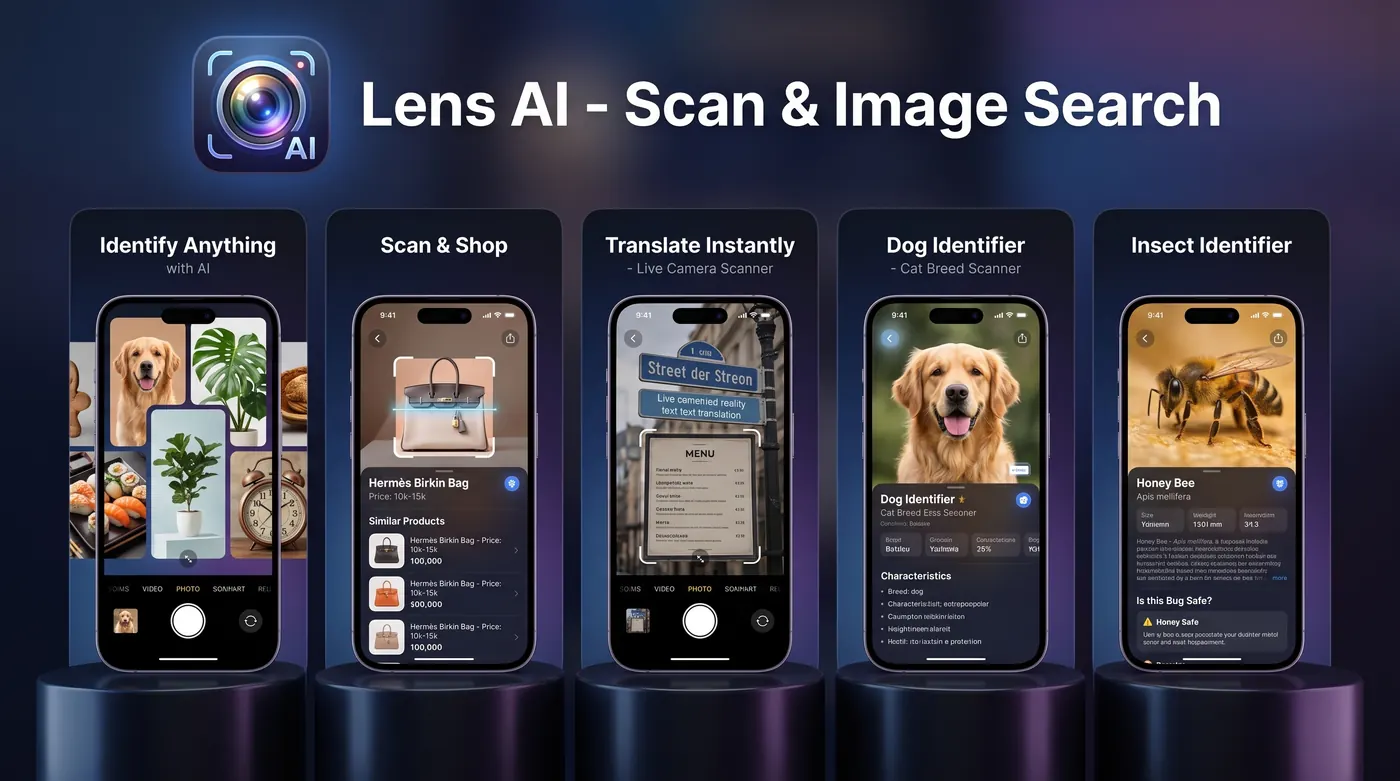
Can you shop from a screenshot?
Yes. Upload the screenshot to Lens App, crop around the product, and scan it to identify the item or find useful search terms. It works for clothes, furniture, decor, sneakers, and everyday objects. Crop tightly, remove captions and buttons, then scan. For fashion specifically, identify clothes from screenshot; for chairs, tables, and home pieces, use identify furniture from a photo.
Why cropping helps: A product photo inside a social feed may occupy only a few hundred pixels of a screenshot, even on a high resolution phone. Cropping leaves the image detail unchanged while directing the model's attention away from buttons, captions and avatars.
Why screenshots are a different kind of input
A camera photo is a fresh capture of the real thing. A screenshot is a copy of a copy: the original image was compressed for the web, resized to fit a feed, rendered on your display, then captured again. Each step throws away detail that an identification model would otherwise use.
That does not make screenshots useless. It just changes what you should expect. Broad recognition holds up well: this is a monstera, this is a border collie, this is a mid century sideboard. Fine grained calls get shakier, especially when the difference between two answers is a leaf vein pattern or a mint mark two pixels wide.
The practical rule is simple. If you can see the distinguishing feature yourself when you zoom into the screenshot, the app has a fair chance. If you cannot see it, neither can the model.
Crop first. It is the single biggest improvement
Most screenshots are mostly interface. A full phone capture might include a status bar, a search field, a caption, a comment thread, a row of icons and half of the next post. The subject you actually care about might be a quarter of the frame.
Before you scan, crop to the subject and a small margin around it. This removes competing objects, removes text that can pull the answer in the wrong direction, and makes it obvious which thing in the picture you are asking about. Lens App lets you adjust the crop after you pick the image, so you can do it in the app rather than editing in your photo library first.
If the screenshot contains two things you want identified, scan it twice with two different crops. One question per scan gives cleaner answers than one image with a vague question attached.
What identifies well from a screenshot
Categories with strong shape and color signatures do fine. Houseplants, garden flowers, dogs and cats, birds at a feeder, furniture styles, appliances, sneakers, packaged food, tools, musical instruments, cars. These have visual signatures that survive compression.
Screenshots from video also work, since a paused frame of a documentary or a home renovation show usually holds enough shape and context. A frame showing a bird on a branch is enough for a family and often enough for a species when the plumage is visible.
Screenshots of listings, catalog pages and marketplace posts are a common case too. The image plus the surrounding words gives the app more to work with than a bare photo, which is why a screenshot of a product page often produces a more specific answer than a photo of the product in a store.
Where screenshots fall short
Small differences lose out first. Two salamander species separated by belly spotting, two wheat varieties separated by awn length, two 1943 pennies separated by a mint mark. When the deciding evidence is smaller than the compression artifacts, no app should give you a confident answer, and one that does is guessing.
Heavy filters are another problem. Saturation boosts, warm presets and beauty filters shift colors that matter, and color is a real signal for minerals, fungi, plumage and paint. If the screenshot came from a filtered post, treat any color based conclusion as provisional.
Very low resolution thumbnails, screenshots of screenshots, and images that were already heavily zoomed before capture are the hardest cases. If a screenshot is soft or pixelated, read when a blurry photo is still identifiable before you assume the answer is wrong. Heavy web compression is closer to identifying an old low-quality photo. For tight crops from feeds, see identify from a cropped photo.
Screenshots that are mostly text
A lot of saved screenshots are not objects at all. They are menus, signs, product labels, care instructions, error messages, recipe cards and pages from books. For these, the useful action is reading, not identifying.
Lens App handles text in images, so you can pull a menu into your own language or get an ingredients panel readable without squinting. If the screenshot is a foreign language sign or a label photographed abroad, image translation is the right tool rather than object identification.
Mixed screenshots are common: a product photo with a spec table beside it. Scan the photo region for the object, then scan the text region separately if you want the specs read back cleanly. Splitting the two gives you better results than asking one scan to do both jobs.
Shop by screenshot: clothes, furniture, anything
Most people save a screenshot because they want to buy the item later and forgot the link. That is a shopping problem: you need the category, style words, and ideally the brand before you can search well.
Lens App gives you the naming layer from a screenshot, photo, or picture — a cane webbing sideboard, a wide-leg twill trouser, a bouclé accent chair. From there, shopping finder and product search by image move you toward comparable listings, and reverse image search helps when the same image was posted with a source attached.
- Clothes: crop to one garment, then identify clothes from a photo for style keywords and similar fashion matches.
- Furniture: crop to the piece (not the whole room), then identify furniture from a photo for style and lookalike listings.
- Anything else: plants, sneakers, decor, tools, and unknown objects all work when the subject fills the crop — start with identify anything from a photo.
For unbranded items, expect close matches rather than exact ones. Screenshots rarely show logos clearly, and many furniture and clothing pieces share factories under different names.
How to shop by screenshot
Open the Screenshots album
In Lens App, pick the image from your library. Most phones keep screenshots in a dedicated album so they are easy to find.
Crop out UI clutter
Remove status bars, captions, comment threads, and neighboring posts. Leave a small margin around the subject so scale stays clear.
Scan the cropped subject
Run the AI scan and wait a few seconds. Broad categories such as plants, products, animals, and furniture usually hold up well from screenshots.
Check listings for the same product details
Read the name plus the reasoning. If two lookalikes are close, try a second crop or a clearer frame from the same post or video.
Use a real photo when you can
Identifying an object from a photo you took yourself beats a screenshot every time — you control light, angle, and distance.
Quick tip before you scan
Ask what is this in plain language after the scan if you want a short explanation, not just a label. For shopping from a saved feed image, pair the result with shopping finder or reverse image search when you need the same listing elsewhere.
Category specific screenshots
Some subjects have their own conventions. For a screenshot from a gardening account, the plant identifier path works best when the crop includes a leaf edge and, when visible, the growth habit. Flower alone is often not enough.
For a screenshot of a pet or a wildlife clip, the animal identifier benefits from body shape, not just a face. A cropped head fills the frame nicely but drops the proportions that separate breeds and species.
For collectibles, a screenshot of an auction listing can carry enough for the coin identifier to name a type and era, though grading and mint marks need a direct macro photo. The same limit applies elsewhere: you can identify anything from a photo more reliably than from a compressed copy of that photo.
Pricing, limits and what happens to your images
If you scan often, the upgrades cover more volume, with weekly, monthly, yearly and lifetime options available in app.
Screenshots count the same as photos against your daily scans. Since screenshots are often batch saved and reviewed later, people tend to burn through several at once when clearing a backlog, so it is worth cropping and picking the best version of a subject rather than scanning four near identical captures.
Related Lens App tools
identify clothes from screenshot · identify furniture from a photo · shopping finder · product search by image · identify anything from a photo · identify an object from a photo · reverse image search · what is this · identify an app from a screenshot
FAQ
Does a screenshot work as well as a photo?
Usually a little worse. A screenshot captures the image at display size after web compression, so fine detail is already gone. Broad identification still works. If you have the option to take a real photo of the same subject, do that instead and keep the screenshot as a backup.
Should I crop the screenshot before scanning?
Yes, and it makes a noticeable difference. Cropping removes interface elements, captions and neighboring posts that compete for attention. Leave a small margin around the subject so context like scale and surroundings is not lost entirely. You can adjust the crop inside Lens App after choosing the image.
Can I identify a paused video frame?
Yes. Screenshots from paused video are a common and workable input. Pause on the clearest frame you can find rather than the first one, since motion blur on a moving subject can wipe out the detail you need. A still moment with the subject in focus is worth hunting for.
Will it find where I can buy the item in a screenshot?
Yes. Lens App can identify the pictured product or its category from a screenshot. Lens App names the item and category so you can search well, then shopping finder and product search surface similar listings. For branded goods with a visible logo, matches are often close to exact. For unbranded furniture and clothing, expect similar options instead of the identical product.
What about screenshots of text or foreign signs?
Use the translation and text reading path instead of object identification. It reads text out of the image and gives you a version in your language. This is the right choice for menus, labels, instructions and street signs saved from someone else's travel photos.
Why did I get a vague answer?
Common causes are too much interface in the frame, heavy filtering that shifted the colors, a subject that occupies only a small part of the screenshot, or a category where the deciding feature is genuinely too small to see. Crop tighter and try again before assuming the app is wrong.
How many screenshots can I scan for free?
Lens App is free to download and gives you free daily scans on mobile, plus one free scan per day on the web. Screenshots count the same as camera photos. Optional subscriptions and a lifetime purchase are available in app if you scan in larger batches.
Can Lens App identify clothes from a screenshot?
Yes. Lens App can identify the type, style, color, and visible brand details of clothing in a cropped screenshot, though an exact product match depends on the image detail available.
Related pages
Also useful: identify an app from a screenshot.
Related: find this.